|
Dear School Certifying Official,
Enrollment Manager (EM) has been live since March 6, and we hope you are impressed with its functionality and interface. Below we will revisit material from the March Office Hours and the EM Experience sessions to help you use the EM platform more effectively.

Customer Experience Group (CEG)
The CEG is a team of Subject Matter Experts (SMEs) that have been fielding calls from SCOs since the initial rollout.
If you need assistance with Enrollment Manager, please contact the Customer Experience Group, by calling the SCO hotline, toll-free at 1-888-442-4551, Monday – Friday, 8 a.m. – 5 p.m. ET. Those calling from outside the United States can reach them by calling 001-918-781-5678.
Please remember, you must contact the SCO Hotline to obtain a ticket number and the link to the CEG virtual room to receive assistance. Once there please read the banner and screen for additional instructions on how to receive one-on-one assistance with a SME.
|

March Office Hours
If you missed March Office Hours, you can watch the recorded video of it here. The following is a link to the presentation: March Office Hours
Agenda:
- Debt Management Center (DMC)
- Enrollment Manager Scenarios
- Enrollment Manager FAQs
- Enrollment Manager Resources
|

Important note from Debt Management Center
The Debt Management Center email inbox for schools is no longer monitored. All disputes and inquiries should be submitted through Ask VA.
|
Enrollment Manager scenarios
Login through the VA Education Platform Portal:
-
All users will navigate to the VA Education Platform sign in page and select SSOe.
-
All users will login to the VA Education Platform Portal using your ID.me or Login.gov account.
- Once on the VA Education Platform Portal, new SCOs will request access to Enrollment Manager by selecting “Request Access”.
- SCOs with “active” VA-ONCE credentials will log into Enrollment Manager using their VA-ONCE credentials. Should a SCO’s legacy account not gain them access to EM, they must use the “Request Access” link for EM approval.
|

If you have further questions...
The Enrollment Manager User Guide is a great resource for quick answers. To search a specific issue, click "Control + F" on your keyboard and type in what you are searching for. You can also access specific support by clicking on topics in the Table of Contents.
We encourage you to manually bookmark the VA Education Platform Portal and save the EM User Guide to your Favorites.
For ID.me support: ID.me Help Center
For Login.gov support: Login.gov help
For Enrollment Manager questions and answers, please review the Enrollment Manager FAQ page. You can use “Control F” to search keywords. Office Hours questions are answered on the Office Hours FAQ page which is also key word searchable.
We encourage you to bookmark both webpages.
|

Gaining access to Enrollment Manager
To gain access to EM, an SCO must already be in WEAMS.
To gain access to EM, a Read-Only SCO must either already be in WEAMS or have recently provided VA Form 22-8794.
No paperwork is ever needed to gain EM access for an Asst SCO/Work Study. Do not send certificates to an ELR.
During December Office Hours we played a demo video on “Multifactor Authentication.” That video can be viewed on Facebook. Be sure to save this one as well.
|

The Enrollment Manager Experience
If you missed an EM Experience Session from February, relative to your facility type, you can watch the recorded videos below:
Watch the Billie, the GI Bill® Chatbot demo video to learn more about Billie and how it can help you when using EM.
|
SCO annual training requirements and self-certification steps
For more information about SCO training requirements, please visit this webpage.
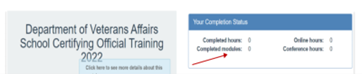
Note: You can view the number of modules completed in the SCO Training Portal in the Your Completion Status table.
How to self-certify:
- Log in to the SCO Annual Training Portal.
- Select Office Hours, Conference Sessions or Supplemental Training.
- Locate the applicable session and click “Begin”.
- Verify that you selected the correct training session, then click “continue”.
- Click “Yes” you completed 100%, then click “Submit”.
- Enter the Date of Training, then click “Submit”.
- Download your results and retain the certificate.
Thank you again for your collaboration and patience as we made this transition to Enrollment Manager. If you need assistance with Enrollment Manager, please contact the Customer Experience Group (CEG) toll-free at 1-888-442-4551 or 001-918-781-5678 for international callers, Monday – Friday, 8 a.m. - 5 p.m. ET.
Respectfully,
National Training Teams - Schools
Education Service
|