|
Having trouble viewing this email? View it as a Web page.
 January 20, 2026
In This Issue
All Employers | All Insurance Benefits
Welcome to My Benefits Employer News, a newsletter to keep you informed about ETF’s new insurance administration system. Save time by only reading the articles relevant to you—the first line of each article identifies which employers and benefits the article applies to. View previous issues.
Document Center and Document Verification
All Employers | All Benefits
The Document Center is where a member’s documents live in My Insurance Benefits. These documents often pertain to Qualifying Life Events (QLEs) such as marriage, birth, or divorce with official documents for those QLEs, such as marriage certificates, birth certificates, or divorce decrees.
To view a member’s documents as an employer:
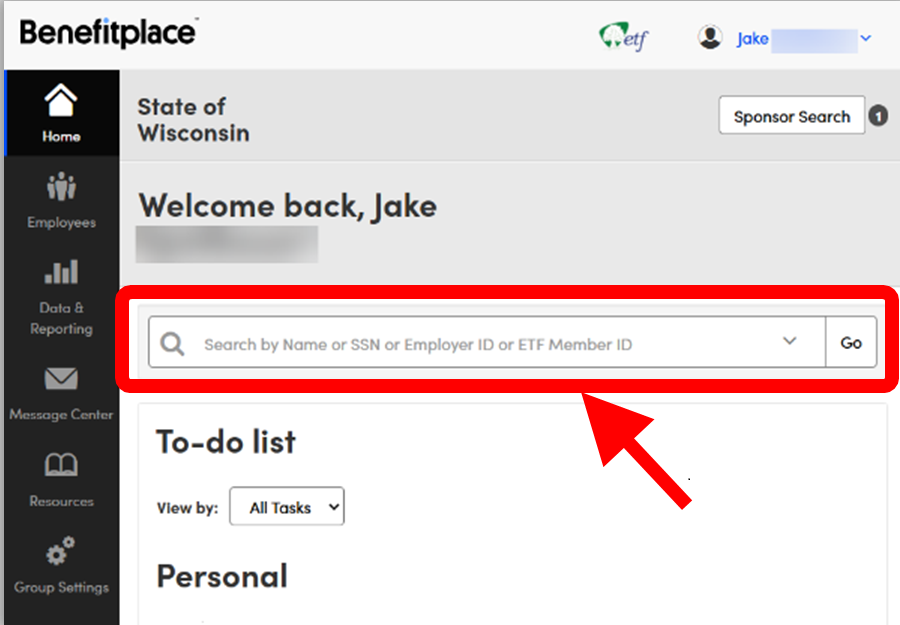
Search member to open their record.
1. Open a member’s record by searching for the member. You can find them using their name, Social Security number, Employer ID, or ETF Member ID.
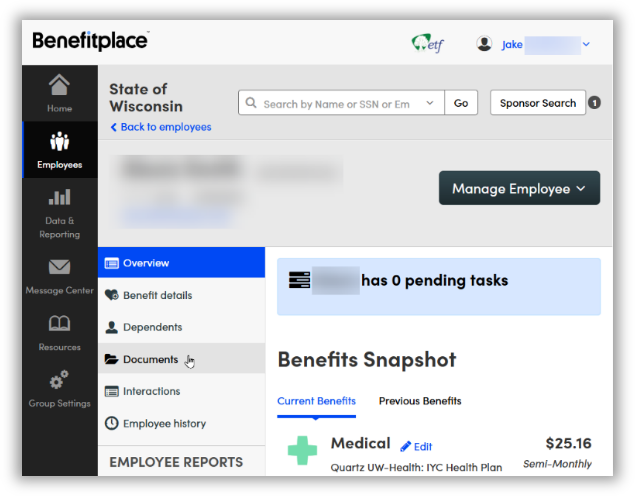
Click on "Documents" navigation tool.
2. Once the member’s profile opens, select “Documents” from the navigation tools to open the Document Center.
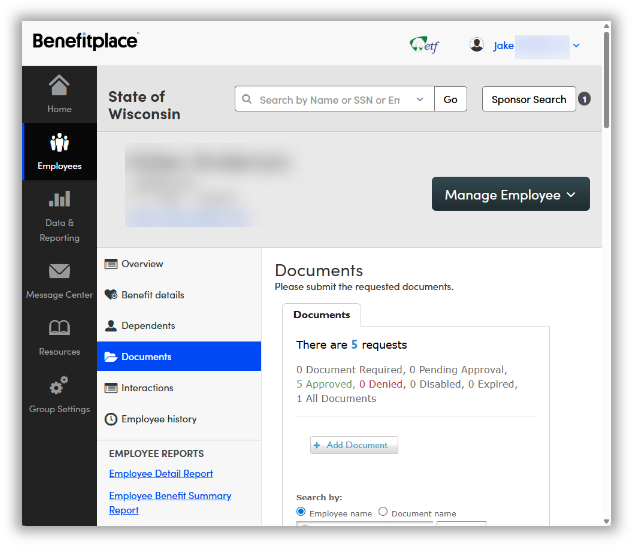
Scroll down to view member's documents.
3. Once the Document Center opens, you can see a list of documents associated with that member. Scroll down to view them.
Both members and employers can upload documents into the Document Center. ETF recommends that the member always upload their documents, and then the employer verifies and approves them.
Document verification is an important employer task. When a member uploads their documents, My Insurance Benefits will generate an employer task. The employer then verifies them by looking for correct names, dates, and document type. For example, a divorce QLE requires a divorce decree, not a screenshot from CCAP.
Employers should only approve documents with accurate information and that are of the appropriate type for the QLE.
Dependent Verification for Enrollments Reminder
All Employers | All Benefits
When My Insurance Benefits is live, all new and existing members that add a dependent will be required to provide documentation to show that the dependent is eligible for coverage. HR administrators will be responsible for verifying dependents and the supporting QLE (qualifying life event) documentation within My Insurance Benefit’s document center (see above article).
This dependent verification policy was established to reduce the risk of fraud, human error, or late updates to coverage. Dependent verification is a My Insurance Benefits feature that follows the industry standard, and benefits members by reducing overall costs that might occur due to fraudulent claims or benefits paid to those who are ineligible.
To ease the transition, all existing dependents are considered verified. For more information, visit the Life Events Guide on the ETF website.
ETF to Take Over COBRA Notifications
All Employers | All Benefits
As part of the My Insurance Benefits launch, employers will no longer administer COBRA. Starting on July 1, 2026, ETF will assume accountability for issuing COBRA notifications to eligible subscribers and dependents. This service will be offered through a third-party vendor, Voya.
While the administration of COBRA is changing, eligible benefits, and events that trigger COBRA notifications will not change. Employers were notified earlier this month to allow time to prepare for the upcoming change. See the January 12 employer news.
If you have any questions or concerns, please contact the ETF Employer Insurance Unit at etfsmbemployerinsurance@etf.wi.gov for assistance.
Submit Your Updates Through ICI and Accident Plan Templates
Local & Non-STAR Employers | ICI and Accident Plan
Most local and non-STAR employers that offer income continuation insurance (ICI) and Accident Plan benefits received templates pre-populated with previously submitted information. You should regularly review and update this data to maintain its accuracy. Please complete as many of your initial enrollment file updates as possible by 7:30 p.m. on Monday, February 2, 2026. ETF will generate the first local employer enrollment files for My Insurance Benefits soon thereafter. The more complete your enrollment file entries, the fewer coverage discrepancies you will need to resolve later.
If you did not receive an email requesting updated ICI and Accident Plan templates, expect to receive further directions soon.
Local Employers Update: My Insurance Benefits Recording Now Available
Local Employers | All Insurance Benefits
A recording of the recent My Insurance Benefits for Local Employers Update is now available. This session walks through what’s coming with My Insurance Benefits, which will go live for local employers on July 1, 2026, and what it means for you. The update covers the benefits included in the new system, employer and employee roles, key changes to expect, upcoming training opportunities, and steps employers can take now to prepare for a smooth transition.
Employer Transaction Application Demographic Errors - Quick Reference Guide
All Employers | All Insurance Benefits
When adding new employee records to the Employer Transaction Application (ETA) via a “Conversion” or “Add New Employee” transaction, you may receive a business validation message that states there is a demographics data mismatch. This Tips for Resolving ETA Demographic Errors is available to help you resolve the discrepancy.
Employer Transaction Application Demonstration Video Available
Local & Non-STAR Employers | All Insurance Benefits
The Employer Transaction Application (ETA) is available for most employers to update employee demographic and eligibility information, new hires, and employee terminations*. Please complete as many of your initial ETA entries/updates as possible by 7:30 p.m. on Monday, February 2, 2026. ETF will generate the first local employer conversion files for My Insurance Benefits soon thereafter. The more complete your ETA entries, the fewer employee and coverage discrepancies you will need to resolve later. A recording of the December 2025 Employer Transaction Application (ETA) Demonstration is available for your reference.
If you did not receive an email inviting you into the ETA to proceed with updates, expect to receive further directions soon.
*Note: ETA data validations will prevent you from entering terminations that are more than 90 days in the past. If you have a termination that is older than the 90-day limit, use this Term 90+ Days template to enter your employee information, and email it to ETFSMBIASEmployerSetupQuestions@etf.wi.gov. ETF staff will then key these transactions.
Other Resource Links
All Employers | All Benefits
Frequent Questions
All Employers | All Insurance Benefits
Q: Have there been instances identified why an employee would not be able to enter their own benefits?
A: Most employees should be able to enroll in benefits themselves. There may be limited exceptions for an employee who doesn’t have an email address or who does not have access to a computer. An HR administrator would be able to assist the member in My Insurance Benefits, as long as they have proper documentation of the benefits elected.
Q: Is there a My Insurance Benefits mobile application? If not, is the website mobile friendly?
A: While we do not have a specific mobile app available for My Insurance Benefits at this time, the site is mobile-responsive, meaning it adjusts to many tablet and smartphone browsers automatically.
All Employers | All Insurance Benefits
- A feature of My Insurance Benefits is that it will allow you to upload required documents.
- Once My Insurance Benefits is live, when you experience a life change such as a marriage or new baby, you will use the system to review and change your benefits.
ETF will continue to provide more detail on the above, communicate additional changes, and ensure you are prepared for the transition.
Local Employers: If you need support related to My Insurance Benefits, please contact ETF’s employer liaisons at ETFSMBIASEmployerSetupQuestions@etf.wi.gov.
State Employers: If you need support related to My Insurance Benefits, please contact the IAS Project Manager with whom you currently work.
|