|
"Analytics is 50% math and 50% communication. If a person cannot express their ideas in written or presentation format, it doesn't matter if they can do the math."
-Mia Umanos, CEO and 2022 Tory Burch Fellow
Please ask your staff and coworkers to sign up for our GovDelivery notifications. This will ensure they receive the latest updates about the ESIT DMS system as well as our monthly Known Issues Document.
If your program is implementing changes and you can anticipate that administrative changes in child records will be required, please notify the ESIT Help Desk ahead of time so we can anticipate the influx in requests.
Check out our ACORN trainings and publications.
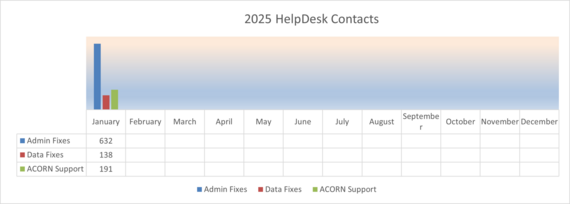
🎉 In January 2025, our dedicated ESIT Help Desk team processed a total of 961 requests! 🎉
Here's a breakdown of the support we provided:
- 🛠️ 138 Data Fix Requests,
- 💻 191 ACORN Support Requests,
- 📝 396 Administrative Requests,
- 🏫 236 School District Access to IFSP Requests.
2025 Help Desk Admin and Data Fixes
The compliance period for FFY 2024 is now in effect through March 31, 2025. During this time, we will pull reports from Indicator 1, 7 and 8 (compliance indicators) from the DMS and vet them for accurate data entry. Users can be proactive in anticipation of the upcoming compliance period and ensure that all data is entered accurately and in a timely manner. If data fixes are needed, these should be requested as soon as possible to allow time for the work to be completed. Users have access to the federal indicator reports in the DMS and can pull the data at any time. For assistance with accessing the reports, please contact the ESIT Helpdesk.
To help us maintain accurate and reliable data, please read through the following tips around referral and evaluation data entry:
-
For evaluations, there is a timeline for entering eligibility data that we want to point out:
Within ten (10) business days of the event, enter eligibility information into the DMS including children referred and not found eligible.
-
Referral timeline, we are getting a higher number of reset timeline requests for records that do not have record of a reactivation. It is important that records are closed in an appropriate amount of time after all attempts to contact have been unsuccessful. This way, when a new referral comes through, the record can be reactivated so it will accurately reflect the updated timeline.
Exit children from the DMS by documenting and submitting to the DCYF, upon request, the following:
For children who are referred but do not yet have an IFSP, a child’s record can be closed after three (3) failed attempts using at least two (2) different means of communication over a period of at least ten (10) business days.
This guidance is found directly from the contract material found on our website: ESIT Provider Agency - ESIT Service Provider Subcontract Requirements.
What happens when a record is reactivated in our DMS system?
When reactivating a record, the intake coordinator or FRC needs to check the record once the FRC assignment is set. Here are the key scenarios:
- Does the record show a history of issued IFSPs and a timeline?
- Is the record mostly empty, with no history of issued IFSPs?
What to do next:
- If the reactivated record does NOT have an issued IFSP: Reach out to the helpdesk to reset the referral date. This crucial step establishes the IFSP timeline.
Fun fact: Without resetting the timeline, you can issue an initial IFSP, but the system won't track whether it was completed on time. Does this matter? Absolutely! A 45-day timeline must be established to ensure accurate statewide data and compliance within Indicator 7.
-
If there is an issued IFSP in the record: Issue an ANNUAL IFSP to re-establish the IFSP timeline. This is necessary regardless of the date of the last IFSP, as it updates the timeline.
Fun fact: If the child recently had an initial or annual IFSP (within a few months of the exit) with documented present levels of development, you can use the most recent evaluation to proceed with your annual. Alternatively, you can update the present levels to reflect the child's progress over the past several months.
We continuously release data fixes from Monday through Thursday. However, there may be instances that delay the release, such as database accessibility issues, server outages, or planned leave. Our goal is to provide daily updates, but this is not always possible. We kindly ask you to submit your data fix requests as soon as you identify an issue, rather than waiting until the end of the month or accumulating multiple cases. For urgent requests, we will prioritize them accordingly, although we cannot guarantee completion by a specific date, such as the end of the month.
Here are some identified bugs to the ACORN training environment that should be resolved at this time.
-
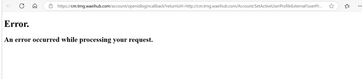
Error message when trying to access the caseload component should be fully resolved:
- If you notice coding when trying to access the caseload component, you need to clear your cookies and try again. You can find instructions on clearing ACORN cookies on our website.
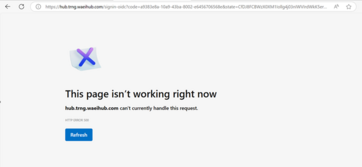
- If you notice this message: this page isn’t working right now, you need to copy and paste the URL into a web browser and try again: https://hub.trng.waeihub.com.
Please make sure you are logging into the training environment and not another ACORN environment by mistake. You know you are navigating to the training environment if you notice ‘trng’ in the URL. This is the correct URL to use: https://hub.trng.waeihub.com/
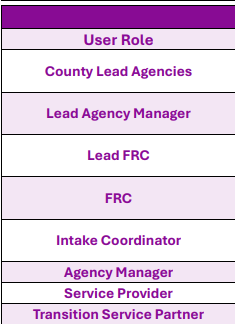
Do you need your caseload component added to your account? Reach out to the Helpdesk to request, please indicate what role(s) you need added.
If your caseload does not match your DMS caseload, this is probably the result of the gap of time from our last data migration into the training environment and so caseloads will not mirror present day info. You need to reach out if you notice a significant difference in your caseload in ACORN from your DMS caseload early fall timeframe so we can investigate how that info migrated.
|
The Help Desk Team tries to be responsive to your inquiries. There are some things you can do to reduce wait times:
- Start your email subject with “ESIT DMS request” or “ACORN request” so we know what data system you need help with,
- Include details and all requested information in your initial email,
- Send emails rather than using the DMS messaging option,
- Send requests for reports directly to Kim Hopkins hopkins@dcyf.wa.gov,
- Mark urgent requests with “URGENT” in the subject line of the email.
DMS requests are prioritized above all ACORN requests, which will be addressed in the order they are received. Each request is assessed, and you'll be given resources and training options to help you troubleshoot independently. If you're unable to resolve your ACORN issues using these resources, we will then schedule a Microsoft Teams meeting to provide further assistance.
We appreciate your understanding of these processes, which help us avoid delays and reduce prolonged wait times.
Writing a good service ticket is not only helpful for the Helpdesk staff, but also for yourself. It can save you time and frustration by getting you the right solution faster. Here are some key points to remember when emailing the help desk:
- If you are requesting assistance with a DMS record, please include:
- The child ID, or
- The initials of first and last name and the DOB of the child in your request.
-
Provide relevant details: The more information you can provide about the issue, the easier it will be for the help desk to identify and fix it. For example, include the ChildID when available, or child name/dob when necessary. Also, mention the steps you took before encountering the issue, and the expected and actual outcomes.
-
Use screenshots: A picture is worth a thousand words. Sometimes, a screenshot can show the issue more clearly than words. You can use the Snipping Tool or the Print Screen button on your keyboard to capture a screenshot of your screen. Then, attach it to your service ticket using the Attach File option.
-
Avoid jargon: Try to use simple and clear language that anyone can understand. Avoid using acronyms or technical terms that might confuse the help desk staff. If you have to use them, make sure to explain what they mean.
We hope these tips will help you write effective service tickets that can get you the best possible response. Remember, details matter! The more details you provide, the faster and better the Helpdesk can help you.
For Assistance with ESIT DMS, email dcyf.esithelp@dcyf.wa.gov.
- This is the most efficient way to get in the queue for assistance.
- Send a description of your problem and include the child ID.
- In some cases, it may be helpful to send a screenshot.
- You may send a message directly through ESIT DMS if you do not need to attach screenshots to resolve the issue.
|