SOL Schedule
SOLs are fast approaching. Below are our planned testing days for our virtual and in-person students. Students should bring their charged FCPS laptop, a pencil, and a book to read to all testing sessions. All electronic devices will need to be turned off and stored or turned in to the teacher in the room.
More information regarding SOL testing can be found on the Longfellow website here: https://longfellowms.fcps.edu/index.php/sol-testing-information
|
Date
|
Test
|
Who is Testing
|
|
Monday, May 10
|
Reading Grades 7 & 8
|
All virtual students
|
|
Monday, May 17
|
Science Grade 8
|
All virtual students
|
|
Monday, May 24
|
Math - All levels
|
All virtual students
|
| |
|
|
|
May 12
|
Reading Grades 7 & 8
|
All in-person students
|
|
May 19
|
Science Grade 8
|
All in-person Grade 8 students
|
|
May 26
|
Math - all levels
|
All in-person students
|
| |
|
|
|
May 13-14
|
Reading 7-8
|
ALL Reading Make-up SOLs
|
|
May 20-21
|
Science 8
|
ALL Science Make-up SOLs
|
|
May 27-28
|
Math - ALL Levels
|
ALL Math Make-up SOLs
|
SOL Testing Laptop Preparation
With SOL testing coming up we need to make sure all laptops have received all required updates and have the newest version of TestNav. TestNav is the software needed for SOL testing. To do this, please follow the steps below:
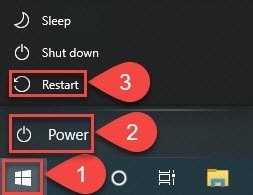
RESTART YOUR COMPUTER
Make sure your FCPS issued laptop is turned on, connected to the internet, and restarted every day. Please follow the instructions below for restarting laptops. DO NOT just push the power button!
|
RUN THE FCPSON HEALTH CHECK
1. Double click on the icon called “FCPSOn_HealthCheck.exe”.
It will look like one of these two pictures:


2. It will open a window that looks like this:
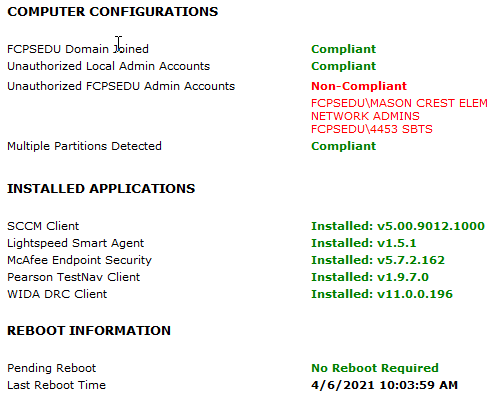
3. Make sure the line that says Pearson TestNav Client is all green.
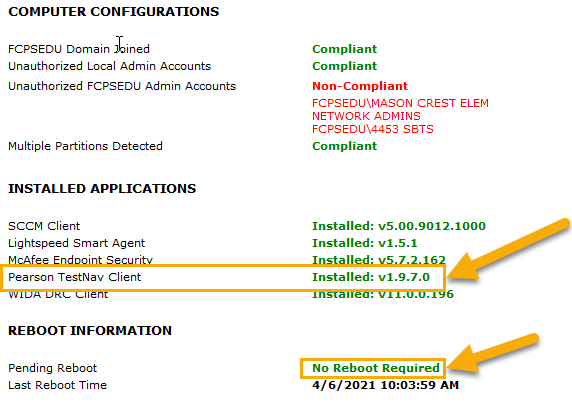
4. If it says Reboot Required in red, restart the computer.

INSTALL TESTNAV
**If the Pearson TestNav Client shows red in the Health Check, complete the following steps:
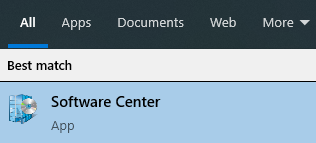
1. Search in the bottom left corner for the Software Center app and open it. (If it doesn’t come up in the search, it can be found in the folder called “Microsoft Endpoint Manager.”)
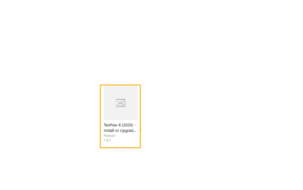
2. Click the tile that says TestNav8. |
|
 |
3. Click the blue button (will either say Install or Reinstall): |
|
 |
4. Restart computer after installation finishes. You can open the FCPSOn Health Check again to ensure that the TestNav Client shows green.
VIRTUAL STUDENTS - UPDATE YOUR LAPTOP AT SCHOOL
This is not required but a great way to get necessary updates to the laptop. Go to the parking lot of any FCPS middle or high school:
- Log on to the laptop and connect to the “Fairfax” Wifi
- Restart the laptop. Select Windows button -> Select Power Button -> Select Restart
- Open the icon on the desktop called “FCPSOn_Health Check.exe”
- Restart one more time before leaving the school.
Technology Support
Students needing technology support should continue to:
1. Restart your computer - this solves many basic issues.
2. Contact your teacher for support.
3. Submit a Parent or Student Support Ticket https://itweb.fcps.edu/itsupport/
4. Self Help Guides - https://www.fcps.edu/return-school/technology-support-familie
5. Call Help Desk: 833-921-3277 (833-921-FCPS)
|