Keep your secure messaging contacts up to date in My HealtheVet
My HealtheVet provides you with the ability to edit the Secure Messaging Triage Group(s) you want to see in your ‘To’ dropdown box when composing a Secure Message. Editing your Secure Messaging Contact List is quick and easy and allows you to keep your list updated anytime!
Included below are five simple steps explaining how to find and edit your My Secure Messaging Contact List.
Step 1
Sign into your My HealtheVet Premium account
Step 2
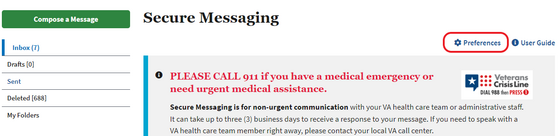
Select the ‘Inbox’ link within the Messages box on the My HealtheVet home screen
Step 3
Select the ‘Preferences’ link at the top right corner of the page
Step 4
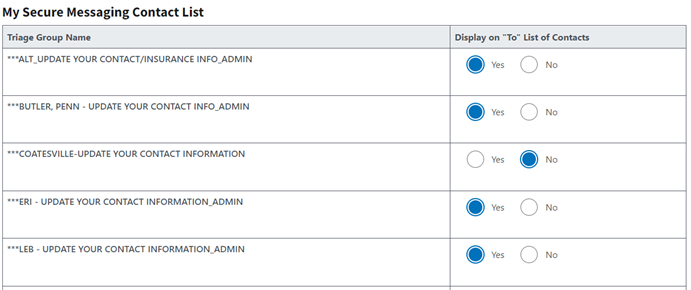
Scroll down to the ‘My Secure Messaging Contact List’ on the Preferences page.
Select ‘Yes’ for the Triage Group Names you wish to display on your ‘To’ List of Contacts.
If you select ‘No’, those Triage Group Names will be removed but not permanently blocked/deleted.
Step 5
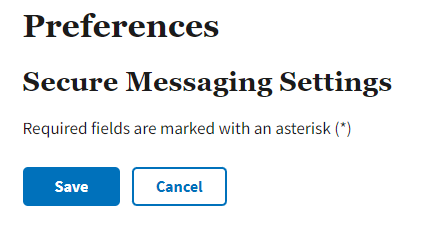
Select ‘Save’ at the top or bottom of the page when you are done editing your ‘My Secure Messaging Contact List’.
After selecting ‘Save’, the Preferences page will refresh, and a notification will appear that ‘Your information has been successfully saved.’
You can now navigate to other My HealtheVet features by selecting the ‘Home’ link or to other tabs at the top of the page.
If you have any issues or problems with the instructions, please contact your local VA medical center facility's My HealtheVet Coordinator for assistance.
Additional resources
Secure Messaging: What to Know
Secure Messaging Frequently Asked Questions
|