|
School Certifying Officials,
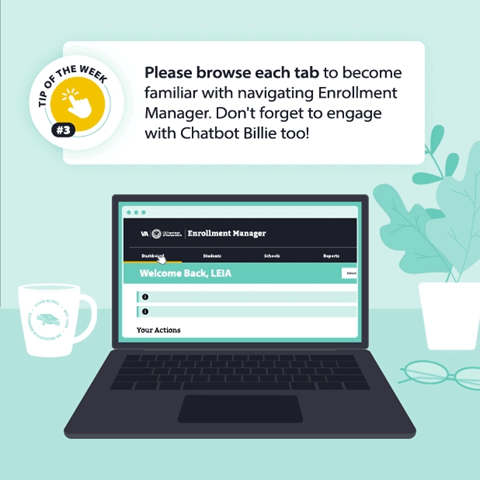
Welcome to Enrollment Manager! Now that the new system is available, we're excited to share a new tip this week as you experience the new system. Each tip was designed to help you navigate Enrollment Manager and support your GI Bill® students with their varying needs.
Log in to Enrollment Manager today by navigating to the VA Education Platform Portal. As a reminder, you need a verified ID.me or Login.gov account to access the new system. To verify your account, please have your Social Security number and passport or driver’s license to complete this mandatory final verification step. If you experience any issues completing this step, please visit the webpages below:
The Enrollment Manager User Guide can provide you more information on how to gain access to Enrollment Manager. For future logins, navigate to VA Education Platform Portal, and login with your verified ID.me or Login.gov account. Be sure to bookmark this link.
Please note: Screens may appear different than what you experienced in your EM 100, 101 and 102 trainings. We’ve made updates to the screens based on your feedback in testing to introduce new features and provide a better user experience.
Specifically, the following changes have been made to enhance your experience:
- There is now a Student Info tab that will allow you to see more information about your student.
- There is a new button labeled “Update student’s academic info” which allows you to add a new school and/or program to a student’s academic information.
- The student list will automatically appear once the “Students” tab is selected.
- There are also two mini “search” tabs included. The first tab, “Search my students,” will be used to search for students already associated with a school. The second tab, “Search for all students,” will be used to search for all GI Bill students to find new students.
Additionally, Enrollment Manager gives you the ability to see the status of your student's enrollment in real-time. When you need to submit multiple actions on the same enrollment, follow these steps:
- Submit your first action.
- Wait for the enrollment status of that first action to change to either "Processed" or "Under Review"
- Once you see that change, you are clear to submit the second action on that enrollment.
To learn more about Enrollment Manager, refer to these additional resources:
IF YOU EXPERIENCED ANY LOG IN ISSUES, PLEASE FOLLOW THE DIRECTIONS BELOW TO CLEAR YOUR CACHE AND COOKIES:
In Chrome: Click on three dots present at the top-right corner. Now, navigate to More Tools > Clear browsing data. Here, you can check the box next to Cached images and files, select the time range and click on Clear data. On your computer, open Chrome. At the top right, click More. Click More tools Clear browsing data. At the top, choose a time range. To delete everything, select All time. Next to "Cookies and other site data", check the box. Click Clear data.
In Edge: Click on the three dots icon present at the top-right. Go to Settings > Privacy, search & services. Scroll down a bit to find Choose what to clear under Clear browsing data. Select Cached images and files, choose a time frame and finally click on Clear now. Select Settings and more in the upper right corner of your browser window. Select Settings > Privacy, search, and services. Select Choose what to clear under Clear browsing data > Clear browsing data now. Under Time range, choose a time range from the list. Select Cookies and other site data, and then select Clear now.
After clearing your cache and cookies, please log in to Enrollment Manager: https://iam.education.va.gov/
We hope you learned something new from this week's tip. Have any suggestions on helpful content you’d like to see? Let us know in the feedback form.
Thanks,
Education Service

|