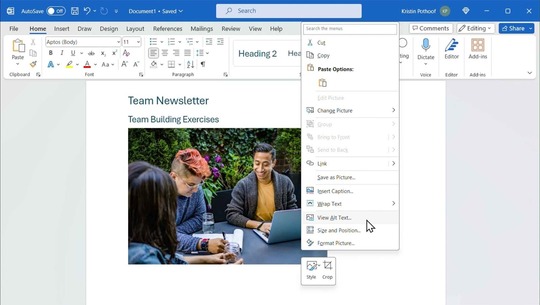
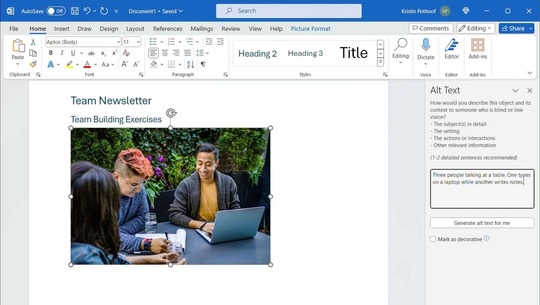
|
When writing alt text, follow these guidelines to ensure the text is as helpful and meaningful as possible.
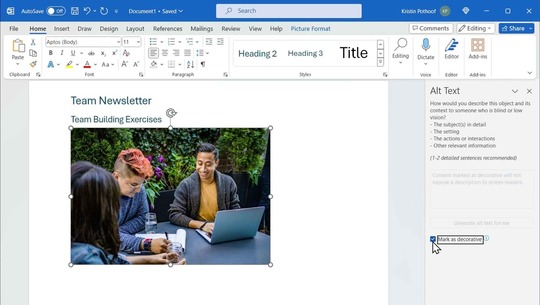
If an image is only decorative and does not convey meaningful information, set the alt text as decorative so screen readers recognize the image does not need to be announced and can be skipped. In Microsoft Word, you can do this by viewing the alt text and checking the box that says, “Mark as decorative” (Figure 3). Any program you use should also have its own specific guidance on how to do this.
Figure 3: Marking image as decorative in the Alt Text task pane within Microsoft Word
 Avoid using default or AI-generated alt text since these descriptions usually do not communicate the actual purpose of the image. For example, an AI may describe a screenshot of a form as, “Screenshot of a phone screen.” However, if the image is intended to show how to use the form, the alt text will need to describe the content of the screenshot to make the description meaningful.
If your image or logo contains text, make sure the alt text repeats that text word for word. For example, for this logo of Section508.gov (Figure 4), the alt text says, “GSA logo with text: Section 508 dot gov. Buy. Build. Be Accessible.”
Figure 4: Example for logos
Keep your descriptions short and focused on the purpose of the image. Avoid repeating information that is already in the main text, and don’t use unnecessary phrases, like “this is a photo of…” or descriptions of irrelevant details in the image. For example, if your image is designed to show how a ramp helps wheelchair users, you do not need to include an in-depth description of the wheelchair user’s clothes or physical appearance in your alt text.
For more guidance on alt text and accessibility, visit the resources for content creators on Section508.gov.
Do you have questions about Section 508 at your agency? Reach out to your agency's Section 508 Program Manager or contact us at Section.508@gsa.gov.
You are receiving this email because you are a member of the Section 508/IT Accessibility Community listserv. Please share this Accessibility Bytes with your colleagues. To subscribe, manage or unsubscribe from Accessibility Bytes, please visit GSA Email Updates.
To find previous Accessibility Bytes, visit Section508.gov/blog/accessibility-bytes/
|