|
What’s going on
Issue highlights
Attention schools: if you are closing for any part of the summer, follow these five tips to make sure your office is summer-ready. ◆ Welcome, new employer reporters! Find out how to learn your important new role. ◆ Dear Rep: Do you need help, answers, or a best practice to overcome a PERS reporting problem? Write in to this new advice column to get help from the experts.
|
|
|

Are you ready for summer?
Follow these tips if your office will close at all this summer.
|
|
1
|
Fill out the Summer Employer Information form sent to you by your ESC rep.
It is very important that PERS staff be able to get ahold of someone at your school at all times. Sometimes a PERS staff member needs information from you to continue processing an employee’s retirement benefits.
|
2
|
Report wages for employees based on their contract number of months.
12-month, summer off: These are employees who are paid every month of the year but take the summer off. Report summer pay with wage code 08. Do not include hours.
9- to 11-month, summer off: Employees who are paid for the months that they work and are not paid in the summer. Do not submit any wage records for them when they are not working. Do not report them as on leave.
|
3
|
Do not terminate employees who are returning in the fall.
This includes teaching staff, working retirees, and seasonal employees (like coaches or directors for fall and spring sports and plays). For employees who are not working in the summer, follow the reporting instructions in tip 2 above. Do not terminate them nor report them as on leave.
|
4
|
Do terminate employees who are not returning in the fall.
As a general rule, submit a termination record for employees who will not be working for you for more than about three months. If they do end up coming back, that is okay; just report them as a new hire. Remember that working PERS retirees also need to be terminated when they are finished working, just like regular employees.
|
5
|
Make sure employees did not terminate employment nor begin a leave before May 26.
School employees who work January 7 through May 26 receive service credit for June. To ensure they get credit, remember every year not to terminate or place an employee on leave until after May 26.
|
|
|
|

Results of the employer satisfaction survey

Thank you for taking time to complete the employer satisfaction survey. You helped us get very close to our goal!
We appreciate your ratings and comments. Next steps:
• Members of our team will analyze the results and share them with the Employer Service Center (ESC), Member Services, and Actuarial Services.
• A summary of the results will be presented to the PERS Board this fall. You are welcome to attend.
~PERS Survey Team
|
|
|
|

New employer reporters: Welcome! Here is what you need to get started
Welcome to PERS reporting! The Employer Service Center representatives are so happy to have new people join the family of employer reporters and web administrators. You are the key to PERS members receiving their well-deserved retirement benefits, and we greatly appreciate the work you do.
For those who are new to the role (and even those who are not), the ESC has your back. The service center offers a number of onboarding services and materials to help you understand PERS and get up to speed on reporting in Employer Data Exchange (EDX).
Employer Meet 'n Greets, offered most Thursday mornings with the employer trainer, are open to anyone who wants an introduction to or refresher on the basics of employer reporting.
Thursday Meet ’n Greet
- Meeting for new employer reporters and web administrators held virtually on most Thursdays from 8:30 a.m. – 9:30 a.m. Pacific.
- Chance to connect right away without waiting 2–3 weeks for the beginner training.
- Initial touch base — NOT a full training. Go over where to find important resources, how to get help and support, and tips to successful employer reporting.
- Great time for questions; feel free to join more than once.
- Email rachel.schizas@pers.oregon.gov any week to join.
Beginner training is delivered through live virtual Teams meetings or recorded meetings hosted on YouTube.
Beginner training class
-
Live: Go to the Training webpage, section “Beginner Employer-Reporter Training and Resources,” then “Live, Virtual Training Class.”
-
Recorded: Go to the same webpage and beginner training section as above, then scroll down to “Recorded Training Class.”
 All resources are provided on the Employers website to ensure employers have the latest versions.
Toolkit for New Employer Reporters webpage
The webpage offers links to a variety of resources for new reporters, such as the Welcome to PERS Reporting guide, Using the EDX Reporting System webpage, and employer checklists like the Top 10 Important Reminders for Employer Reporters.
Employer reporting guides
-
The Employer Reporting Guides series comprises 28 step-by-step instructional guides for doing every type of reporting activity employer reporters need to do. Purposely detailed to provide background and to answer questions about all scenarios. Good guides to start with are guide 1, Overview of PERS; guides 9 and 10 for reporting wages; and guide 16, Reporting a Retirement, to help guide employees through life changes and the retirement process.
-
The quick-reference guides are 12 short guides with information you need to reference often, such as wage codes, status codes, job classification codes, partial-year rules, reporting subject salary, and glossary definitions.
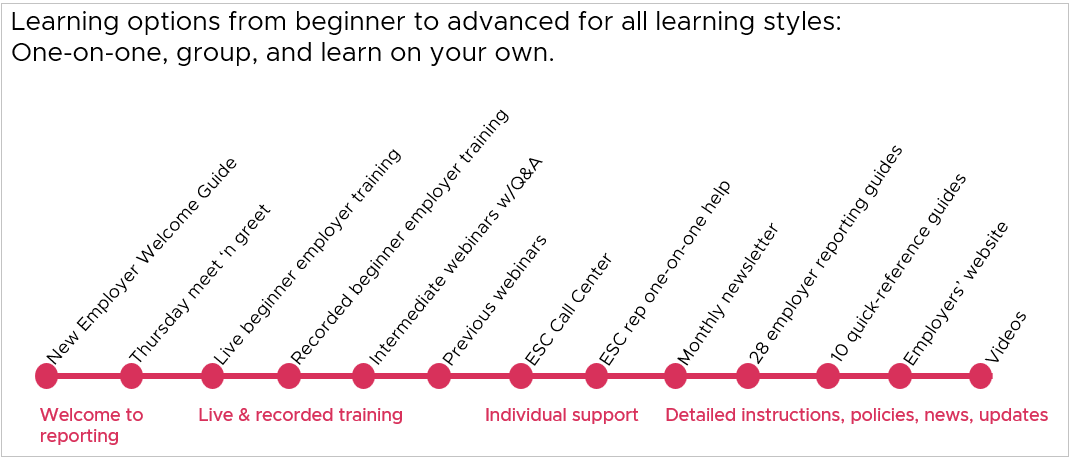 There are many ways to learn employer reporting, including a welcome guide or virtual meeting, training courses, webinars, individual support, news, instructions, policies, website, and videos.
|
|
|

|
|
Introducing “Dear Rep” (short for “ESC representative”), a new Employer News advice column.
In each column, PERS experts will answer questions submitted by you, PERS-participating employers. Do you have a question about reporting? Are you wondering about invoicing, paying, budgeting, PERS benefits, or anything else about working with PERS? Write it in an email to the EDX Support email box with the subject line “Dear Rep.” A subject-matter expert may address it in a future issue of Employer News.
~Employer Service Center team
|
|
Dear Rep, I just realized my employee’s account has the wrong Social Security number. What do I do? — SSN SLIP-UP
DEAR SLIP-UP,
You are right to want to correct this immediately and correctly. It is very important to be fastidious when entering a Social Security number (SSN) because having data under the wrong SSN disorganizes the employee’s account. Let’s review the right and wrong way to correct an incorrect SSN.
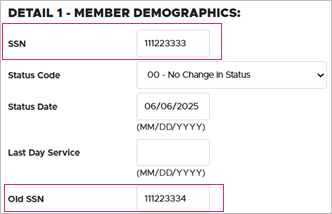
Right way to correct an incorrect SSN
Follow these steps:
1. Create a new Detail 1 record.
2. Choose a status code of 00 - No Change in Status.
3. Enter the correct SSN in the SSN field
4. Enter the incorrect SSN in the Old SSN field.
5. Leave the remaining fields blank and click Save.
Tip: Be very careful to enter the correct SSN or you can create a second account for the employee. To ensure this does not happen, you can ask your ESC rep to correct the SSN for you.
|
Wrong way to correct an incorrect SSN
The WRONG way to correct a Social Security number posted through EDX is by submitting a second Detail 1 new-hire record that is identical to the first Detail 1 record except it has the correct SSN. This record does not override the incorrect record; instead, it creates a new account under a different SSN.
If an employee has two accounts under two SSNs
If you discover that an employee has two accounts with different SSNs, notify your ESC representative or submit a DCR and explain the issue in the Comments box (because there is no SSN checkbox on a DCR). ESC will need to manually merge the two accounts and remove the incorrect SSN.
Avoiding this error
Always double check the SSN on a new-hire record of a new employee before you click Save. This can save hours of time and complications down the road.
Learn more
Refer to employer reporting guide 22, Changing Demographic Information, section “Changing Employee Demographic Information,” subsection “Social Security Number.”
|
|
Need help?
Contact the Employer Service Center to ask questions and get one-on-one reporting help.
|
|
|
|
|