|
 Roses blooming in a garden in Portland, the “rose city.”
|
|
|

Closing for summer or changing your schedule?
Watch your email for the summer contact form

PERS staff must always be able to reach someone at your organization who has EDX access — even when your office is closed.
Therefore, if your school or district office will be closed or have a modified schedule for any period this summer, you need to submit a Summer Employer Contact Information form.
Your ESC representative will email you the form this month. Please fill it out and email it back as soon as possible.
|
|
|
|

Top 10 important reminders
If you are a new reporter, part of a small team, or your organization’s only reporter, you are responsible for a wide variety of reporting tasks. It can be a lot to keep straight.
To help, ESC is providing the Top 10 Important Reminders list for employer reporters and web administrators. The list is based on the reporting steps that challenge employers most often, as reported by ESC representatives.
Here is an overview of the top 10 reminders.
1
|
New employer reporters open their own accounts.
Web administrators do not open accounts; they only activate them. New reporters open their own accounts by going to the EDX login page and selecting “Open an Employer Reporter Account.”
|
2
|
The person assigned Employer Reporting 1 receives your emails from EDX.
The web administrator needs to ensure that someone is assigned this role in EDX. If no one is assigned, all EDX emails will go to your web administrator.
|
3
|
When you are hiring a new employee, contact ESC for a status check.
The representative will look up the new employee’s work history and status, which helps you hire them with the correct codes.
|
4
|
The employer determines whether the hire intent for a new employee’s position is qualifying or not.
An employee qualifies for PERS benefits based on the number of hours they work in a full calendar year: over 600 qualifies and under 600 does not. Your organization determines if a position is qualifying or non-qualifying based upon the “hire intent”; that is, the number of hours the new employee in this position is expected to work in a full calendar year. An employee’s first year is nearly always less than a full year, so a qualifying position is still qualifying regardless of the actual number of hours they work that first year. Open the checklist for links to learn more.
|
5
|
Before becoming PERS members, new qualifying employees serve a six-month “wait time.”
In your status check with ESC, the representative can confirm whether your new employee needs to serve a wait time.
|
6
|
Make sure to report wages correctly during wait time.
Understanding when and how to report wages and contributions during, at the end of, and after wait time can be tricky. See the checklist for more information.
|
7
|
Submit employee information in chronological order.
To avoid errors that cause suspended records, submit reports one after another to ensure they are received by EDX in a logical order.
|
8
|
Regular reports and statement invoices are due on specific dates; make sure to submit on time.
Open the checklist to read about the different types of reports and invoices and when they are due.
|
9
|
You need to look for, correct, and save suspended records ASAP.
Make sure your records posted, and immediately correct ones that did not. While they sit in unposted status, the data they contain do not get added to employees’ accounts.
|
10
|
Use the Employer Service Center representatives.
They are here to help you. Reach out to the Call Center or to your ESC representative. ESC contact information.
|
Questions? Reach out to your Employer Service Center representative.
|
|
|

Protecting your organization’s EDX account

As the web administrator, you are the gatekeeper of your organization’s EDX account. This is why the role only goes to those who are approved by their “reporting official,” such as the director, fire captain, school principal, or general manager.
As the gatekeeper, remember that you are responsible for the following:
1. Verifying the identity of every employee who requests an EDX account. Only employer reporters are granted access to EDX.
2. In-activating employer reporter EDX accounts as soon as reporters leave the role. To limit access, allow only current employer reporters to have active accounts.
3. Maintaining an up-to-date EDX Contact List. PERS staff use this list to look up your reporting official, web administrator, and employer reporters. It is important that it remain current.
Instructions for doing all of these tasks are in employer reporting guide 3, Reporter Roles and EDX Access, “Part 1 — The Web Administrator.”
|
|
|
|

EDX tip: Termination date vs. last day of service
Termination date
An employee’s termination date is their last day as your employee. When you report an employee’s termination to PERS, the termination date is what you enter in the Status Date field when you fill out a Detail 1 record with a 02 – Termination status code (see the Detail 1 image below).
Q: Can you report hours that are worked after the termination date?
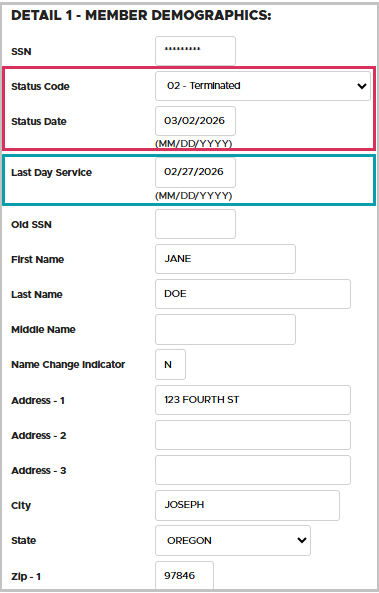
No. If you are trying to do this, reach out to ESC (ESC contact information). One reason may be that this employee is continuing to work for you after retirement. Remember that a working retiree must be terminated from their previous job and rehired into the new position with a working-retiree status code, (usually 11). See employer guide 8, section “Hiring a PERS Retiree,” for more.
Q: Can you report payments made to the employee after the termination date?
Yes. You can report payments at any time, including while a retirement is still processing. However, the timing of the payment determines how it is treated by PERS benefits specialists.
Payment made within 31 days past termination date: When you report a payment that was paid to the employee within 31 days post-termination, it is treated as subject salary. It is included in the salary for the month of separation and in the employee’s retirement benefit calculation.
Payment made after 31 days past termination date: When you report a payment made on a date more than 31 days post-termination, it is treated as non-subject salary. It is not included as salary in their month of separation and is not included in the employee’s retirement benefit calculation.
Q: Can you make changes to past wages and hours?
Yes. For instructions on submitting an adjustment record, go to employer guide 23, Submitting an Adjustment Record.
|
Last day of service
The last day of service, entered in the Last Day Service field, is the last day that the employee earned wages from you by either providing hours of service or using hours of paid leave. The last day of service —
-
Can be earlier or the same as the termination date; for example, when the employee has stopped providing any service and is no longer working any hours or using any paid leave hours but has not yet been officially terminated.
-
Cannot be later than the termination date because the employee cannot provide service in a position after the employer-employee relationship has officially ended.
Q: Can you report hours worked after last day of service?
No. As explained above, last day of service is the last day that the employee earned wages by providing service or using paid leave. After that date, no hours should be reported. If you need to change the last day of service, submit a Demographic Correction Request (DCR) as explained in guide 20, Creating a DCR.
Q: Can you report salary paid after last day of service?
Yes. You can continue to report salary that was earned before the last day of service and paid within 31 days after their termination date.
School employees — reporting pay after last day of service and termination
Some school employers may need to report pay after last day of service or termination because of their employee’s contract number of months.
TIP: If an employee on a 12-month contract terminates their position in May or June, their employer should report any remaining pay, including any remaining summer pay, within 31 days after their termination date to ensure that it is included as subject salary. If it is reported more than 31 days after their termination date, then it will be treated as non-subject salary and excluded from the school employee’s retirement benefit calculation.
|
|
|

2025 member annual statements are on their way
 Member annual statements for 2025 will be mailed to all active PERS members by the end of May. These statements reflect all the 2025 data you submitted about your employees between January 1, 2025, and March 5, 2026.
About member annual statements
Each statement shows an individual member’s progress toward their future PERS retirement package, which includes their pension and Individual Account Program (IAP) account, plus other accounts they may have if they are Tier One, Tier Two, and/or Police and Fire. Information and links to frequently asked questions and sample statements are on the Member Annual Statements FAQ webpage.
Sample statements
To help your employees understand each section of their statement, direct them to the relevant interactive example statements on the PERS website. When viewing the example statement, hover over each green outlined area and read the pop-up explanatory text.
|
|
|

|
|
Your feedback counts
The annual employer satisfaction survey is your most important feedback of the year. Please take five minutes to rate:
-
Resources and tools, such as guides and webpages.
-
Help with reporting and difficult topics.
-
Knowledge of PERS staff.
- And more.
To take the survey now, click the button —
or copy and paste the URL into your browser:
https://www.surveymonkey.com/r/2026_Employer_Satisfaction_survey
P.S. In addition to ratings, you can also leave anonymous comments to explain how we are doing well or could do better.
|
|
Oregon PERS and Treasury leaders are presenting their second Invested for You webinars in June. As with the first webinars in October 2025 (materials for those are on the PERS Fund/Investments webpage), there will be two sessions:
Session 1 for PERS-participating employers and partners
June 3, 2026, 11:45 a.m. to 1:15 p.m.
Session two for PERS members and retirees
June 5, 2026, 11:45 a.m. to 1:15 p.m.
Request for recording only
If you cannot attend a live session and would like to receive links to the webinar recordings:
|
|
Need help?
Contact the Employer Service Center to ask questions and get one-on-one reporting help.
|
|
|
|
|