|
 A leopard dorid nudibranch and six-rayed sea star in a tidepool on Heceta Beach. Photo credit: PERS employee Jonathan Yost
|
|
What’s going on
30-second newsletter summary
What do members commonly ask (and get wrong) about PERS? Here are the top 10 questions people ask Member Services, such as “What does it mean to retire?” and “Can I borrow from my retirement?”
Speaking of misunderstandings, what about employers? Let’s review your top reporting errors, such as creating a reporter account incorrectly, reporting non-qualifying wages wrong (it’s tricky), and forgetting to release your reports.
Summer is here (finally). Schools closing for summer break, take note: winter hires become members this summer, do not change the status of employees for break, and make sure you turn in your Summer Employer Contact Information form.
For finance and payroll staff, are you deducting voluntary contributions correctly? Make sure you deduct the member redirect percentage, not the employer-rate member redirect offset percentage.
|
|
For human resources and benefits professionals
PERS members’ top 10 questions

Every day, PERS Member Services receives about 1,000 calls from members and families asking questions about PERS. Your teams are likely asked many of the same questions.
To help you quickly find answers, Member Services is sharing its Top 10 Questions PERS Members Ask. This list of popular questions hits on topics like retirement dates and payments, demographic changes, withdrawing from PERS, borrowing funds, and more.
Quick answers for employers are below. Send employees to the online member version of this article for more comprehensive answers.
|
1. How do I register for my Online Member Services account?
Read How to Create and Use Your OMS Account (PDF).
2. When do I receive my annual statement?
PERS member annual statements are mailed to members every year between May and June. Learn more on the Member Annual Statement FAQs webpage.
3. How do I change my address, name, or phone number with PERS?
Employees submit all demographic changes to you, their employer (except working retirees). For instructions, refer to NEW employer guide 22, Making Demographic Changes. This guide also lists changes that people can make themselves.
4. What should I choose as my retirement date?
A PERS member’s retirement date — that is, the first day of their PERS retirement — is required to be the first calendar day of a month, meaning their last workday is the last calendar day of the previous month.*
*For employer reporters: When someone is retiring, their last day of service and termination date must be on or before their chosen PERS retirement date.
5. When will I receive my first retirement payment?
It can take up to 92 days for PERS to process a PERS member’s retirement (first payment is retroactive back to retirement date).
6. What does it mean to retire from PERS?
To retire means for a member to apply to start receiving their PERS retirement benefits.
Retirees can work, if they choose, and continue receiving their retirement benefits. Learn more on the employers' Work After Retirement webpage.
7.
|
How long does it take to receive my withdrawal benefit once I am separated from PERS-covered service?
|
|
When a nonvested* member withdraws from PERS, they receive the money in their IAP account and Employee Pension Stability Account (EPSA) (if they have one) within four months of their withdrawal date. They do not receive a pension.
Employees are not required to withdraw when they leave PERS-covered service. For information on withdrawal, read the Withdrawal Information webpage.
|
*When a member vests, they are guaranteed to receive their pension at retirement. To read how to vest, go to employer guide 1, Overview of PERS,“PERS Pension.”
|
8. Can I borrow from my pension or IAP account?
No, members cannot borrow funds. If they withdraw any retirement funds before retirement, their PERS membership is canceled.
9. How do I request a purchase letter?
Tier One and Tier Two members need to request a written benefit estimate to receive a purchase letter (OPSRP members are not eligible to make service-time purchases). Tier One/Tier Two Estimate Request form (PDF). Learn more about purchases on the Tier One/Tier Two Purchases webpage.
10. Can I purchase my wait time and retire at a younger age?
No, members cannot reduce the age at which they are eligible to retire. If a member is qualifying for retirement based on service time, however, purchasing wait time can enable them to reach a 25-year or 30-year retirement eligibility milestone six months sooner.
Learn more in the article “Puzzled by Purchases?” in the July 2024 Employer News.
|
|
For employer reporters
Employers’ top five reporting errors
And how to avoid them
 |
|
Employer Service Center representatives share the most common errors they see from employer reporters.
Test yourself — are you making any of these?
|
1.
|
Adding an employer reporter to your contact list to get them an EDX account.
|
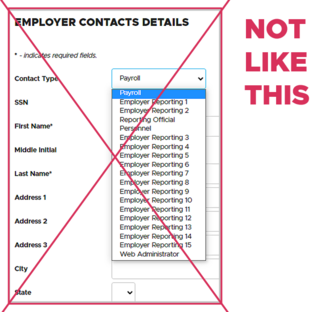
Web administrators — adding an employer reporter to your list using the Work with Contacts function only adds them to a contact list — it does not give them EDX access. The only way a new reporter can get EDX access is to create an account themselves, which you then activate.
Instructions: employer reporting guide 3, Reporter Roles and EDX Access, Part 2 – The Employer Reporter, section “Getting Started” and the video “The Role of the Web Administrator,” section "Managing Employer Reporting Accounts,” starting at minute 7:06.
|
2.
|
Not reporting hours and wages during wait time.
|
You need to begin reporting hours and wages for your new employee starting with their very first day. Report their hours and wages (but no contributions) on the Detail 2 record as you normally would for their type of position:
Qualifying position wage code: 01 Regular Wages.
or
Non-qualifying position wage code: 02 Regular/Non-Qualifying.
and
Wages: Subject Salary (Regular) field.
EDX knows the employee is in wait time and will not charge contributions until the first full pay period after the employee’s contribution start date.
3.
|
Incorrectly reporting non-qualifying wages.
|
It seems logical to report non-qualifying wages in the Non-Subject Salary field of a Detail 2 record, but most of the time that is not correct. EDX uses other cues to determine whether to charge contributions on wages and payments, as explained in quick-reference guide Correct Usage of Subject and Non-Subject Salary Fields.
4.
|
Forgetting to release a report.
|
You must release your report for it to go through the nightly batch process and get posted to your account.
Remember that once you create your report, then create records within the report, it sits in one of your unposted reports lists until you select “release.”

5.
|
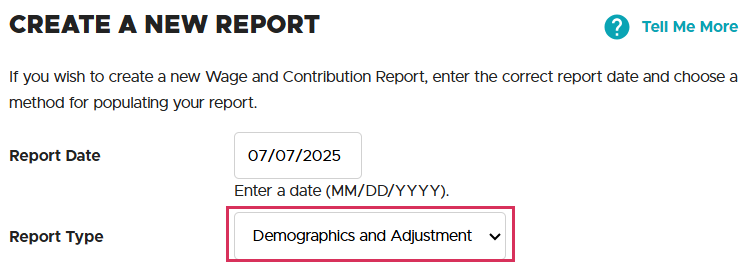
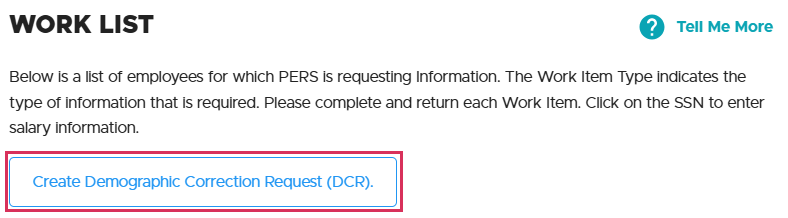
Confusing a Demographics and Adjustment Report with a Demographic Correction Request (DCR).
|
The names are similar, but a Demographics and Adjustment report and a DCR are not interchangeable; they have different purposes.
Demographics and Adjustment report
This is an EDX report used to submit two types of demographic records to PERS:
Detail 1 record: For making updates to an employee’s demographic information (e.g., employment change, address change, name change). See NEW guide 22, Changing Demographic Information.
Detail 2 record: For adjusting wages and contributions that have already posted. See guide 23, Submitting an Adjustment Record.
Demographic Correction Request (DCR)
This is a form for requesting demographic changes to an employee’s account that only PERS is authorized to make. See guide 20, Creating a DCR.
Questions?
Contact the Employer Service Center by calling the Call Center or emailing your representative.
|
|
For schools
Three summer reminders

School employers: Remember these three important points about summer break.
Note: Go to the end of this article for resources that will help you introduce your new summer members to PERS.
|
1.
|
Your qualifying winter hires will become members this summer.
|
This summer, the qualifying employees you hired in December–February who successfully complete their six-month wait time with you will become members and begin earning benefits. Starting with the first full pay period after their contribution start date (CSD), which is their first day of membership, you start including 6% IAP contributions when you report their wages.
If they successfully complete their six-month wait time:
|
|
Employees hired in this month
|
Become PERS members (and their CSD is)
on this date
|
|
|
|
December
|
July 1
|
|
|
|
January
|
August 1
|
|
|
|
February
|
September 1
|
|
2.
|
Do not change the employment status of school employees who will return in the fall.
|
Do not terminate them nor place them on leave. If they are not working nor being paid, simply stop reporting hours and wages for them. If they are not working but are being paid, report their wages (Subject Salary – Regular) and IAP contributions with wage code 08 – Contributions/No Service. For hours, enter 0.
3.
|
If your office is closing for all or part of the summer, turn in the Summer 2025 Employer Contact Information form.
|
PERS staff must be able to reach someone who can answer questions about reporting or employment history — even when your office is closed. If you need another copy of the form, email pers.edx.support@pers.oregon.gov.
Welcoming new members to PERS
To help you explain PERS to your new PERS members, check out the following resources:
|
|
Payroll specialists
Are you deducting voluntary contributions correctly?
Employees who earn over a certain monthly salary have a portion of their Individual Account Program (IAP) contribution deposited into their Employee Pension Stability Account (EPSA) instead of their IAP. PERS members have the option of making up that redirected amount by having that portion withdrawn from their paychecks (after tax) and deposited into their IAP account.
This option is called a voluntary contribution.
Here’s the important point to remember about deducting voluntary contributions from employees’ paychecks:
Correct
Do deduct the exact
member redirect percentage
|
Incorrect
Do not deduct the
member redirect offset percentage
|
|
Tier One and Tier Two members: 2.50% of subject salary
OPSRP members: 0.75% of subject salary
|
Tier One/Tier Two payroll offset: 2.40% of payroll
OPSRP payroll offset: 0.65% of payroll
|
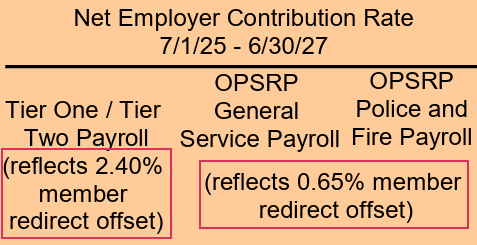
Do not confuse the member redirect amount with the employer-rate member redirect offset you see in the contribution rate table (see image below). That offset is a net percentage that helps reduce your employer contribution rate — it is not the correct percentage to deduct from employees’ paychecks.
 |
|
Excerpt from contribution rates table showing net member redirect offset.
Do not deduct this percentage from employees’ pay as their voluntary contribution. This is not what they are paying; Instead, these are the net offsets being applied to your rates.
|
Learn more
Learn all about voluntary contributions on the How to Manage an Employee’s Voluntary Contribution webpage.
|
|
Need help?
Contact the Employer Service Center to ask questions and get one-on-one reporting help.
|
|
|
|
|