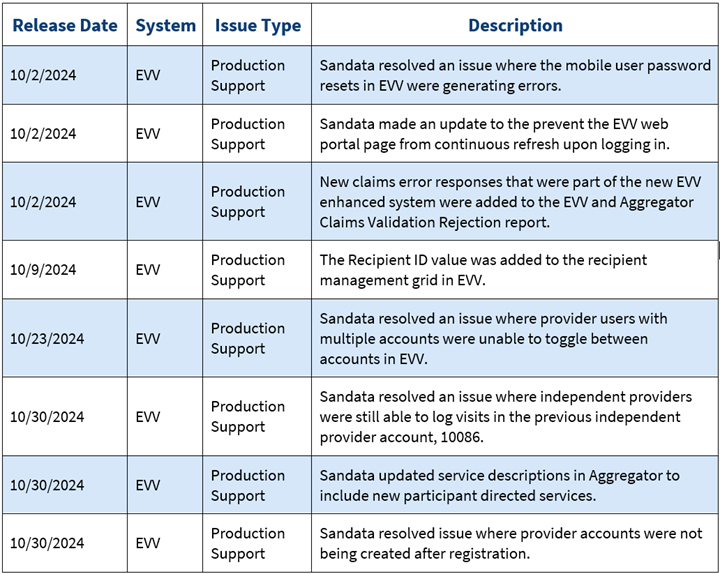
 The Ohio Department of Medicaid launched its redesigned Electronic Visit Verification webpage, making it easier to find the information needed to meet program policies and requirements.
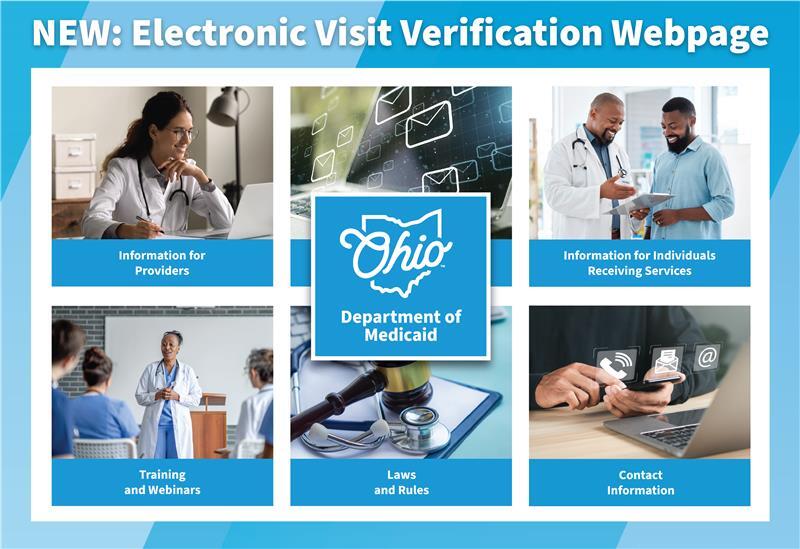
The new webpage combines all EVV information into a single-page layout with six interactive tiles and quick links to make it easier for visitors to navigate and access information. Key components include:
-
EVV program resources including a new fact sheet, frequently asked questions, service code guide and EVV forms.
-
External links to Sandata training guides and materials as well as information specific to Department of Development Disabilities and Department of Aging EVV programs.
-
Quick links that address specific provider issues or notices regarding compliance.
-
Provider news highlighting new resources and supports available.
-
Provider Network Management module quick links.
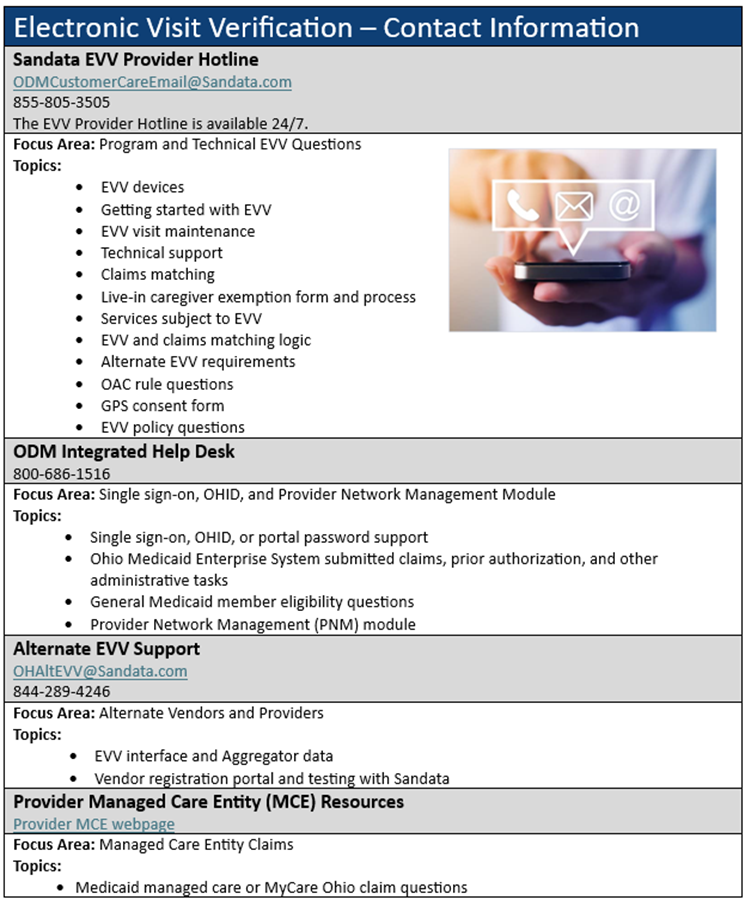
You can also find insight into state and federal rules regulating the program, on-demand training resources, information for members who receive services requiring EVV compliance, links to all 2024 EVV Newsletters, and who to contact if you have questions.
NOTE: if you previously bookmarked specific ODM EVV webpages, those links may not work. Fortunately, you should be able to find all the information you need on the new webpage.

Agency Providers:
Question: I am sure our Agency is logging visits correctly, but a lot of our visits are not changing to Processed status after billing. What is happening?
Answer: The EVV team has recently worked with a few agency providers having this issue. Agency providers can have more than one EVV account. Each agency provider EVV account has one provider Medicaid ID. It is important to make sure the EVV account with your visits has the same provider Medicaid ID as your claim for reimbursement. This will help increase the number of visits switching to a processed status.
Question: I'm an agency administrator responsible for more than one provider Medicaid ID and EVV account. Am I able to see more than one EVV account when I log into the EVV web portal?
Answer: Yes, if your email address is associated with each account.
Question: How do Direct Care Workers and Employees find Recipients in the Sandata Mobile Connect app?
Answer: Keep in mind that only “Active” Recipients are available in the Sandata Mobile Connect app. Any Recipient in a “Pending” status will not be available.
To locate “Pending” Recipients, navigate to the Recipients module in the EVV portal, open the Filters, and search “Pending” to find all Recipients with a status of “Pending.”
From there, open the Recipient you need to update, then open the Program tab. Use the Status dropdown in the upper right corner of the Program tab to change the status to “Active.”
For more information, see Creating a New Recipient in Sandata On-Demand.
|