AGENCY UPDATES
REMINDER
OhioBuys will have a planned outage, corresponding to the OAKS upgrade, from Friday, October 4th at 10:00 PM through Monday, October 7th, at 6:00 AM. OhioBuys will be unavailable during this time.
 |
|
Duplicating Purchase Requisitions (PRs)
Duplicating a PR could lead to different line numbering. When a change order is necessary, requesters and requisitioners should look at the PO line numbers to identify what line(s) need to be changed. Users should not refer to the PR line numbers.
|
When a PR is flipped into a PO, PO line numbers may be re-sequenced. The most common reasons for this are a deleted line item on the PR or multiple suppliers being listed. Line numbers may also be re-sequenced due to how the system copies lines over from the PR to the PO.
 |
|
DOT Go Live & Enterprise Impacts
The Department of Transportation (DOT) will go live in OhioBuys on Monday, October 21st. At that time, DOT will begin creating PRs and POs and conducting quick quoting through the system. There are three enterprise-wide changes as a result:
|
- All Additional Agency Approvers listed on a PR will now be required to approve it.
- If a requester initiates the purchase, requisitioners can also add the Additional Approver during the Requisitioner Approval step. All Additional Agency Approvers listed will be required to approve the PR.
- In Ohio Buys, a “Project” value on the budget Chart field will be required for any requisitions using an account code beginning with “57.” If a 57 account code is applied and a "Project" value is not populated, users will see a blocking alert.
DOT Users will participate in training from October 8th to 31st. More information can be found on the OhioBuys DOT Onboarding webpage.
 |
|
Quick Quote Reminder
Prior to starting a Quick Quote, users should typically begin by creating a PR first and then flipping it to a Quick Quote via the "Create Solicitation" button. Without creating the PR first, the user will be relegated to updating the requisition manually.
|
For example, each line item will need to have the price manually adjusted to match what was awarded in the quick quote. Creating the PR first allows users to leverage OhioBuys functionality to update the PR once the Quick Quotes is awarded automatically.
SUPPLIER UPDATES
Supplier Status in OhioBuys
If talking to a supplier about their status in OhioBuys, please remind them to complete the following.
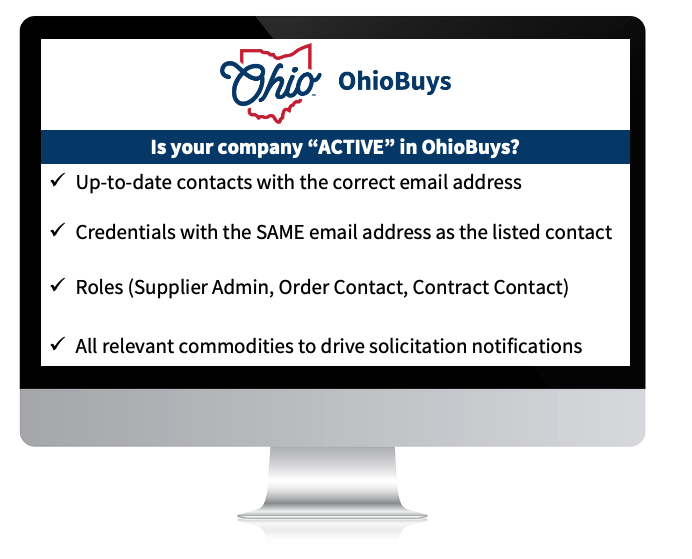 In addition, users should provide their company's demographic information to aid the agencies with the information needed for the Controlling Board submissions and approvals. This can be completed in the Addition Information Tab.
2024 Supplier Webinars
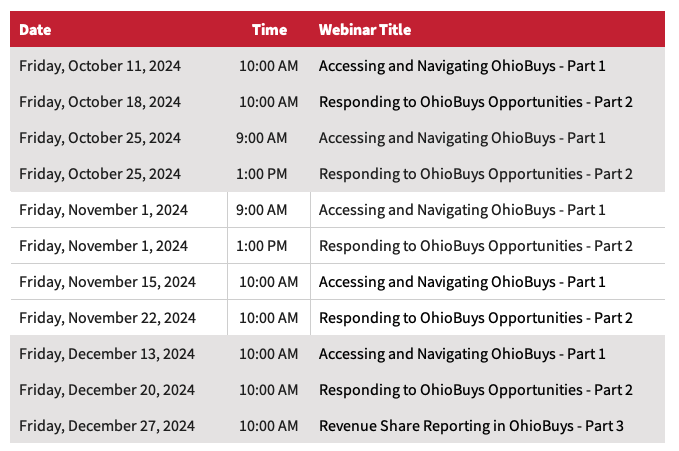
OhioBuys supplier training webinars walk through how to take advantage of OhioBuys. See the webinar schedule below or on the Bidder & Supplier Webinars webpage.
TRAINING TIPS
 |
|
Opus Training Tool & Access
Epilogue Opus, the new OhioBuys training tool, is available to OhioBuys users. Users can now access the OhioBuys Opus training materials using their existing OH|ID login credentials (via single sign-on).
This should help you quickly access the training information you need.
|
Existing Opus Users
Please access Opus through any of the following options:
- Direct Link: https://login.opuseps.com/
- Web Advisor (lightbulb): enter your email address to reach your OH|ID log-in box
-
MyOhio App Store tile: OhioBuys Agency Training Resources
See more details on the Opus Information page on the OhioBuys website.
New Users
If you did not originally register an Opus account, you can access Opus without any registration steps, simply select the tile from the MyOhio App Store.
If you require additional assistance setting up your Opus account, please email OBM Contact Center (OBM.ContactCenter@obm.ohio.gov) or sign up for Opus Office Hours with the OhioBuys team.
 |
|
Training Calendar 2024
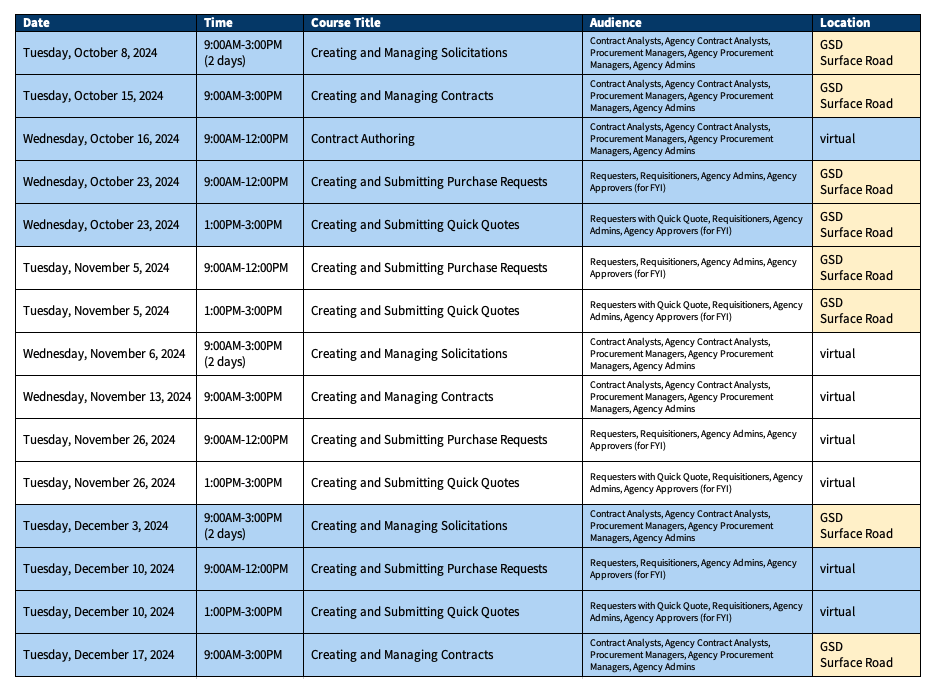
OhioBuys ongoing training will be available virtually and on-site starting in 2024. Users can register for these sessions directly in OhioLearn. If your agency has a topic request for training or needs solicitation and/or contract training, please notify the project at: OPS.TrainingAcademy@das.ohio.gov.
|
 |
|
Office Hours
One of the resources available to assist your use of OhioBuys is the option to sign up for Office Hours. Users sign up for either 30 or 60-minute Office Hour sessions wherein a dedicated OhioBuys trainer can assist you with OhioBuys functionality.
|
Office Hours have been expanded with slots available Monday - Thursday from 9:00 AM - 12:00 PM, and 1:00 PM - 4:00 PM, pending availability.
We encourage you to take advantage of this resource as you acclimate to OhioBuys. To sign up for office hours, please follow the prompts on the Office Hours Booking page.
You will receive direct help on a specific transaction as you work through it!
These Office hours are available for your training-related questions (i.e., how to do something in OhioBuys). If your question(s) is regarding policy or system issues (e.g., why a purchase order is In Progress), users should submit a helpdesk ticket. In addition, anything that substantially involves R&Ps, OAKS, or OneSpan Sign will also need to go to the helpdesk. If you have not attended any OhioBuys training course, you will be redirected to training, and your office hours appointment will be canceled. Remember, if it's a question of "how," then office hours are the way to go. If it's a question of "why," it needs a helpdesk ticket.
SUPPORT
For log-in or system issues, please contact OBM Contact Center at 614-338-4781 or 1-877-644-6771 OR OBM.ContactCenter@obm.ohio.gov Remember to put “OhioBuys” in the subject line!
If you have questions about the project itself, please email: ohiobuys@das.ohio.gov.
Mike DeWine, Governor
Jon Husted, Lt. Governor
Kathleen C. Madden, Director
|