A note from Donna
Some of the most important accessibility work happening right now is being done by people who don’t have “accessibility” in their job title.
The webpage manager who started replacing “click here” with more descriptive hyperlinks, so that screen reader users and everyone else can understand what they’re selecting before they activate a link.
The project manager who elevated the topic of accessibility at the start of the project, because they knew waiting until the end would limit options and increase risk.
The staff member who checked the color contrast in a newsletter, knowing that contrast issues can make content unreadable for people with visual impairments, and that fixing it means every reader can get the info they need.
This is the quiet work. The work that doesn’t get a ribbon or a headline. The kind of work you do when you’re tired, under a deadline, and you’re unsure if anyone else will notice.
Let me remind you: this quiet work matters.
Because this is how change happens. In the small, daily decisions that spark momentum. Decisions that build trust. Decisions that remove barriers.
If you're doing this work, one of the best ways you can help others learn is to tell the story of how you're modeling it.
Add a slide at the end of your presentation that lists some of the accessibility strategies you used.
Link to a page that helps someone else understand how to write alt text, just like you did.
Mention accessibility in your next newsletter: how you approached it, what you learned, what you’re still figuring out.
Small stories like these help others see what’s possible and why it matters. They remind people that accessibility isn’t about being perfect. It’s about being intentional.
One of the quietest parts of accessibility is this: you may never know who you helped.
We don’t always get confirmation that we made a difference, but that’s the nature of accessibility. My daughter, Olivia, cannot tell me when design removes a barrier, but I watch her find her way when something is built with access in mind.
So thank you for the work you’re doing.
Even if it’s quiet. Especially so.
Yours in accessibility,
Donna
Need help figuring out where to start or what to do next? Choose your path!
Find links to previous newsletters on the NCDPI Digital Accessibility website.
|
News & Updates
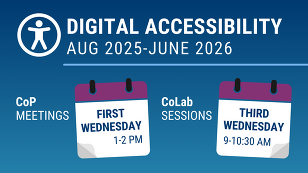
NC Education Leaders and NCDPI Staff are invited to join two monthly virtual opportunities to learn about digital accessibility and connect with peers to share accessibility strategies. This series of webinars will take place August 2025-June 2026.
Digital Accessibility Community of Practice (CoP)
First Wednesday of each month1:00-2:00 PM
CoP meetings offer a brief professional learning spotlight followed by collaborative discussion and strategy sharing. Each CoP session focuses on a specific accessibility topic, with time for participants to reflect, ask questions, and exchange ideas.
Register for CoP meeting: Wednesday, August 6th - 1:00-2:00 PM Topic focus: Using WAVE as an automated checker tool
Digital Accessibility CoLab
Third Wednesday of each month 9:00-10:30 AM
CoLab sessions provide open space for attendees to receive technical assistance for accessibility challenges. It also serves as a space for collaborative problem-solving, where participants can pose questions, share examples, and draw on the group’s collective experience to explore accessibility strategies and solutions.
Register for CoLab meeting: Wednesday, August 20th - 9:00-10:30 AM
|

Resource Spotlight:
Understanding WAVE Errors & Alerts
This WAVE errors and alerts quick reference guide provides plain language descriptions of the different accessibility errors and alerts included as flags by the WAVE evaluation tool.
Each error and alert is linked to a corresponding help document that includes: potential impact on users, common misconceptions and clarifications, examples, strategies for how to avoid/fix the issue, how to check a webpage for the issue, a look at related coding, and related WCAG standards.
The skill level noted is intended to give a general sense of the error/alert complexity and the level of technical knowledge that may be needed to understand and address it.
- Main doc: lists all errors and alerts with skill level and description.
- Each error/alert links to a separate document with additional information and guidance in plain language
- What the error/alert means and why it matters for users
- Common misconceptions and clarifications
- Examples (correct and incorrect) and how it works in code
- How to avoid/fix and check for it
- Related WCAG standards
|

Accessibility Insights:
External Events and Resources
External events
Aug. 6, 2025 02:30 PM Eastern: Beyond Title II Compliance: Proactive Accessibility Strategies from K–12, Higher Ed & Beyond While legal compliance with Title II of the Americans with Disabilities Act is essential, truly inclusive institutions strive to go beyond the minimum. Join Benetech for a powerful conversation on what it means to go beyond compliance and build educational environments where accessibility is woven into the fabric of teaching, technology, and institutional culture. See firsthand how School District of the Menomonie Area in Wisconsin and Haywood Community College in North Carolina are using proactive strategies to embed accessibility into their systems, culture, and long-term planning.
Aug. 13, 2025: ECAC: Empowering Every Child Through Assistive Technology Assistive Technology (AT) is not just about electronic equipment – but more about discovering the tools to support your child in their learning. This workshop explores AT devices and services, both high and low tech tools, evaluations and how to include AT in your child’s IEP. Presented by: Nancy Giurato, ECAC Bilingual Parent Educator, DeafBlind Family Engagement Coordinator
Sept. 25, 2025: Inclusive Design 24 (#id24) is a free 24-hour online event for the global community. It celebrates inclusive design and shares knowledge and ideas from analogue to digital, from design to development, from planners to practitioners, and everything and everyone in between. No sign-up. No registration. All sessions are streamed live and publicly on the Inclusive Design 24 YouTube channel.
Resource
In June, ABLR presented a two-part training to help all North Carolina state employees learn how to ensure the PDFs they create are easily available and more usable for everyone. The recordings and resources from this training are now available for everyone to access.
|

Understanding WCAG: Keyboard Accessibility
In each newsletter, we will focus on an accessibility topic and its relevant WCAG 2.1 standard(s).
Keyboard accessibility is one of the most fundamental aspects of digital accessibility. WCAG 2.1.1 requires that all functionality on a website or in a digital document must be operable using only a keyboard, without requiring a mouse or touch screen.
This is essential for users with motor disabilities who may rely on alternative input devices like switch controls or voice recognition software that simulate keyboard commands. It also benefits users who simply prefer keyboard navigation, such as power users or those using keyboard shortcuts for efficiency.
When something isn’t accessible by keyboard, like a button that only responds to a mouse click or a menu that can’t be reached without a pointer, it can create a complete barrier for some users.
Tips for ensuring keyboard accessibility
- Check tab order: Users should be able to move through interactive elements (links, buttons, form fields) in a logical order using the Tab key. The focus should follow the visual flow of the page.
- Use visible focus indicators: When an item is focused (using the keyboard), it should be visually obvious. Browsers apply a default outline, but custom designs should preserve or enhance this visibility.
- Avoid mouse-only interactions: Elements that rely on hover, drag-and-drop, or click events must also be operable with the keyboard. For example, ensure dropdowns can be opened with the Enter or Space keys and navigated using arrow keys.
- Test your content: Try navigating your content using only the keyboard. Can you activate all links, buttons, and menus? Can you complete forms and submit them?
Relevant WCAG standards
-
WCAG 2.1.1 Keyboard (A): All functionality must be operable through a keyboard interface without requiring specific timings for individual keystrokes.
-
WCAG 2.1.2 No Keyboard Trap (A): If a keyboard user moves focus to a component (like a modal), they must be able to move away from it using only the keyboard.
-
WCAG 2.4.3 Focus Order (A): The focus order must be logical and intuitive, typically matching the visual order.
-
WCAG 2.4.7 Focus Visible (AA): It must be visually apparent which element currently has keyboard focus.
|
Digital Accessibility Through Lived Experience
Challenges for Screen-Reader Users on Mobile
An exploration of the unique challenges faced by screen reader users navigating mobile content.
This article explores how mobile interfaces, like gesture-based navigation, present unique difficulties for screen reader users. It also discusses the importance of designing with mobile accessibility in mind to ensure all users can access content on all devices.
NCDPI Digital Accessibility:
Building A11y Champions!
|
If you have ideas for topics you'd like to see covered in the newsletter, or would like to contribute to a future edition, please reach out via email.
References/links to external websites or tools do not constitute endorsement. Information and guidance should not be considered legal advice.
|