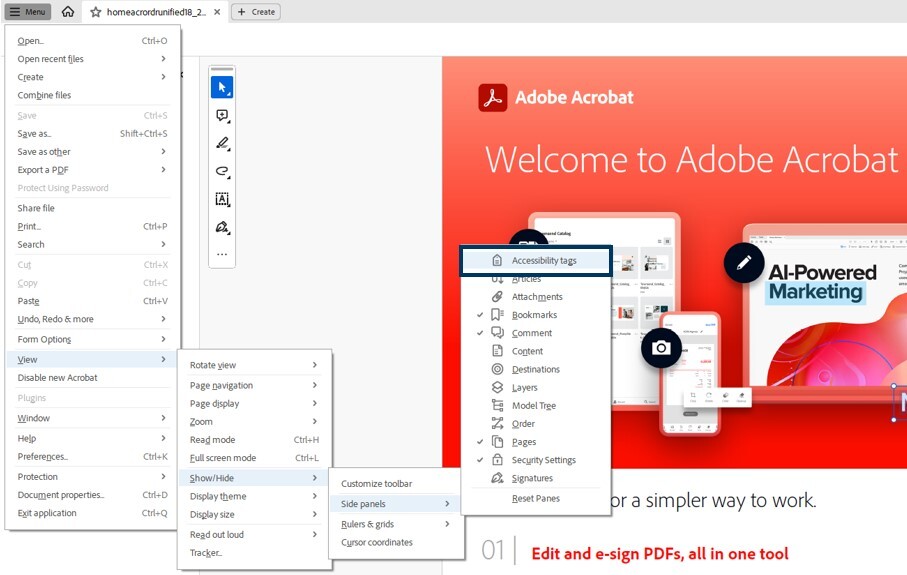
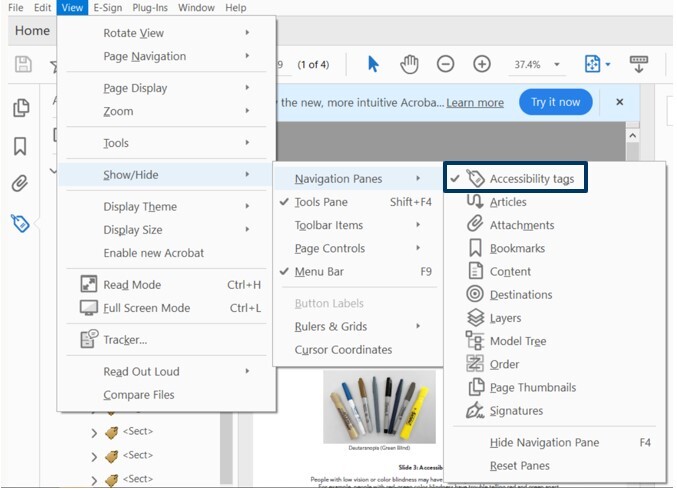
 After enabling the Accessibility tags, the panel should open immediately. If it doesn’t, open it from Acrobat’s side panel (F6).
Tagging a Document
If you haven’t already, open a PDF. In the Accessibility tags panel, your document will either already be tagged, or it will say “No tags available.” If your document isn’t tagged, right click on “No tags available” (Shift + F10) and select Autotag Document.
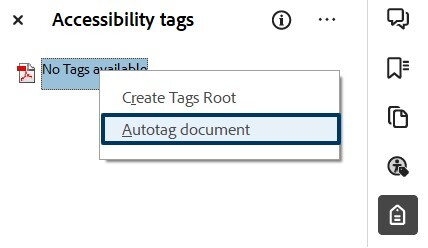 It may open a new panel called an Add Tags Report. You will need to close the panel (arrow keys to the “x”) to return to the Accessibility Tags panel (F6). The tool has added tags in the document, and you will now see the collapsed tag tree.
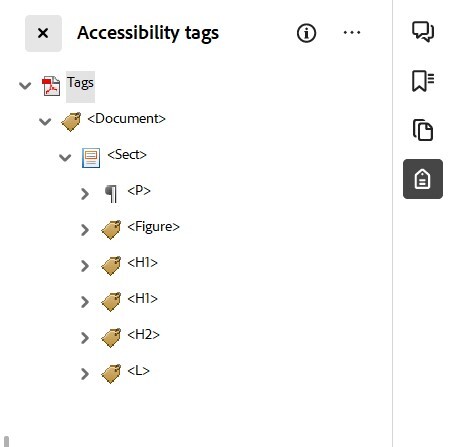
Since the tool added the tags, it is important to walk the tag tree to ensure the proper tags were added to the document’s content. As sophisticated as accessibility tools can be, they still require a manual check to ensure the document is accessible for all.
*Important Note: If the Autotag Document option is grayed out or unavailable, it may mean your document is a scan of an original. This will require Optical Character Recognition (OCR). This is an advanced technique we will not cover in this article.
Walking the Accessibility Tag Tree
Once you have the Accessibility tags tool enabled and a tagged document, you are ready to walk the tag tree! It is best to expand all tags first (use the down arrow to move between tag layers, use the right arrow key to expand all tag subsets).
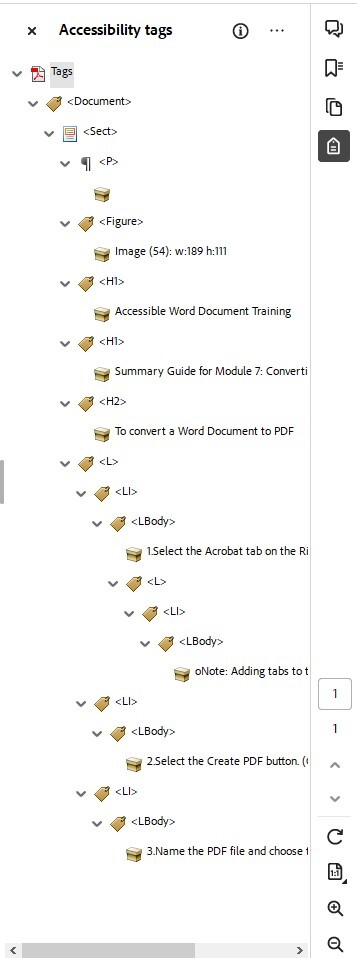 Once you have expanded the tags, walking the tag tree is simply using the down arrow key to move through each tag one by one . The content of the document exists within each tag type. As you put focus on a tag, you will also have focus within the document to the tag’s corresponding content. If that is not happening, right click from “Tags” (Shift + F10) and select “Highlight Content.” From content highlights, you can also learn if any content wasn’t tagged.
Common tags
Depending on the software used to create the original document, whether it's Microsoft Word, Excel, or Adobe InDesign, you will see different tags. However, how you work with them will remain the same. All tags will be in angle brackets (like HTML code). The brackets themselves are not read aloud when talking about the tags.
- Image <Figure> or <chart> or <graph>
- Images that are decorative (Background/Artifact) - when a tag is identified as this, it is removed from the tag tree (and will not have angle brackets). AT will not read this content.
- Headings <H1>, <H2>, <H3>
- Paragraph (normal text) <P>
- List <L>
- List items (bullet points) <LI>
- List content <LBody>
- <Table>
- Table Header <TH>
- Table Row <TR>
- Table Data <TD>
- <Link> (always nested in another tag, like <P> or <TD>)
- Object Reference (Link – OBJR or Form – OBJR) - This has the digital instructions for that tag to open a link or operate a fillable form field. You may see the word "annotation" instead of "OBJR."
- Table of Contents <TOC>
Fixing issues in Accessibility Tags
As mentioned above, there are many issues that can be easily fixed from the tag tree. If the original source document properly incorporates accessibility, this process goes very quickly.
Fix the Reading Order
If tags aren’t in logical order (as you moved through the tag tree, the content of the document wasn’t highlighted in the correct order), you can move the tags in one of two ways:
- The first option is to click and drag the tag to the location you want it.
- The second option is to select the tag, cut it (Ctrl + X), move the mouse to the tag just above where you want the cut tag to land in the tag tree, then paste it (Ctrl + V).
Empty Tags
These tags are tags without content, so they won’t appear expandable like tags with content. While you can automatically delete all empty tags in a document by using “Delete Empty Tags” from the Tags dropdown menu, you may need some of the empty tags in the document to keep structure (for instance in a table). Instead, you can delete individual tags by selecting the tag and right clicking (Shift + F10) and selecting Delete Empty Tag.
Mislabeled Tags
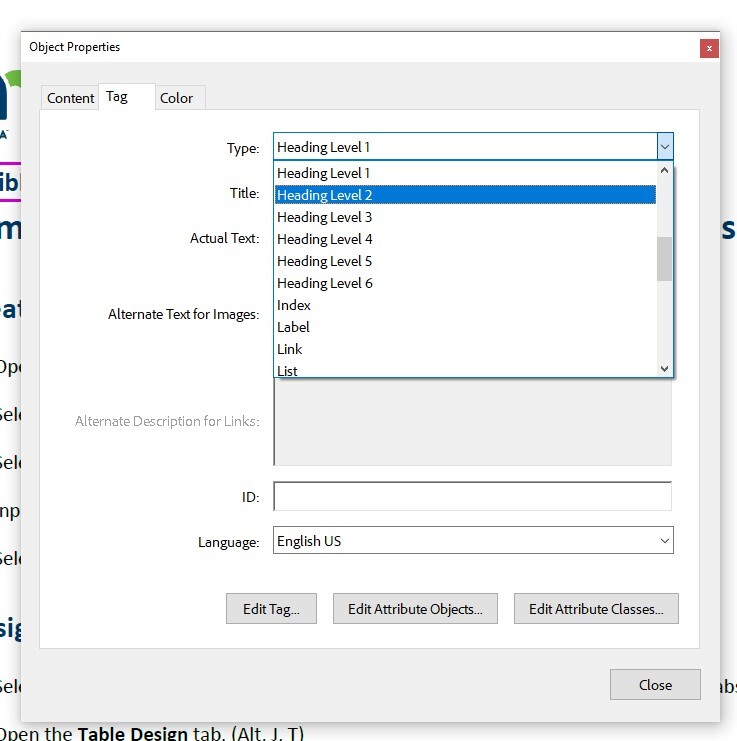
If you have a tag that isn’t properly representing the content, or has made the content out of order, here’s how to edit the tag:
- Right click the tag name (Shift + F10)
- Select Properties
- Select the Tag tab
- From the Type field, open the dropdown to select the correct tag
- Select Close
 If you already know the tag name you want to edit to, simply focus on the incorrect tag name and hit F2 or slowly double click. This opens the tag name for editing, and you can type in the name of the correct tag.
Decorative Images
There may be content that is tagged and isn’t necessary for understanding the document (like a decorative sidebar line). If it is tagged, AT will read it. That can be overwhelming, confusing or completely unnecessary for the AT user, especially for lengthy documents. This content can be untagged by selecting the tag, right clicking (Shift + F10) and selecting Delete tag. Your Acrobat may have options to mark images as “background/artifact” or “decorative.” This will work, too.
To learn more about making PDFs accessible, take our PDF 101 training.
Events and Trainings
[All times are Central time zone]
Webinar: Quick Wins in Designing Accessible On-Line Courses
Date: Tuesday, October 29, 2024
Time: 11 a.m.-12:30 p.m.
Location: Virtual
From the IAAP's Quick Wins in Designing Accessible On-Line Courses Webinar page: Designing accessible online courses is essential to ensure that all students have equal access to educational resources and opportunities. We will provide an overview of some quick wins to consider.
Webinar: The Deathly Hallows of Accessibility Testing
Date: Wednesday, October 30, 2024
Time: 1 p.m.
From IAAP’s The Deathly Hallows of Accessibility Testing Webinar page: The deathly hallows of accessibility testing, like the legendary objects from the world of Harry Potter, represent three essential elements for validating the accessibility of your digital product or service. Learn more about the deathly hallows of accessibility and when to use them in this presentation.
HighEdWeb: Creating Accessible Interactive Forms
Date: Friday, November 8, 2024
Time: 10 a.m.
Location: Virtual
From the HighEdWeb Creating Accessible Interactive Forms Webinar page: In this presentation we will demonstrate creating accessible interactive forms using Adobe Acrobat Pro. From adding form fields to tagging them in the accessibility tags tree, we will discuss steps to create form fields usable by everyone.
Webinar: Using Design Tokens to up your Accessibility Game
Date: Wednesday, November 13, 2024
Time: 10 a.m.
Location: Virtual
From IAAP's Using Design Tokens to up your Accessibility Game Webinar page: Design tokens are all the rage. They exist to efficiently power consistent experiences. It truly is a powerful thing to be able to deliver platform-agnostic consistent experiences, or to quickly update a style that propagates via inheritance, even across nested design systems. The resultant consistency and efficiency are the main drivers for their recent popularity.
But have you thought about harnessing that power of design tokens to ensure these experiences are also accessible?
In this talk you’ll learn how design tokens can significantly influence the accessibility of your designs, and you’ll learn some practical ways to apply design tokens to do just that.
Conference: GOVIT Symposium
Date: November 19-21, 2024
Location: JW Marriott Mall of America, Bloomington, MN
From the GOVIT Leadership Summit & Symposium conference page: New Format, New Location, New Content & Expanded Audience!
We are excited to announce a new chapter for the nation’s longest-running government technology conference. The Government IT Leadership Summit & Symposium, produced and hosted by the Public Technology Institute, combines two legacy events into one unique and not to be missed event for government technology leaders and their teams.
Webinar: Starting your Career as Digital Accessibility Professional
Date: Tuesday, November 19, 2024
Time: 8 a.m.
Location: Virtual
From the IAAP’s Starting your Career as a Digital Accessibility Professional Webinar page: This webinar will provide insights on starting and developing your career as accessibility professional. This webinar will provide with some tips and tricks on how to set off in this beautiful accessibility path, how self-learning, networking and thinking outside the box can help you step in your next career choice.
The webinar is based on personal experience as a CPACC and ADS certified professional with background on localization and leading multicultural teams.
Webinar: Essential Strategies for Creating Accessible Social Media Content
Date: Tuesday, November 26, 2024
Time: 12 p.m.
Location: Virtual
From Great Lakes ADA Center's Essential Strategies for Creating Accessible Social Media Content Webinar page: Join us for an engaging session where U.S. Access Board staff Amy Nieves, Public Affairs Specialist, and David O’Keefe, Events and Communication Specialist, will present essential strategies for federal social media managers and communication professionals to ensure their content is accessible to all audiences.
Participants will gain a range of valuable techniques for crafting inclusive social media posts, writing effective alternative (alt) text, checking color contrast, using hashtags and emojis thoughtfully, and ensuring that video content is properly captioned, among other important topics.
Webinar: Reducing Barriers with LUDIA: Your AI-Powered UDL Partner
Date: Wednesday, December 4, 2024
Time: 10 a.m.
From the IAAP’s Reducing Barriers with LUDIA: Your AI-Powered UDL Partner Webinar page: Participants will learn how to leverage the power of Universal Design for Learning and AI to reduce barriers for learners everywhere.
LUDIA was created to support instructional designers and educators around the world in creating the conditions for accessible expert learning. This free tool is designed to be a new entry point and learning scaffold for developing a UDL mindset, reduce barriers through learner-centered design, and discovering the power of Artificial Intelligence.
Webinar: Loud and Proud! Maximizing Your Accessibility Info for Guests
Date: Thursday, December, 12
Time: 1 p.m.-2:30 p.m.
Location: Virtual
From the Great Lakes ADA Center's Maximizing Your Accessibility Info for Guests Webinar page: A cultural institution’s website is often the first point of contact for guests with disabilities. Are the bathrooms accessible? Where are the elevators? Can services like sign language interpretation be requested, and if so, how?
Join members of the Cultural Access Collaborative as they examine how to offer practical and sustainable information to guests about your organization’s accessibility. Participants will have the opportunity to ask the speakers questions following the presentation.
|