 Plain Language & Accessibility
The Office of Accessibility works closely with Minnesota IT Services’ Communications team to develop and produce its blogs and other messages. The Communications team shares guidelines here about plain language and why it’s important. They also give some great tips on how to write with plain language in mind.
What is plain language?
Plain language is communication that all readers can understand the first time they read it and know what they need to do next.
Plain language follows these universal guidelines:
- Use “everyday” language.
- Write in short and complete sentences.
- Present information in a format that is easy-to-find and easy-to-understand.
- Clearly state directions and deadlines to the audience.
Why is it important?
Plain language provides Minnesotans with better state services by reducing confusion, saving time, and improving customer satisfaction. As government employees, we recognize the right of all members of the public to access public information. We must commit to providing access to all individuals – with or without disabilities – who wish to use government websites, documents, applications, or services to get information or resources. Using language that is commonly understood is a big part of making information accessible to everyone.
Get some great tips on how to support plain language in your work.
 Tech tip: Creating Accessible Multilingual Content
Have you ever wondered how a screen reader knows how to pronounce “esto español” correctly? Microsoft Word and Adobe Acrobat Pro have features to assign language to content, including the capability for multilingual identification. By enabling these features in your documents, it gives screen reader users the ability to hear the proper language, removing the limitation of only hearing a default language. So, how do you tell what language you’re writing in? Follow along to learn how to view and change language settings for each program.
Microsoft Word Language Settings
In Word, there are two language settings:
- The editing language, which is the “main language” of the document (this is the default from the Operating System). English is set for State employee computers.
- The proofing language, which defines the language used for spelling, grammar, and screen reader pronunciation. The proofing language defaults to the editing language but can be changed to a different language for selections of text. We will provide an example of how to change the proofing language here.
Set Proofing Language for Specific Text
To set the proofing language of a selection of text in Word:
- First select the text that you want to assign a language to with cursor-select (clicking and dragging to select the desired text), or keyboard-select (shift and the arrow keys).
- In the top ribbon, navigate to the Review tab (Alt+R). Select “Language” (Z, L) then again from the resulting options select “Language” (U) again.
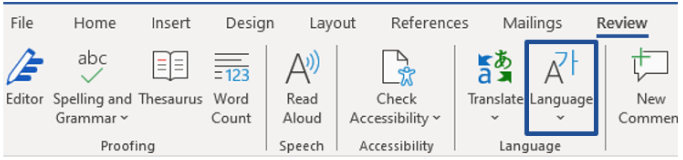 3. From the second “Language” option, select “Set Proofing Language,” (P) to open the “Language” dialog box.
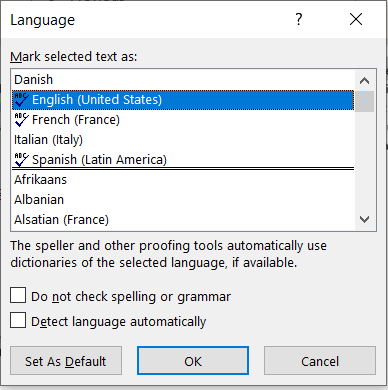
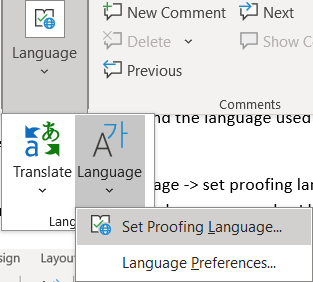 4. In the “Language” menu, navigate to find the language used in the text. Click OK to set the new proofing language for the selected text.
 Adobe Acrobat Pro Language Settings
PDFs have one language setting for the reading options of the document. You can change the entire document’s language from Acrobat’s properties (see below), but to apply a change to language for a specific section of text, you need to be able to edit tags within the PDF, a task that requires Adobe Acrobat Pro.
Set the PDF Default Language
To set the main language of a document:
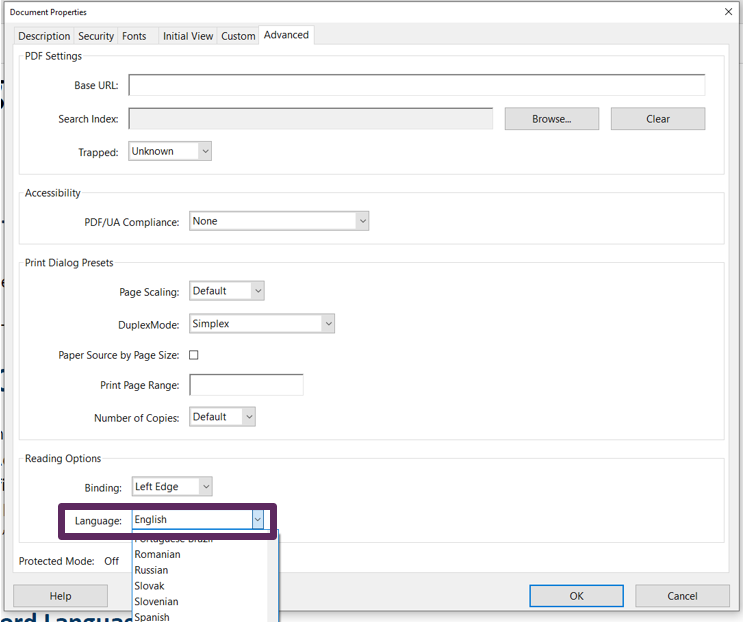
- Open the File menu to select Properties (CTRL+D) to open the “Document Properties” dialog box.
- Select the “Advanced” tab.
- Navigate to the “Reading Options” section and find “Language.” Open the “Language” dropdown menu and select the preferred language for the entire document.
- Click OK to apply the new language preference.
 Set Language for a Selection of Text in the PDF
Editor’s Note: These next steps require the user to be familiar with PDF tags. If you’re not, you may want to consult with someone who has taken PDF accessibility training.
To set the language of a selection of text, the text in a different language must be tagged. To check if the text is tagged:
- Open the tag tree from the navigation pane (if it does not appear in this lefthand pane below the bookmarks icon, right click, or Shift+F10, to add accessibility tags).
 2. Navigate to the tagged text with the different language. If it is not in the tag tree, you will need to create a span tag to assign the text.
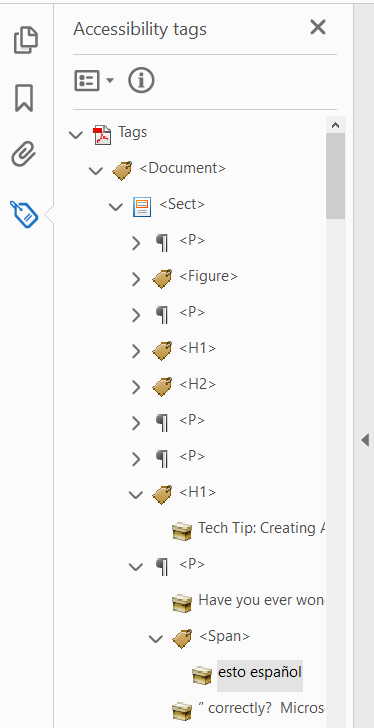 3. Right click (Shift+F10) and select Properties.
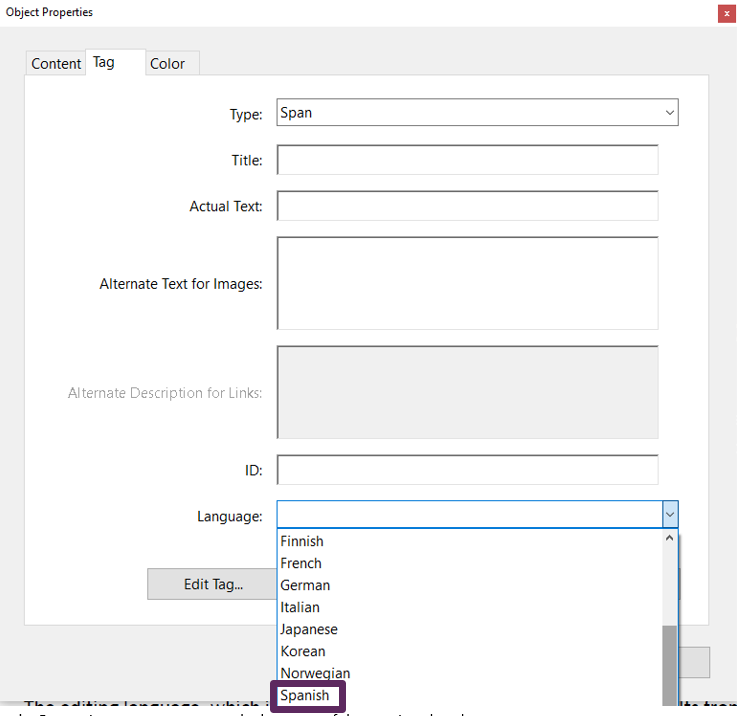
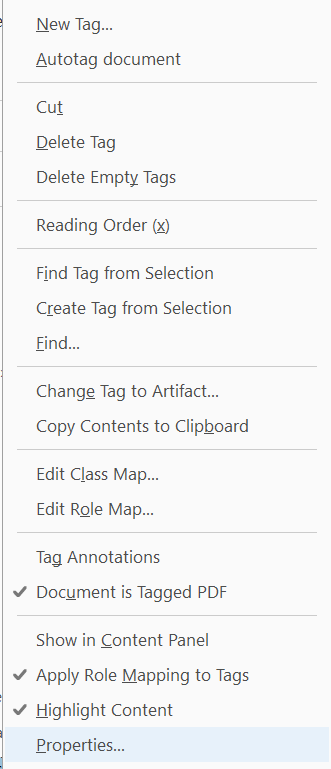 4. In the Properties menu, you can set the language of the tag via a dropdown menu.
 Web Browser Language Settings.
For web pages, set the primary language in the <html> tag at the beginning of the document, so it is <html lang =”language code”>. Make sure you identify a primary language.
For selections of text in different languages, simply surround the text with a <span lang=”language code”> tag, which will set a language for the text between that tag and the closing </span>. Commonly used language codes on State of MN web pages include (but are not limited to): English (en), Spanish (es), Hmong (hmn) and Somali (so). One note of caution: We have not been able to confirm whether screen readers recognize 3-letter lang attributes. (Language text bolded for visual effect.)
<!doctype html>
<html lang="en">
<body>
<H1>Example of language</H1>
<p>I can insert Spanish like <span lang "es">como estas?</span></p>
<body>
</html>
The Library of Congress provides an extensive language code list: Codes for the Representation of Names of Languages.
|