How to Get 12% More LinkedIn
Followers, Impressions, and Clicks!
Practical Accessibility Tips and Tricks
Byline: By Jennie Delisi, Office of Accessibility
Thank you to Karla Larson, Minnesota IT Services’ Recruiting and Retention Director, for her contributions to this article.
You may use LinkedIn to promote a post, a government agency or company, or yourself. Your accessibility know-how can amplify your reach. According to LinkedIn’s profile page they have “More than 850 million members worldwide, including executives from every Fortune 500 company.” 12% of those members (based on statistics listed in a report by the U.S. Bureau of Labor Statistics for 2022) may have a disability - 102 million. That’s a lot of potential followers, impressions, and clicks!
This article will give you the scoop on what you need to know when preparing:
- Posts.
- Profile and company pages.
- Articles on LinkedIn.
Do you link to webpages, documents, and other social media content like YouTube videos? Are you creating online learning experiences with LinkedIn Learning? Those need to be accessible too! Learn more about accessibility for those types of technologies on the Office of Accessibility website.
Paragraph Text, Headings, Links
Text Tips
Purposefully use emojis and emoticons
I included emojis and emoticons here because many people add them while drafting their post’s text. Some people may not understand certain emojis and emoticons. For example, many content authors are unaware of what screen reading software announces for a particular emoji, and it may not match what they want to communicate. Or the color contrast may not work well for someone with low vision.
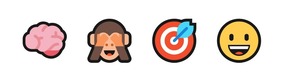
Let’s compare 4 different emojis available on LinkedIn.
In the examples shown here, the brain has 3 shades of pink, with a black outline. If the person reading your post cannot distinguish the different lines in pink from the rest, you might think this outline communicates a cloud.
The monkey has good alternative text (“see-no-evil monkey”) however both the image and the alternative text require your audience to know and remember the reference (if that is why you are using the emoji).
The target with the dart in the bull’s eye uses the alternative text “direct hit,” which is accurate. This may or may not work with all use cases for the emoji related to darts and target.
Finally, this smiley face has good color contrast that is easy to distinguish. It magnifies well. The alternative text is “grinning face” which is good for the typical uses of this emoji. There is a similar emoji available within LinkedIn that says “smiling face with open mouth.” Note: the hover text when selecting the emojis did not match the smiley face’s alternative text. The hover text said “grinning face with big eyes.” For people checking posts who do not use a screen reader, you can learn more about emojis on websites like Emojipedia. According to their page about this emoji, the Unicode name is what is announcing in the alternative text.
But what if I add 5 emojis, each with long alternative text?
What about adding images, videos, hashtags, and links?
Get all the answers, live examples, and resources in How to Get 12% More LinkedIn Followers, Impressions, and Clicks!
 Tech tip: Really Simple Steps To
Start Learning About Mobile Accessibility Testing
If you have access to a smart phone you can begin to learn about mobile accessibility testing. And, with WCAG 2.1 there are specific success criteria related to mobile. It is important to begin to learn about them. Many people access your information on a mobile device!
Here are some sample learning goals. I made it measurable by using the number 3 for each area. There are more, but this feels like a doable number!
- Learn about 3 features or assistive technologies people with disabilities use with mobile devices.
- Understand how 3 of the WCAG (Web Content Accessibility Guidelines) 2.1 “success criteria” help everyone use interactions on mobile devices. This includes people with disabilities.
- Become comfortable doing 3 simple mobile accessibility tests.
Find a pace and learning resources that work well for you. Use these examples to get started.
Hands-on Learner – Exploring on Your Own
On your smartphone, begin to explore the accessibility options. Turn them on, then explore web pages, apps, and documents. A few ones to try:
- Changing the font size, magnification, and color options.
- Adjust the caption options.
- Try voice access.
Learn by Reading or Watching a Video
Resources for Learning How to do Mobile Accessibility Tests
Once you know some of the basics, you are ready to begin running some tests. Below are just a few learning resources, but there are many. These are ideas to get you started:
Free
For a fee
-
Deque University has a course called “Mobile App Accessibility.” This provides background information, has videos, and discusses options for automated and manual tests.
-
Level Access has courses specific to mobile accessibility by role.
|