Say It With a Face
Accessible Communications with Emojis and Emoticons
Emoticons and emojis are great tools to convey ideas and emotions, when you keep your audience in mind. Just as you may not speak with co-workers the way you talk with your friends, you should consider your audience when making your emoji or emoticon selections. Since their original use in text messages, these icons have moved into everyday communications.
We now commonly encounter them in social media posts, business tools like Microsoft Teams, and even emails. Digital accessibility questions about using emoticons and emojis include:
- How do people add emojis if they do not use a mouse?
- Is there a quick check list of considerations for when we would like to use emoticons and emojis?
- Are there users with disabilities that may find them difficult to use?
- How are they read by assistive technologies? Will users hear some odd letters, like a y?
We answer these questions and provide a check list of considerations for when you plan to Say It With a Face.
Key Considerations for Flowchart Accessibility
Flowcharts, and similar diagrams, are powerful tools for communicating steps in a process, or demonstrating organizational structure (org. chart). Specific software can aid in the design of flowcharts, but the need to create accessible information remains prevalent in all use cases. Whether you are designing your org. chart in InDesign, or creating a how-to document to explain a process in Microsoft Word, there are considerations that users can keep in mind.
Following a discussion between the State of Minnesota’s digital accessibility coordinators and a state employee, the Office of Accessibility combined their shared advice into key considerations to think about as you design your next flowchart or org. chart. Ken Graeve, a state employee from the Minnesota Department of Transportation, posed the initial question about flowcharts, “If the flowchart is so complicated that we have to depict it visually in order to make it easier to understand, then how should we make that accessible to the visually impaired while maintaining the simplicity?”
Learn how to use digital accessibility best practices in your flowchart planning, and save time for future org. chart updates in Key Considerations for Flowchart Accessibility.
Tech Tip: Use Accessible Templates with Microsoft Teams
You have branded, accessible templates from your agency or organization. If you start a new document inside a Teams channel, take a second to double check that you are using your accessible templates. If they are not in Teams, you can start your document in the desktop application and then move it into Teams.
Did you know that you can save from your desktop application straight into a Microsoft Teams channel?
For those with branded and accessible templates:
- Launch your desktop application for the document you would like to create (for example, Microsoft Word).
- Select the accessible template you would like to use.
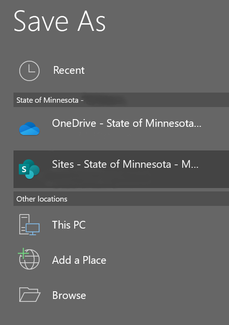
- Select File, Save As.
- Select Sites, which should have a SharePoint logo.
For those without branded, accessible templates, see the presentation slides from Develop, test, deploy: accessible templates for an entire state (PDF).
Note: If you rename a channel, the folder in the underlying SharePoint site will not update with the new name.
Your next option depends on your version of Office. (Don’t know? In Word, select File, then either Account or Help on the left nav bar.) If you have:
O365 Pro Plus
“Frequent” will become available in the section to the right of the “Save As” options once Sites has been selected.
- Navigate to the Team (Tab, down arrow), then select that Team (Enter).
- Select Documents.
- Select the Channel where you would like the document stored.
Office 2016
Folders become available in the section to the right of the “Save As” options once Sites has been selected. This may be organized by when you used them last.
- Navigate to the Team (Tab, down arrow), then select that Team (Enter).
- Select Documents.
- Select the Channel where you would like the document stored.
Have permission to a Team but can't find it in your list?
- Save the document in a temporary location (desktop, local drive, network drive).
- Upload the document within the Teams environment, and then you can delete it from the temporary saving location.
Source
Teams.Rocks: "Save Directly to Teams from Office Desktop Apps"
Thank you to Kris Schulze and Kim Wee for their contributions.
|