 Experiencing Accessibility Considerations in an Enterprise Project
by Dan Oehmke
During a conference call some time ago, my stress and frustration levels quickly maxed out. We were reporting issues with accessibility for an Enterprise application to one of our software vendors.
Our team was set up for a demo to show how things were not working very well. What started out as simple annoyances quickly led me to anger and great frustration. Even though I knew our accessibility experts had found these issues. Even though they had described them to me. This was my first direct experience watching someone use assistive technology. Something I knew was very important to those who need it, but had never experienced myself.
We were watching a colleague use a screen reader on the application. At first it was intriguing to see how the desktop and browser were configured to work with the screen reader. Soon, however, the screen reader was blaring in a jarring and irritating tone. While navigating a long list of items ending with ellipses, it kept shouting “dot, dot, dot” over and over again. “Item 1, dot, dot, dot, Item 2, dot, dot, dot, Item 3, dot, dot, dot.” I just wanted it to stop. We had hardly started and already my patience was frayed and I wanted to leave. Site focus, which I could see, didn’t match navigation by the screen reader. There were menus that didn’t read the same as they looked on the screen. I just wanted it to stop. I wanted to be done. There were navigational traps where users could not escape, without closing down the application and starting all over again. I was incredulous. Wouldn’t those who depended on these features be even more angry and frustrated? How could it be this bad? Shouldn’t this work? Are they ignoring Section 508 and Web Content Accessibility Guidelines? What if I needed this? Wouldn’t I be even more upset? How many other applications have these same issues?
Editor's note: After receiving Dan’s piece we took some time to speak with him about his work with Minnesota IT Services, digital accessibility, and how the above experience has changed the way he approaches his work. Our Experiencing Accessibility Considerations Blog has more of the article Dan submitted, and our interview which covers topics such as his changed perspective of the role of the VPAT, how having accessible technology impacts hiring practices, and how he sees digital technology playing a part in improving the operation of state government.
 Intern Update: Accessibility in Action
Since coming to the Office of Accessibility, it’s been amazing to see the integration and fruition of accessible technology. That being said, I have also seen the aspects that still need to improve, which is exactly one aspect that I wanted to obtain. That means, in terms of accessibility, what is working and what isn’t?
One of the projects we have is redesigning a web site to be more friendly, efficient, and accessible. When I first heard that I was getting to do this, I thought, sweet I’ll get to use some wireframe skills, then pick the best one and put it up. However, the reality is very different. First and foremost I got the run-down on the original site and all of the inaccessible nightmares on there. When you experience it for yourself, you see why accessibility needs to be a priority in the development phase.
Editor's note: What challenges did Andre have with the tools he used? Why did he change some of his opinions regarding automated captioning? Andre's blog shares more about how he plans to change his approach to better include "the perspective or needs of experts or all end users."
|
Tech Tip
Ever work hard to ensure a PDF's tags were in the proper order, had good heading structure, and appropriate alt text, only to find a spelling error on one of the pages or some other mistake that must be fixed? You no longer need to start all over again. Tamara Sawyer, Minnesota Management and Budget's Accessibility Coordinator, sent in this month's tech tip:
If you have the newest version of Acrobat Pro DC, there is an easy process to replace one (or more) pages within a PDF document (and keep your accessibility updates to the other pages!).
Look at the PDF page number that needs to be replaced (this may be different than the document page number).
 Open the Navigation Pane and then open the Thumbnails pane.
Open the Page Thumbnails drop-down menu and select Replace Pages.
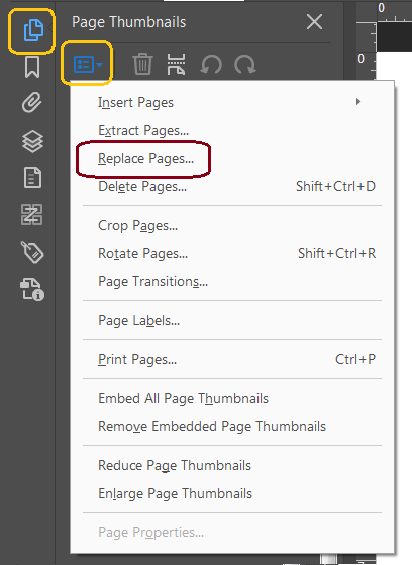 Browse to the document with the replacement pages, select it, and select open. The Replace Pages dialog box opens.
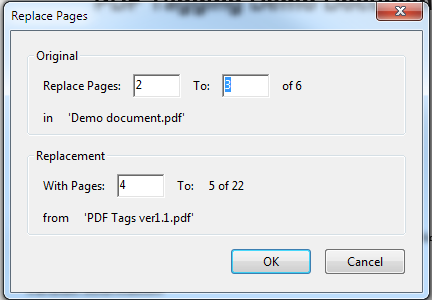 Select the pages(s) you wish to delete in the original document and the replacement page(s) and then select ok.
Your document now has the new, replaced page(s) in place of the original page(s).
|