|
Digital accessibility tips, tricks and trainings. April 2023
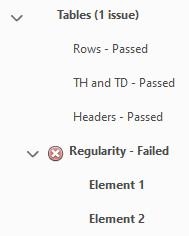
Table regularity error
The regularity error in Adobe PDF usually happens when cells have been merged in a table. The computer doesn’t recognize that a cell spans more than one column or row and thinks something is off. To be accessible, tables must contain the same number of columns in each row, and rows in each column.
To fix this, you’ll need manually go in and tell the computer that the cell spans multiple rows or columns.
|
1. Go into the Accessibility tool and open the Reading Order pane.
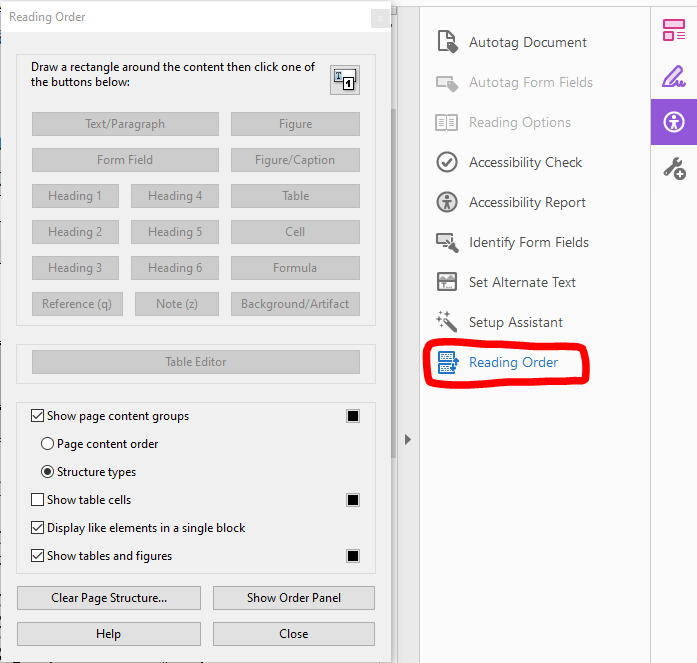
2. Select the table in your document by clicking on the label in the upper left corner. This will activate the Reading Order pane. Select the Table Editor button in the Reading Order pane.
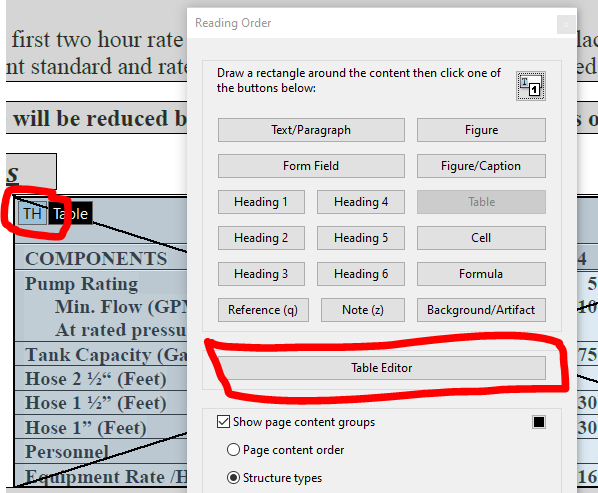
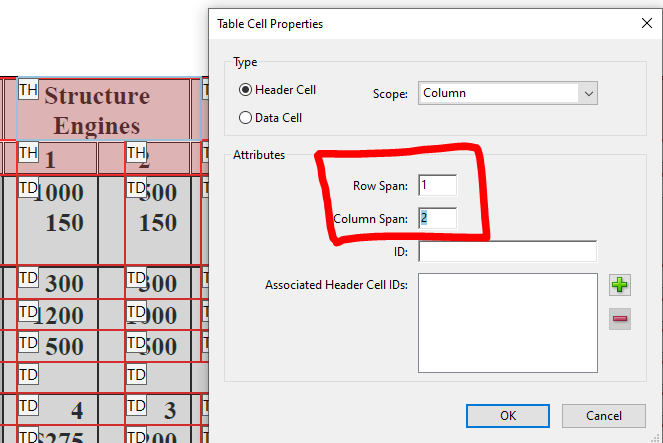
3. Right click on the cell you need to adjust. Select table cell properties.
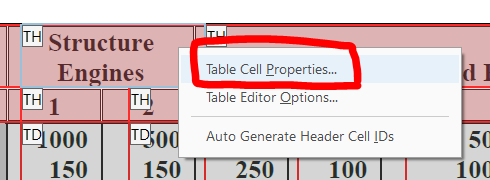
4. In the Table Cell Properties pane, adjust the row or column span. In this example, the “Structure Engines” cell spans 2 columns, so the column span is set to 2. Click OK.
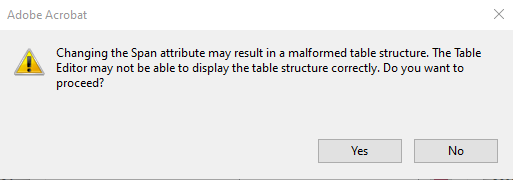
5. A warning message will appear. Click yes, you want to proceed.
 Accessible Equations in Word
By Kim Lanahan-Lahti, web content manager
Symbols and characters used in mathematical equations and formulas can present a unique accessibility challenge. The computer sometimes cannot recognize symbols, throwing up character errors. Plus, screen reader software struggles to properly voice the equation.
Follow these steps to create an accessible equation in Microsoft Word:
1. Add equation to document.
A few options:
2. Make the equation accessible.
Create an image of the equation.
- Select the entire equation and copy it.
- Select the equation again and delete it.
- Right click and select Paste as Picture from the pop-up window (CTRL+ALT+V)
|
|
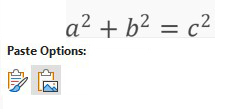 |
Add alt text to the equation. The alt text should be a description of how someone would voice the equation. In the example above, the alt text would be “a squared plus b squared equals c squared.”

Accessible Excel Training
Option 1
Course title: How to Make an Accessible Workbook
Description: Best practices for making accessible Excel workbooks. Online training from TPGi. One hour.
Who should take: Staff who regularly make Excel documents.
Option 2
Course title: Create accessible Excel workbooks
Description: Series of 3 videos created by Microsoft. Focus on tables and charts. 11 minutes.
Who should take: Staff who occasionally create Excel documents.
|

MNIT's Office of Accessibility monthly office hours
Have a burning digital accessibility question?
Bring your inquiries to the drop-in sessions held the fourth Tuesday of every month at 8:30 a.m.
Any and all questions welcome. Topics include documents, development, procurement and more.
Save to your calendar (contains the 2023 series of drop-in sessions)
|

Accessible Word LM course completion issue
The Learning Management (LM) course Accessible Word Document Training currently is not marking the course as complete when staff finish a module. If you complete the course, but LM doesn't mark you as having completed it, please contact Rebecca Blomquist.
|
Accessibility resources
Digital Accessibility Intranet Page
Go-to location for resources, guidance and information.
Designees
Need assistance? Contact your division digital accessibility designee.
|