|
Electronic information accessibility tips, tricks and trainings. October 2019, Issue X
 Happy Hyperlinks
Use meaningful text for hyperlinks instead of the URL. Meaningful text gives the reader context about the purpose, subject or destination of the link.
Correct: Additional accessibility training courses are now available.
Incorrect: Find additional accessibility training courses here. Find additional accessibility training courses at: http://intranet.dnr.state.mn.us/eia/training/index.html.
Why?
Don't assume that the links will only be accessed in the context of a sentence. Screen reader programs are sophisticated enough to read off only the links in the document. Hearing a bunch of links titled "here" or lengthy URLs makes it difficult for the user to determine what link they want to select.
Meaningful text also makes your message more clear and concise, improving content understanding and retention.
What if my document will be posted online and printed?
Hyperlink the meaningful text as usual, and then add the actual URL in parentheses behind the link. Don't hyperlink the actual URL. This way, online users get meaningful text as the link, while users with a printed copy get the actual hyperlink.
Correct: Additional accessibility training courses (intranet.dnr.state.mn.us/eia/training/index.html) are now available.
 Time for a Refresh?
Word Tip of the Month
Your accessibility skills getting a bit rusty? We've all been there. You learn something new, but after 6 months of disuse the skills get a bit hard to recall. A newly available accessible Word training might be just what you need. Located in ELM, the online training is divided into seven modules so you can get a refresher course on exactly what you want without having to take the whole thing over again.
To take the training:
- Search for and enroll in ELM course code G46MNITCMPAccessibleWord01. Course title is Accessible Word Document Training.
- Select the module you want to take. Your options are:
-
Introduction to Accessible Documents (why document accessibility matters)
-
Working with Styles (what are styles and how to use them)
-
Working with Colors (how to use color properly and effectively)
-
Formatting with Columns, Hyperlinks and Objects (also includes alt text, charts and graphs, headers and footers)
-
Working with Tables (how to create accessible and usable tables; when not to use tables)
-
Document Basics and Accessibility Checker (final steps like setting properties and using the Accessibility Checker)
-
Converting Word Documents to PDF (proper way to convert to PDF so your accessibility settings transfer over)
The time it takes to complete each module varies from around 5 minutes for #7 to 21 minutes for #4. Completing them all takes about 95 minutes.
At the beginning of most modules you'll be prompted to download a practice document. Use it to practice your skills as you learn them.
 Proper Properties
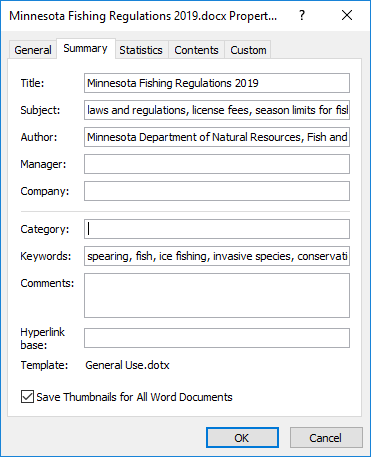
Properties are an important part of any accessible document. They give your audience basic information about the document. Additionally, properties make your document more searchable online.
Word, PowerPoint, Excel and PDF documents all need to have properties filled out. Title, subject, author and keywords are the required fields.
Title
- The title is the document topic. It is not necessarily the same as the filename.
- Many search engines use the title to describe the document in their search results list.
- Example: Minnesota Fishing Regulations 2019
Subject
- Conveys the scope of the document.
- Example: Laws and regulations, license fees, season limits for fishing in Minnesota
Author
- Use Minnesota Department of Natural Resources, NOT your name.
- Entering your division name is optional, but may be informative.
- Example: Minnesota Department of Natural Resources, Fish and Wildlife Division
Keywords
- Can be particularly useful for narrowing searches.
- Try to not just repeat what is in the title and subject.
- Example: spearing, ice fishing, conservation officers, nonresident fees, fish identification
Other tips
- Spell everything out. Don't use acronyms or abbreviations.
- Remember to use the word "Minnesota" where applicable. We are the Minnesota Department of Natural Resources, not just the DNR.
- Accessibility checkers won't flag missing property fields. You will need to remember to fill them out on your own.
Resources
Upcoming Trainings
The Science Museum of Minnesota's Computer Education Center is closing for good the end of 2019. If you've been thinking about taking some training, sign up today!
Training options and details
Electronic Information Accessibility Intranet Page
Go-to location for resources, guidance and information.
Designees
Need assistance? Contact your division Electronic Information Accessibility (EIA) Designee.
|