|
Electronic information accessibility tips, tricks and trainings. March 2019, Issue III
Putting your Presentation in Order
To ensure that screen readers read the information on your PowerPoint slide in the correct order, check your reading order. To do this:
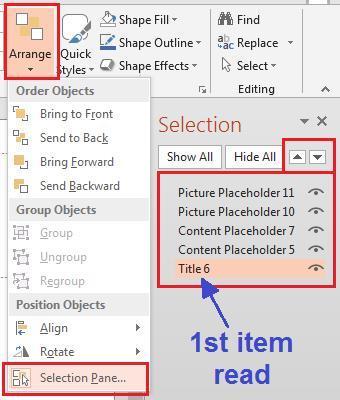
- Go to the Home tab, select Arrange in the Drawing group and then click on Selection pane.
- The objects on the slide are read in the order they appear on the pane from bottom to top (the first object at the top of the list is actually the last object read).
- To change the reading order, highlight the section you wish to move and click the up or down arrows. Or click and drag.
Note: Reading order is something that needs to be manually checked every time. It may or may not be flagged by the accessibility checker. Additionally, if it does get flagged, fixing it will not remove the tip from the checker.
Adobe Acrobat 2017 or Adobe Reader?
To create accessible PDF documents, use Adobe Acrobat 2017, not the free reader version. Adobe Acrobat Reader only views PDFs and will not create PDF files or check them for accessibility. The cost for Acrobat 2017 is $38/year and can be ordered for installation via Software Center through the Adobe software selection site.
|
|
 |

Tab Tricks
Word Tip of the Month
When drafting a Word document, make sure you are only tabbing once. Pressing the tab key twice or more in a row creates extra spaces that causes a screen reader to repeatedly say BLANK.
But what if a single tab doesn't give you enough spacing? Use a tab stop. A tab stop is the location the cursor stops after the tab key is pressed. It defaults to every half inch, but you can customize the spacing with a few easy steps.
1. Show the Ruler
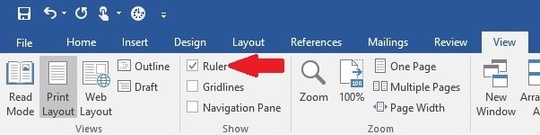
If you don't see the ruler at the top of the document, go to the View tab and check the box next to Ruler.
|
2. Set your tab stop(s).
- Place the cursor in your document where you want the tab to start from.
- Click the location on the ruler where you want the tab stop to appear. (Click on the bottom edge of the ruler.) A "L" will appear on the ruler.
- Hit tab. Your cursor should now line up with the tab stop you marked on the ruler.

3. Optional: Add a leader between tab stops.
Leaders are the underlines, dots and dashes that create visual links between tab stops. You'll see them most often in forms or table of contents.
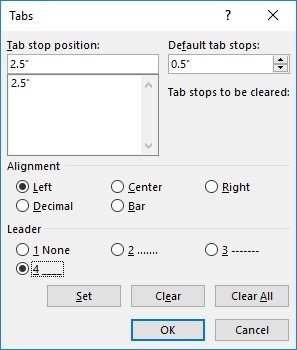
- Double click the tab stop on the ruler. This will open the Tabs dialogue box.
- Under Leader, choose 1 (none), 2 (dots), 3 (dashes) or 4 (underline).
- Click OK.
Tab stop extras
- You can add multiple tab stops to a single line.
- Instead of adding tab stops line-by-line, you can apply it to a whole section. First highlight the chosen section then click your tab stop location on the ruler.
For more detailed instructions on using tab stops, see the Microsoft Office guide on tab stops.
Resources
Upcoming Trainings
- Accessibility 101/Microsoft Word - Fri, Apr 5 in St. Paul
- Accessibility 101/Microsoft Word - Fri, Apr 12 in Grand Rapids
- Accessibility 101/Microsoft Word - Fri, May 3 in St. Paul
- Accessibility 101/Microsoft Word - Fri, June 7 in New Ulm
- Adobe PDF Accessibility Intro - Wed, June 12 in St. Paul
Details and more training dates
Electronic Information Accessibility Intranet Page
Go-to location for resources, guidance and information.
Designees
Need assistance? Contact your division Electronic Information Accessibility (EIA) Designee.
|