|
Workers can use the Case/Workgroup Setup screen to create a new Case and/or Workgroup or refer an Intake Workgroup to an existing workgroup.
The focus of this tip is to explain the Case section of the Case/Workgroup Setup screen. Search for a preexisting case before creating a new Case to ensure the Associated workgroups folder properly displays all workgroups for a client/family.
Case/Workgroup Setup: New Assessment Workgroup
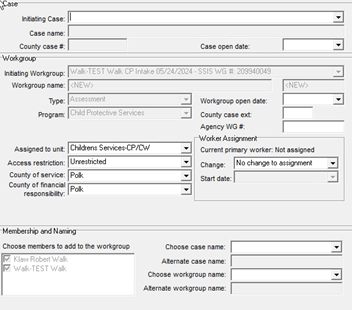 The Case/Workgroup Setup screen consists of three sections:
-
Case - The Case section provides information about the Case. Consider the Case as a container for all workgroups for this client or family/household clients.
-
Workgroup - The Workgroup section provides information about that specific workgroup. Multiple workgroups can be under an existing Case.
-
Membership and Naming- The Membership and Naming section is used to include or exclude members of a particular workgroup and/or case. This section also provides the ability to name a new case and workgroup.
Naming conventions may differ across agencies. The recommendation for naming a child welfare or child protection case is to select the name of the female head of household from the Choose Case Name field. If there is no female head of household, select the name of the male head of household. If neither, select the name of the oldest child.
Case/Workgroup Setup | Initiating Case field Options
Click to edit this placeholder text.
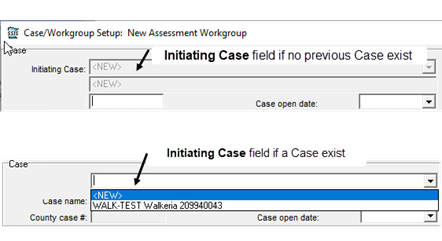 Case Section fields:
- The Initiating Case field defaults to <NEW> and appears as a greyed-out field unless a case already exists.
- The Case Name field auto fills depending on the selection in the Initiating Case When this field is enabled, the choices of both <New> and other case names are available. This field auto fills once an Initiating Case is chosen above.
- Use the County case # field to maintain the agency’s previous numbering system. Contact an agency SSIS mentor to check if this field is used as it is not a mandatory field.
- If it is a new case, the Case open date field can be back dated. Use the date picker, or type in the date to open the case. This date auto fills if the worker selects an option from the Initiating Case
Kathy Melvin, Hubbard County, was nominated as this month’s mentor of the month by a mentor from another county. “Kathy is always willing to help other mentors, answering questions or reaching out to others to get answers. Kathy is very knowledgeable and friendly. She is a great asset to her county and other counties as well.”
Nominations for mentor of the month can be submitted to Heide Moris, SSIS Mentor Program Coordinator.
Monday, June 3 and Thursday, June 6, 2024
This technical training is designed to provide an overview of data entry as related to Adult Protective Services (APS) in SSIS. An Adult Protection Resource Specialist will be in attendance during each class. Training is offered in two half-day virtual classes and designed for new adult protection workers, SSIS Mentors, and those seeking a refresher. Participants must attend both days for credit of course completion. APS workers are encouraged, but not required, to take the online SSIS Essentials eLearning prior to taking the course.
SSIS Adult Protection Training Day 1
9:00 a.m. to 1:00 p.m. includes:
- Review of APS Intake as received by the Minnesota Adult Abuse Reporting Center (MAARC)
- Review of the Adult Maltreatment Report (AMR) in the Intake Workgroup
- Review AMR bounce procedure
- Review functionality related to the Structured Decision Making ® and Standardized Tools
- Agency Report action options
- Assigning the AMR
- Initial disposition letters
- Brass Code 603
- Closing the Intake and transitioning to an Assessment Workgroup
SSIS Adult Protection Training Day 2
9:00 a.m. to 1:00 p.m. includes:
- Chronology case notes and activities
- Structured Decision Making ® and Standardized Tools
- Participant folder entry
- Adding Collaterals
- Updating the AMR
- Data cleanup
- Closing the AMR and the Assessment Workgroup
- Notice of Findings letters and Vulnerable Adult Maltreatment Summary
- Appeals
To register for SSIS Adult Protection Training, navigate to TrainLink Home Page and sign into TrainLink using your Unique ID.
- Navigate to Children’s Services
- Select Class and Webinar Schedule
- Choose “All SSIS Classes”
- Type in a Date Range
- Select the SSIS Adult Protection Training of your choice and enroll
Questions can be directed to Anna Chaloupka, SSIS Training Specialist.
The Adult Protection SSIS User Guide May 2024 edition is now available on the SSIS Resource Page. Refer to the Adult Protection SSIS User Guide Changes (v24.2) for updates and additions that have been made to this edition.
A new job aid, Out of State and Tribal License Entry, addressing license entry in SSIS has been posted on the SSIS Resource page under the Bus Org section of SSIS Fiscal Documentation.
The following SSIS Fiscal Documentation has been updated on the SSIS Resource page:
Child Foster Care Proofing Messages and the CFCR Abbreviated Proofing Message List, located under State Reports, have been updated to reflect the removal of Payment Proofing message #1283. This was due to policy clarification regarding Qualified Residential Treatment Program (QRTP) Extended Placement Reviews (EPR) released in SSIS Version 24.2 May 22, 2024.
Join special guests Paula Katzenmeyer and Debbie Retterath, DHS Child Safety and Permanency IV-E Trainers, as they present SSIS Components of IV-E, Tuesday, June 18, 2024, at 9:00 a.m. Registration will remain open until the webinar begins.
Coffee talk webinar recordings and related materials are posted on the Minnesota Child Welfare Training Academy website seven to ten business days following each event.
Questions regarding SSIS coffee talk events can be directed to Heide Moris, SSIS Mentor Program Coordinator.
Training opportunities for new SSIS users or those seeking a refresher are now available to SSIS users. Courses are great for those new to SSIS or those seeking a refresher. Click the topic below for course descriptions, schedules, and registration information.
SSIS webinar materials and previous recordings can be found on the MCWTA site.
|




