|
November 2, 2016 - Special
ePollbook Edition
This issue is the third in a series of special editions focusing
solely on the ePollbook. Leading up to election day, the QVF Help
Desk's call volume increases exponentially with the majority of those calls
relating to the ePollbook. This series of Special Edition News Updates
will provide you with troubleshooting information for common EPB problems,
as well as guide you to the many resources available to assist in the
successful operation of the ePollbook.

Important Note RE: Windows Updates
If you have not updated and charged your EPB laptops, please test all of your EPB laptops immediately! Some
jurisdictions have reported extremely lengthy Windows 7 updates. The most recent update is an
extremely large one. Some computers update fairly quickly while others
may take hours to do so. We recommend the following:
-
Run Windows Updates as you normally do. Follow on-screen instructions and allow the updates to run at least 12 hours if necessary. Times will vary depending upon the number of updates and you may be asked to reboot the laptop one or more times.
- If, after 12 hours, the laptop seems to be “hung up” (the laptop is sluggish and the Windows Update feature displays “Checking for updates” indefinitely), turn off the “Automatic Updates” feature. View Turning Off Windows Updates for instructions on how to do so. Then reboot the laptop.
Turning off automatic Windows updates is a temporary
solution to this issue that will allow you to use the EPB successfully and
securely on Election Day. After the election, we will provide further guidance on how to catch up the Windows updates.
Any jurisdiction that waits until the last minute to update
their EPB laptops will be instructed by the QVF Help Desk to revert to a paper
poll book.
|

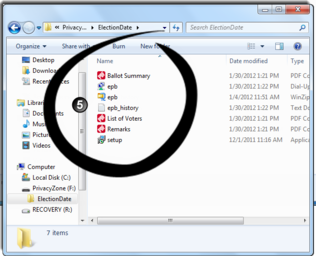
Check your work!
If your inspectors haven't saved all the necessary files, their
work is not done! Confirm that the correct 7 files were saved to
the encrypted flash drive. EMP users will have 6 files. If you
choose to save the activity report, you should have 8 (or 7) files.
If the files are not
saved in the encrypted flash drive, inspectors must get the manual out, get
logged into the flash drive, and save the necessary files.
|
Resources: Electronic Pollbook User Manual for Windows 7
pg. 37; Electronic Pollbook User Manual for Windows 10 pg.34; EPB Inspectors
Manual for Windows 7 pg. 26 ; EPB Inspectors Manual for Windows 10 pg. 24
Ballot Summary
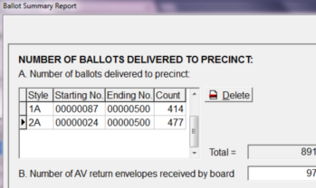
Below is an example of a complete top section of a Ballot
Summary. The top section of the Ballot Summary is an accounting of all
ballots delivered to the polls.
Line “A” equals the ballots sent to the polls to be used by
Election Day voters. This does not include the number of AV ballots that
were issued. If ballots 1-86 were issued to AV voters, ballot 87 is the
first ballot that will be issued on Election Day. That number is entered
into Line “A”. Repeat that for every ballot style. Remember, the tab
key will create a new line!
Line “B” equals the number of AV ballots sent to the precinct
for processing. It should never include the number of AV ballots sent to voters
unless 100% were returned.
Reminder: Line “B” above will be grayed
out if you do not go into File > Options > check the "Allow the
recording of absentee ballots" box > and Click OK. You must do
this whether you are processing absentees using the EPB or using the Addendum
List method.
Resources: Electronic Pollbook User Manual for Windows 7
pg. 15 and 32; Electronic Pollbook Election Inspectors Manual for Windows 7
pg. 21; Electronic Pollbook User Manual
for Windows 10 pg. 13 and 29; Inspectors Manual for Windows 10 pg. 19; Preparing
the EPB Software for Election Day Tutorial Video Clip
|