|
Jan 7, 2016
You are receiving this email because you have an account in the Michigan Elections eLearning Center. This newsletter contains important updates about the many resources that are available for election administration.
If you no longer have election responsibilities in the State of Michigan and want to be removed from this list, please email electionselearning@michigan.gov with a subject of INACTIVATE

With the launch of the new eLearning Center your login ID and password has changed.
If you haven't logged in yet, see below for your new ID and temporary password. Please make sure you do not have any spaces before or after your ID or password. Use one of the following as your Login ID:
* User ID (all lowercase - 4 letters of your last name, 1st initial, 5 number jurisdiction code (2 for county staff) example: clerj12345 or count12 )
OR
* User Name (Your First and Last Name and Jurisdiction Code (example: jane clerk 12345 or county clerk 12)
OR
* Email Address (associated to your account) (example: name@domain.org )
Initial Password: mi2015 (the system will prompt you to change it to something you prefer)
Visit the new site:https://mielections.csod.com to get started.
Note - there is no www in the address.
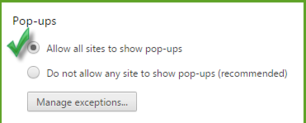
Say yes to Pop Ups!
Be sure to change your Internet Browser software to allow Pop Ups. The eLearning Center needs to open new windows to display your training materials and content. See your software for specific directions for Internet Explorer, Google Chrome and Firefox and the version you are using.
|
Here are some tips:
- Print this document or the other help documents and use them as a guide while getting to know the new system.
-
At the top of the Homepage are still clickable links to important items like the digital calendar, weekly newsletter, and BOE contact information.
- The Learning Tab gives you access to your Transcript, Class events and session and to track classes you've expressed an interest in.
- Items stay in your active Transcript, until you Mark the item Complete. This keeps information easily accessible until you are finished with it. Now you can also Flag important items to keep handy.
- Use the Catalog Tab to browse items by subjects and search for items quicker.
More help is available at this link and on the Login Page:
How to use the eLearning Center
Watch the video on the homepage to learn how to add your Accreditation and Continuing Education Certifications to your Transcript: Certifications
What's it called?
|
Some items go by different names under the new system and are listed in the following ways.
-
Events - in person classes
-
Sessions - dates of the in person classes
-
Certifications - accreditation and continuing ed status
-
Online Class - web-based training courses
-
Video - short tutorial video clips
-
Materials - manuals, documents, websites, forms, images
Under the Catalog Tab, Search for Content by training types to filter for certain types of training or resources.
 |
|
Where's my stuff?
All your completed training from the previous system has been transferred to the new eLearning Center. After you login on your homepage, click the My Transcript banner and change the Active tab to Completed.
|
|