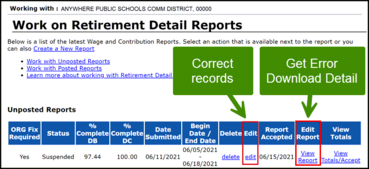
 The Employer Reporting website has a tool called the Error Download Detail that helps you identify and sort records that have been suspended or flagged. It could save time and help you be more organized when correcting errors. It’s especially helpful when a report has numerous records needing corrections. See also section 7.05.05: Using the Error Download Detail report in the Reporting Instruction Manual (RIM).
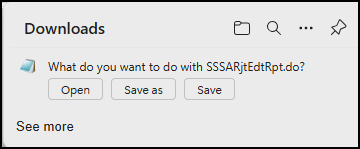
To get to this tool, go to the Work on Reports screen on the Reporting website. For one of your unposted reports, in the column called “Edit Report,” click the View Report link for the unposted report. You will see the Edit Report screen, where you can click Error Download Detail to download the file. You will be prompted to open or save it. We recommend you save it to your computer, perhaps with a name that will be more useful than what is provided.
 The file should be opened as a spreadsheet so you can sort or filter. If you filter the Error Type column and select ORG FIX, you can focus only on the records you can fix. From there you can sort by error message, so you can fix similar errors at the same time (one at a time). Or sort by name or message type — whatever makes your task of correcting these records easier.
To make the corrections, you’ll need to return to the Work on Reports screen, where you’ll also see a column called Edit and links for editing the records in a report. (See RIM section 7.05.04: Correcting errors using the Edit link).
Note: Once you open a record and save it (even if you didn’t change anything), the record is no longer visible on the list of records to be corrected. The report will head back through Basic Edits and Validations in the nightly batch. If the issue was not resolved, it will be there the next morning. (If a record’s status is posted, valid, or edited, it will not be available until after it’s been through the overnight validation process.)

At this time of year, you may be processing terminations. You can help employees make a smoother transition out of your reporting unit (RU) by checking on any existing TDP agreement they may have.
A terminating employee with a TDP agreement may not be aware of their options, and this is one area of retirement that doesn’t automatically transfer from one employer to another. Please tell them they have only 90 days from their termination date to transfer their agreement to a new Michigan public school, using the Tax-Deferred Payment (TDP) Agreement Addendum (R0625C) form.
Most members are no longer eligible to purchase new service credit (since Sept. 30, 2017), so if the current agreement lapses, they may be unable to complete their planned purchase, which could impact their retirement timeline.
If a terminating employee wants to pay off or pay down their TDP agreement with cash or check, advise them they must make the payment to the Michigan Office of Retirement Services (ORS) before their termination date. The required forms, R0518C and R0718C, are found on the MPSERS member website under Forms and Publications. Please provide them the remaining balance on the TDP as they prepare to leave employment.
For any terminating employee who is not transferring to another Michigan public school and has a sizable TDP agreement balance, ORS advises them to review the MPSERS member website for more information and contact ORS with any questions before their termination date.
For more information on accepting a TDP agreement from another MPSERS employer to your RU, please see the RIM article 10.08.01: Processing the TDP agreement addendum.
|

In May, 18 FAQs and a PDF of updates to the Reporting website were added to the State of Michigan Roth 457 Accounts page. The FAQs provide information on reporting changes related to the Roth 457 option, DC contributions and account types, and Roth 457 accounts from an employee’s perspective. The PDF shows screenshots of upcoming changes to the Reporting website, effective Aug. 25 of this year, enabling the reporting of contributions to Roth accounts.
If you have additional questions regarding the State of Michigan Roth 457 Accounts, contact ORS at
800-381-5111 or ORS_Web_Reporting@Michigan.gov.
|

ORS staff involved in the final audit process for retirement applications have noticed there are RUs who appear to believe it is a requirement to terminate their employees after all the carryover or summer spread wages (Wage Code 08) have been reported. Often carryover can be reported after the termination date.
If the termination date is missing or incorrect on the employee's final payroll detail, there could be a delay or change to their intended retirement effective date and/or insurance effective date. If the termination date is after their desired retirement effective date, ORS is statutorily obligated to adjust their retirement effective date.
In most cases, an employee's termination date is the date the employee and the employer ended their relationship. A member's retirement effective date is the first day of the month following the month in which the member has satisfied all eligibility requirements, terminated employment, and submitted their retirement application. ORS does not tie an employee’s choice to have their final pay spread over the summer months to a delayed termination date. It is acceptable to terminate at the beginning of the summer and have summer spread wages yet to be reported.
If someone’s retirement effective date is changed to a later date, the retiree may see an unnecessary delay in receiving their pension payments. The final audit process can occur months after a retiree has begun collecting their pension. A change to their retirement effective date could require a retiree to pay back months of previously received pension payments and medical expenses incurred before the adjusted effective date.
Helpful information can be found at 4.02: Reportable compensation, 7.03.03: Reporting summer spread wages on a DTL2 record, and 11.06 Frequently asked questions about FPDs question 10, What is the difference between termination date, last day worked, and last day paid?

When a member retires, ORS performs a full review of their account. For this review, the RU is required to submit documentation of compensation, including contract(s), contract addendums, and reported wage details. To ensure timely calculation of benefits and initiation of retiree insurances, our office will request the documents be returned within 10 business days of the request.
For job classifications with fewer than three members, ORS will request a salary schedule for the member’s position or the most nearly identical position. See the RIM 4.05: Understanding allowable salary increases and salary schedules and the Salary Schedules and Allowable Salary Increase FAQs for more information.
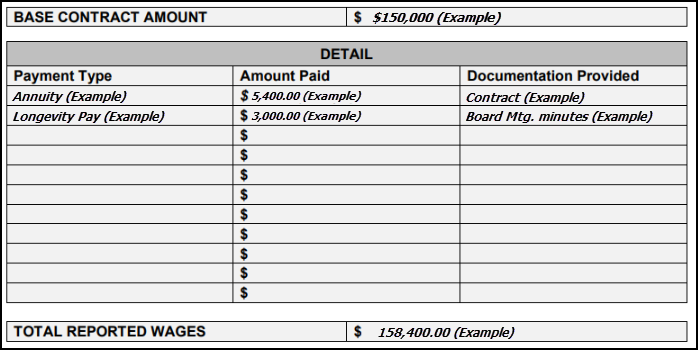
For payments considered above the base salary or not in the contract — including but not limited to reimbursements, bonuses, merit pay, annuities, longevity pay, etc. — we need supporting documentation. It might take the form of board meeting minutes, memos, or emails, and should show the date the compensation type was established and approved.
Each payment should be specifically listed on the Reported Wage Detail forms that accompany the request (one form for each year requested), and the amounts should total the wages reported.
|
 If you have any questions regarding this process, contact ORS-Contract-Review@Michigan.gov


We know another busy year is winding down. As you fill open positions for the next school year, share Voya’s New Hire Orientation presentation with your new employees. After completing a brief form, your employees will be able to view the short on-demand presentation providing information on the retirement plans and decision timeline.
|
|