Update Your Contact Information In Adv4 for Emergency Alerts
Test Alert Scheduled for Wednesday, Feb. 12 at 10 a.m.
Dear Department Directors, Elected Officials and Staff,
In times of critical events, staying connected can make all the difference. Your contact information in Advantage4 (AdV4) is crucial for delivering timely, critical alerts through our Everbridge communication system. Whether it’s a severe weather warning, a utility outage, or another urgent situation, Everbridge will notify you instantly by phone, text message, or email, ensuring you have the information you need when it matters most.
Your Information Saves the Day
To ensure you receive these essential alerts, please verify and update your primary phone number and email address in AdV4. These details serve as Everbridge's lifeline to you during crucial moments with all registered primary contacts in AdV4 will receive simultaneous notifications across all platforms.
Please update your contact details in AdV4 by the close of business on Friday, February 7. For your convenience, instructions on updating your information are included below.
System Testing Schedule
To maintain system efficiency, we'll conduct routine tests of the Everbridge system twice a year. Our next test alert is scheduled for Wednesday, February 12, at 10 a.m. This test will simulate a real emergency notification, reaching your primary phone number and email address listed in AdV4.
Additionally, a calendar notification from the Kent County Administrator's email will be sent to confirm this date and time, ensuring everyone is prepared for the test alert.
Thank you for your attention to this important update. If you encounter any issues updating your information in AdV4, please reach out to the Information Technology HelpDesk for assistance. For any other questions related to this request feel free to contact us at communications@kentcountymi.gov.
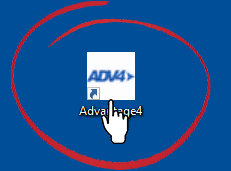
Step 1: Log Into Adv4 (Advantage4)
Log into Adv4 icon using the icon on your desktop.

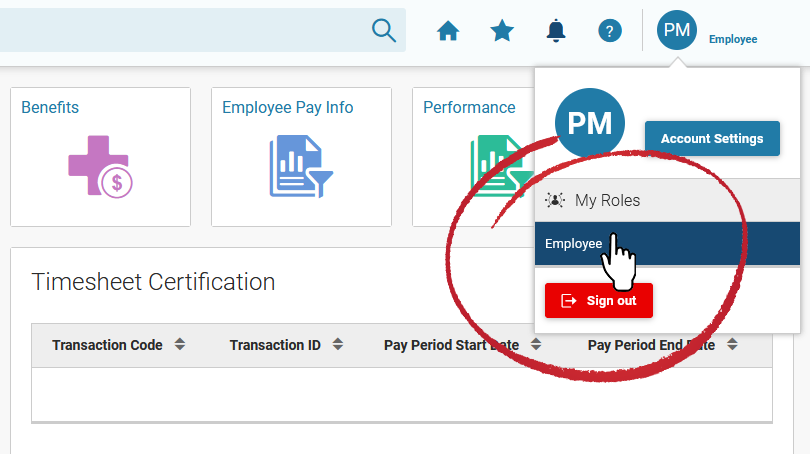
Step 2: Select Employee Business Role
Once logged into the Adv4 system, go to the “Employee” role.

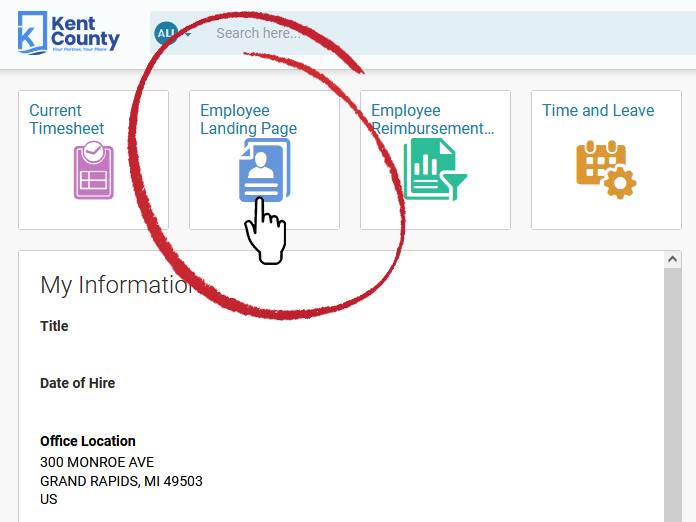
Step 3: Click on the Employee Landing Page Icon
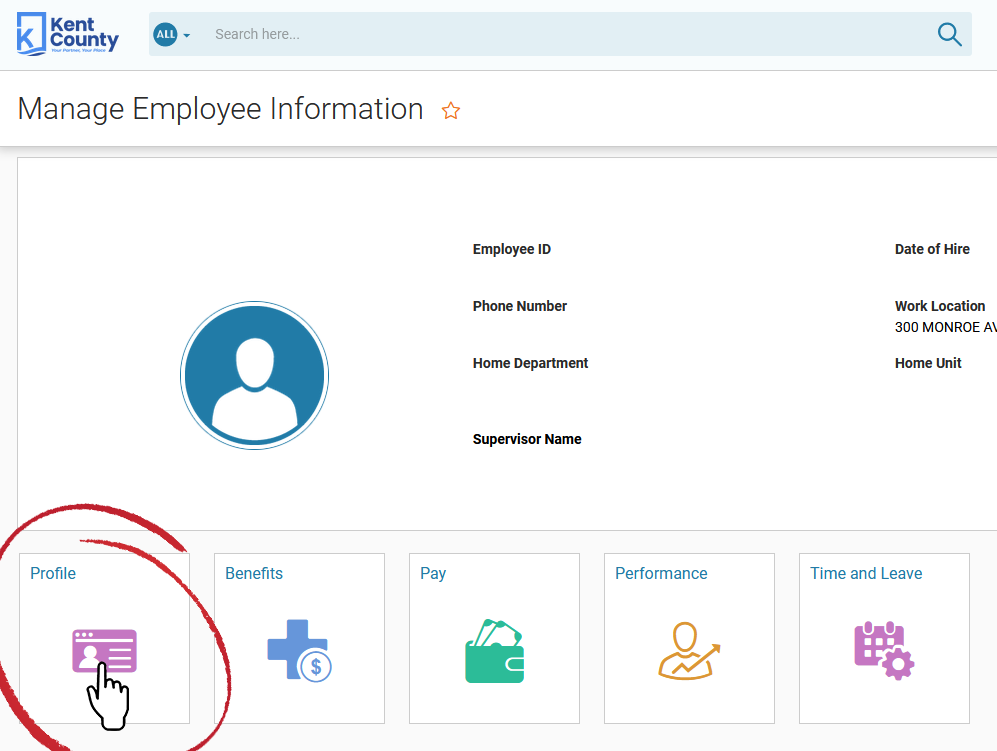
This landing page will bring you to the Manage Employee Information screen.
Step 4: Click on the Profile icon
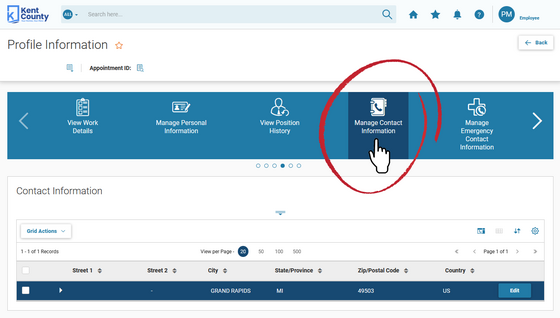
Step 5: Select Manage Contact Information from the carousel of options
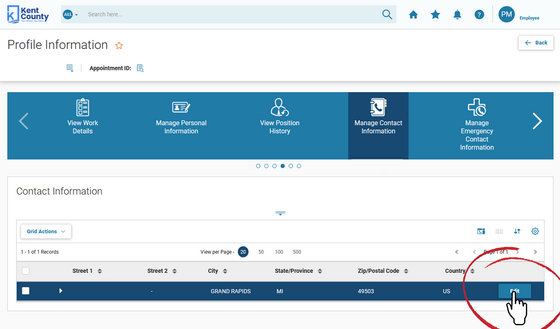
Under Contact Information, a record should appear with your mailing address.
Step 6: Select “Edit” button to update your contact information (primary phone, e-mail address, mailing address)
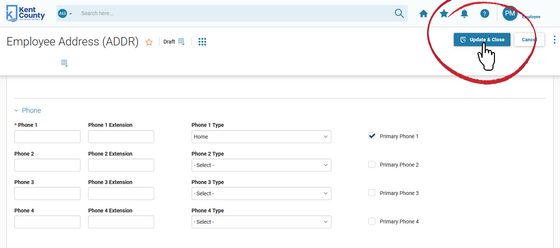
Scroll to “Phone“ section and enter your primary phone number, type of phone, and which number is “primary.”
Tips
- Only one phone number can be designated as “primary”
- Only phone numbers with a designated phone type will transfer to Everbridge
Scroll to e-mail section and verify or update your e-mail address.
If you have a County email address, it was entered into the Adv4 system as your primary e-mail. DO NOT change your primary e-mail address to a personal email unless you wish to receive all work-related e-mail communication on your personal email.
Step 7: Save Information
Once you have verified or entered all your contact information, click “Update and Close.”
If you updated the information correctly, you will receive a green “Information Saved Correctly” message at the top of the screen.
|