|
From the desk of Jason Balderama, CISO, County of Marin
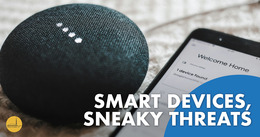
We are more connected than ever before. Statistics vary, but it is estimated that there are at least 17 billion devices on the Internet today. This includes computers, cell phones, tablets, fitness trackers, TVs, doorbells, security cameras, thermostats, refrigerators, and more. There are also the devices that connect everything else together such as modems, routers, and wireless access points.
Many people may not consider their connected devices to be a security threat, but they absolutely can be. One of the issues with Internet of Things (IoT) devices is that many of them do not come configured with security in mind. Connecting an insecure device to your network is like leaving the back door to your house unlocked, as it can give attackers access to your personal information.
Manufacturers develop products to be more accessible and user friendly. Unfortunately, some devices completely lack the option or ability to configure them, making it nearly impossible to secure them. Insecure devices also give hackers the means to propagate their attacks onto other networks and devices.
Let's review some tips on how to keep all your connected devices secure.
|
|
-
Do your research before purchasing a connected device. Take extra care, especially when purchasing a device that may allow someone access into your home such as a surveillance camera or home security system.
-
Check online reviews. Look at the company’s website and other trusted sources to determine if there are concerns about the security of the device.
-
Shop with trusted retailers. When you are ready to purchase, verify that the vendors have good contact information listed on their web site and a positive reputation.
With a few configuration changes you can greatly enhance the security of your home network. If you are unsure of how to perform the following steps, please consult the product support documentation for your router.
-
Change your router’s password from the default to a secure password. This will prevent others from accessing the router’s configuration, changing settings, and gaining visibility into your network.
-
Enable automatic updates and install the latest router firmware. Keeping your router up to date with the latest firmware helps protect it as new vulnerabilities are discovered.
-
Enable the router’s firewall. The firewall helps prevent the devices on your network from accessing malicious sites, as well as keeping outsiders on the outside of your network.
-
Customize your Wireless Network Name (SSID). The default wireless network name is typically the brand of the router, which can provide clues to outsiders as to what you are using and what vulnerabilities exist. Make sure you do not use your name, home address, or other personal information in your new SSID name. For added protection, disable broadcast of the wireless network name.
-
Enable Wireless Encryption. Use Wi-Fi Protected Access 3 (WPA3) if supported by your device and choose a strong passphrase to connect devices to your network. When feasible, choose wired connections over wireless for enhanced security.
-
Enable a Wireless Guest Network. A security best practice is to segregate network devices. Connect your computers, mobile devices, printers, and other trusted devices on your primary wireless network, while restricting devices such as Smart TVs, Personal Digital Assistants, and your refrigerator to the guest network.
-
Install updates. Update the device operating system, firmware, and software as the out-of-the-box software installed on the device may be out of date.
-
Enable automatic updates. Automatic updates are often disabled by default. Enable this setting to ensure your device receives important security updates as they are released.
-
Update passwords. Change passwords on all devices, especially for default “admin” accounts.
-
Add additional authentication. When available, be sure to enable pins, fingerprints, facial recognition, or unlock patterns as an added layer of security.
-
Enable remote wipe. Many mobile devices support remotely wiping the device if it is lost or stolen. Be sure to enable this feature to help protect your data.
-
Minimize services. Turn off services such as Bluetooth and location services if not needed.
-
Minimize app permissions. Devices and apps may ask permission to use your camera, microphone, contacts, call history, and more. Consider which features are essential when granting permissions, and try to keep access to a minimum.
-
Secure remote management. Some devices allow you to manage them through a web site or mobile app. Use strong and unique passwords and enable Multi-factor Authentication (MFA) on all these accounts and apps.
-
Use current devices. Devices that are no longer supported by the vendor do not receive security updates. When possible, replace these devices with new ones.
|
|
Copyright © 2025 County of Marin, All rights reserved. |
|
Disclaimer
The information provided in Marin CyberSafe News is intended to increase people’s awareness of cybersecurity and to help them behave in a more secure manner. Links in this newsletter are provided because they have information that may be useful. The County of Marin does not warrant the accuracy of any information contained in the links and neither endorses nor intends to promote the advertising of the resources listed herein. The opinions and statements contained in such resources are those of the author(s) and do not necessarily represent the opinions of County of Marin.
|
|
|
|
|