|
|
June 2024
As you've probably noticed, we've changed the format of the newsletter. Starting this month, we will be using GovDelivery for the Asana newsletters and they will be delivered bi-monthly.
This month is all about portfolios. Let's explore the Current Projects portfolio to get visibility into what IST is working on, as well as how to create private portfolios to manage your own workload.
|
|
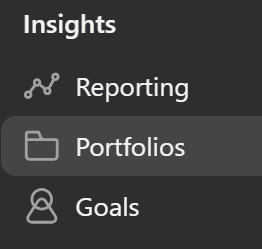
Portfolios allow us to group multiple projects and get a high level overview of each project, including project status, due dates, TIB budget etc.
Portfolios can be public or private. Public portfolios can be viewed by all Asana users in IST. Private portfolios, are only visible to the owner and anyone that has permissions.
PMO has 5 public portfolios: 'Current Projects', 'Approved - Not Started', 'Cancelled' and two others that we use to Archive completed projects.
|
|
|
The PMO team tracks all TIB and SLT approved projects in the Current Projects portfolio.
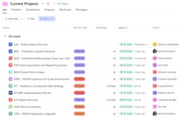
IST works on many projects every year. PMO team tracks the SLT and TIB approved projects in a portfolio called 'Current Projects'. Once projects are completed they stay in this portfolio until the end of the fiscal year.
|
The PMO team tracks various key metrics in this portfolio such as the project status, TIB budget, project owner, PMO Oversight resource, due date, risk summary and mitigation and a few others.
|
|
*Fun Fact: The PMO team works with Governance to sync the Current project list to the Governance list to ensure a smooth project intake process. |
|
If you are new to portfolios, you will need to search for and open a portfolio first.
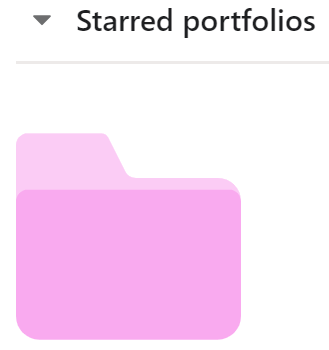
To view a portfolio in Asana follow these steps:
1. Go to the Search bar at the top of the screen and type in the name of the portfolio (i.e. Current Projects).
2. Open the portfolio and click on the 'star' icon next to the portfolio name.
|
Next time you open Asana, go to the 'Portfolios' tab in the left side navigation. You will see the Current Projects portfolio under 'Starred' portfolios.
|
|
You may create a private portfolio to track your own work.
Portfolios are a great way to keep track of your personal workload. You can create a private portfolio and add your projects there. You can add both public as well as private projects (operational).
Private portfolios will not show up in the Search and will only be accessible by you and anyone else you give permissions to view it.
To create a private portfolio:
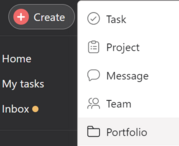
1. Click on the '+Create' button at the top left corner of the screen.
2. Select 'Portfolio'.
3. Enter a Portfolio name and under 'Privacy' select 'Private to portfolio members.
To add projects to the portfolio:
There are two ways to add projects on a portfolio:
1. Open the portfolio and click 'Add work' and enter the name of your project in the search field.
2. Alternatively, you may open a project you'd like to add, click on the down arrow next to project name and select 'Add to portfolio' and then enter the name of the portfolio.
|
|
|
|
|