|
|
We hope you attended the July Office Hours but if not, the material below provides you with all the information.
Please continue the hard work you do for our Service members, Veterans, and beneficiaries. We believe the path to higher education begins with you!
|
|
Enrollment Manager Guidance - Inactive Students Update
To add an inactive student to a school:
- Navigate to the Benefits tab to update the benefit type.
- Select the Add student to school link in the bottom right-hand corner.
- Enter and submit all the required information as if you are adding a brand-new student and associate the school.
- Then, the Add enrollment button under the Enrollments tab is enabled.
Enrollment Manager Guidance - Custom Remarks for IHLs and NCDs
Four new VBA remarks are being added in the August release to address common situations. These remarks are listed below but are not necessary for the processing of the enrollment.
- Second Certification for Enrollment Verification
- Change to Tuition & Fees
- Replacement of “Updating Tuition and Fees”
- Correcting / Updating / Amending Previous Enrollment
- Graduated / Received Diploma or Certificate / Completed Objective
VA sees many Custom Remarks added to relay information that is not needed. The use of Custom Remarks slows down the certification processing time. You are reminded to:
-
Not use a Custom Remark if there is a relevant VBA Remark.
-
Not use a Custom Remark to provide details already described in the enrollment certification.
When providing additional information, whenever possible, use VBA Remarks or the Notes feature.
Enrollment Manager Guidance - Correcting Name and Email Address
Follow the steps below to correct your name or email address in Enrollment Manager:
- Contact the SCO Hotline to request that the Call Center Representative create a Detailed Issue Form (DIF) indicating the exact nature of the error.
- Provide the representative the following information:
- Facility code.
- Name of the school or training organization.
- Location of the incorrect name or email address (login page, print outs, etc.),
- The incorrect information.
- The correct information.
Example of needed information:
-
Facility code: 12345678
-
Name of organization: ABC University
-
Location: EM login page
-
Incorrect last name: John Publiq
-
Correct last name: John Public
Enrollment Manager Guidance – General Reminders
DO:
- Check the Programs tab to confirm it has the correct Training Type, Objective Type, Academic Program, and Benefit Type.
- Ensure the Benefit Type you want to certify for is on the Programs tab.
- Confirm the Training Type is consistent with the Academic Program.
- Double check your Program cards before you create an enrollment. Ensure the Benefit Type, Objective (if applicable), and Program are correct.
- After a certification has been submitted, please confirm the Benefit Type is correct by navigating to the submitted enrollment, select View Details, select Print, and confirm the Benefit Type on the page.
- Pay close attention to confirm Veteran Readiness and Employment (Chapter 31) enrollments align with the Chapter 31 Benefit Type.
DO NOT:
- Edit preset enrollment period dates. Instead, inactivate the present enrollment period with the incorrect dates. Then, create a new preset enrollment period with the correct dates.
Any certification submitted under the old preset enrollment will have to be amended manually if it needs to be changed after deactivation.
Enrollment Manager Resources
Relevant links:
- VA Education Platform Portal – you are highly encouraged to manually bookmark this site by bookmarking https://iam.education.va.gov/.
- Enrollment Manager user guide
- Enrollment Manager FAQs
- Enrollment Manager quick start guide – Institutions of Higher Learning
- Enrollment Manager quick start guide – Non-College Degree
- Enrollment Manager quick start guide – On-the-Job Training and Apprenticeship
- Enrollment Manager quick start guide – Flight
|
|
|
Certifying Guest Students in Enrollment Manager
Enrollment Manager now requires the SCO at the Guest School to include the student's training objective (at the parent school) on an enrollment in addition to selecting ‘guest’ in lieu of a program.
You can refer to the Enrollment Manager user guide and July Office Hours recording for examples of this situation.
|
|
|
Yellow Ribbon
At Institutions of Higher Learning (IHL) the Yellow Ribbon Program payment is paid directly to the school on behalf of the student to help pay some or all unmet charges. The school enters into an agreement with VA to contribute up to 50% of unmet charges and VA matches. The combined school and VA contribution can’t exceed the net amount of tuition and fees charged to the student.
Who is Eligible for Yellow Ribbon?
Eligible students are those who have or are a:
- Service member or Veteran qualified at 100% eligibility level on their Certificate of Eligibility. VA processing determines eligibility based on honorable service dates, Purple Ribbon, service-connected disability, and/or active-duty status or
- Spouse of an eligible Service member or Veteran using the transferred benefits of a 100% eligible Service member based on determination of the above criteria, or
- Dependent child of an eligible Service member or Veteran using benefits transferred by a 100% eligible Service member based on determination of above criteria, or
- Fry Scholar(ship)
Open Season
- Domestic Schools - March 15 - May 15
- Foreign Schools - June 1 – July 31
During open season, schools may:
- Apply for initial participation.
- Modify existing open-ended agreements.
- Withdraw from the Yellow Ribbon Program.
Newly approved schools (or branches) do not have to wait for open season to submit a Yellow Ribbon agreement.
|
|
Upcoming Training Event(s): Office Hours
August Office Hours Registration
|
|
|
Upcoming Training Events: SCO Onboarding Program (SCOOP)
Starting in September, the National Training Team – Schools Team is hosting live, interactive, non-mandatory trainings specifically for new SCOs (those with less than 2 years of experience), at various facility types, to address nuances in working with VA.
These trainings will:
- Recall Education Services organizational structure.
- Differentiate beneficiary chapters.
- Illustrate a facility-specific certification through live, interactive demonstrations (role-play and polls).
- Provide best practices from experienced SCOs.
- Identify appropriate points of contacts to address SCO concerns.
- Reiterate training compliance.
|
|
Annual Training Requirements
The SCO Annual Training Requirement Video is now available on the VBA YouTube Channel. This recording is extremely valuable for new SCOs and serves as a refresher for those who’ve been in their position for years. We do not cover the slides during Office Hours anymore.
Watch the new SCO Annual Training Requirements video.
Relevant links:
- Annual SCO training requirements
-
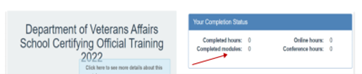
SCO Training Portal - You can view the number of training modules and training hours you’ve completed here in the Your Completion Status table.
FY 2023 New Certifying Official Training Requirements
- Institutions of Higher Learning = 10 Modules
- Non-College Degree Facilities = 10 Modules
- On-The-Job and Apprenticeship Training = 1 Module
- Vocational Flight Facilities = 1 Module
- High School Facilities = 1 Module
- Residency Facilities = 1 Module
FY 2023 Continuing Certifying Official Training Requirements
- Institutions of Higher Learning = 4 Modules
- Institutions of Higher Learning with Flight Programs = 4 Modules
- Non-College Degree Programs Only = 4 Modules
- Institutions of Higher Learning with Non-College Degree Programs = 4 Modules
- On-The-Job and Apprenticeship Training = 1 Module
- Vocational Flight Programs = 1 Module
- High School Programs = 1 Module
- Residency Programs = 1 Module
Self-Certification Steps
- Login to the SCO Annual Training Portal.
- Select “Office Hours”, “Conference Sessions”, or “Supplemental Training”.
- Locate the applicable session and select “Begin”.
- Verify you selected the correct training session, then select “continue”.
- Select “Yes, you completed 100%”, then select “Submit”.
- Enter the Date of Training, then select “Submit”.
- Download your results and retain the Certificate.
Congratulations to all the new School Certifying Officials!
|
|
|
As a final reminder, you must be enrolled in GovDelivery in order to receive routine communications (such as webinar invites or these office hour notes) from Education Service.
If you have outstanding questions related to this material or if you have suggestions on future Office Hour presentation topics, please contact the National Training Team – Schools.
Wishing you all a fabulous summer!
National Training Team (NTT) – Schools
|
|
 |
|
US Department of Veterans Affairs
Veterans Benefits Administration
1-888-442-4551, TDD: 711
|
Do you have a question or concern about GI Bill benefits? Contact us safely and securely with Ask VA! |
|
 |
|
|
|
|
|