Correction - Oasis Bulletin - December 19, 2024

PBS OASIS Logo

Please note that we have corrected the first screenshot/image below. 

With the new calendar year around the corner, the OASIS team would like to close out 2024 with some important updates.


Accessing OASIS From Workflow Notification Emails 

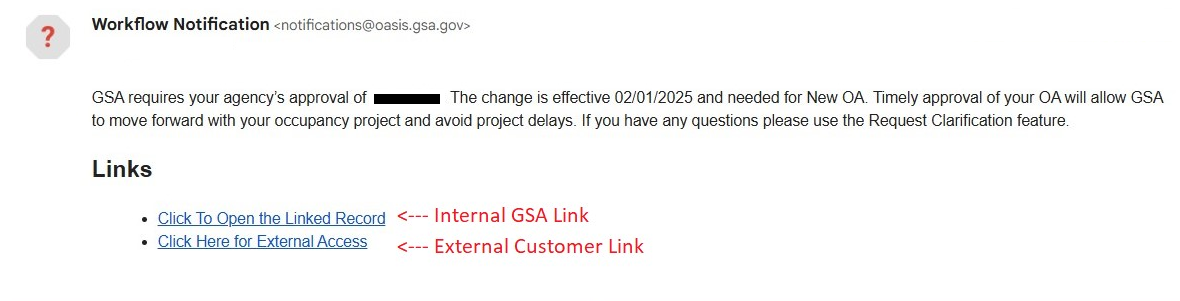
Notification emails have been updated to make it easier for our federal agency customers to access OASIS directly from these communications. The revised notification email now has two access links at the bottom. The first link is for internal GSA users and the second, “Click Here for External Access” redirects to the customer URL oasiscustomers.gsa.gov. Refer to the screenshot below for a visual guide to the new notification email links. Please note that selecting the incorrect link will not provide OASIS access. This change went into effect for emails dated on or after November 20, 2024.

CORRECTED SCREENSHOT


Don’t Exit Too Quickly (Especially With Approval Forms)

Some users have encountered a spinning wheel after clicking a button in OASIS. This occasionally happens when working with OAs that capture large amounts of space records, square footage or building equipment. 

The spinning wheel indicates that workflows are being processed behind the scenes.

Exiting this window before that wheel disappears will disrupt the approval process or have other unintended consequences. 

When the workflow process is interrupted, the action can become “stuck” and requires manual intervention to correct. In some cases, OAs cannot be “unstuck” manually, and the OA must be re-approved from the beginning of the process. 

You can prevent this from occurring by following the steps below. 

  • When an approval form is approved, you are directed to enter optional agency information, such as employee count or customer identifiers. 
  • After clicking “submit”, you are directed back to the approval form. 
  • There is a small blue wheel in the upper left corner that spins while the workflows are taking place. 
  • Once that is finished, the wheel stops and the approval form will close automatically. 
  • Please do not exit this window manually, and allow the window to close on its own. 

This process will be quicker for some OAs than others. 


OA Approvals and the Client Project Agreement (CPA) 

The CPA is a fantastic resource developed during the identification phase of a space project.  It outlines the strategic requirements agreed upon by GSA and the customer, serving as the initial green light to move forward. Once finalized, the CPA is not updated.  As the project progresses, updates on project costs and specifics will be provided by the project manager.

The OA is prepared when GSA is ready to award the lease or federal construction project. It represents the actual deal negotiated by GSA for the space and requires your approval to proceed. 

We have seen instances where customers reject the OA because they did not receive a CPA or the final deal differs from the CPA. Please remember that an OA rejection means you do NOT want GSA to proceed with that space acquisition. A missing CPA does not negate that we have a negotiated deal for your review. The key question to consider when accepting or rejecting an OA is: “Do I want this space deal that GSA is proposing?”. If you do want to move forward, accepting the OA in a timely manner is critical.

If you have concerns or questions about the OA, you may use the “Request Clarification” feature in the OA Approval review.  This allows you to ask GSA questions about the acquisition approach, changes from the CPA, or deviations from the original requirement, allowing you to continue to evaluate the OA.


Session Timeout

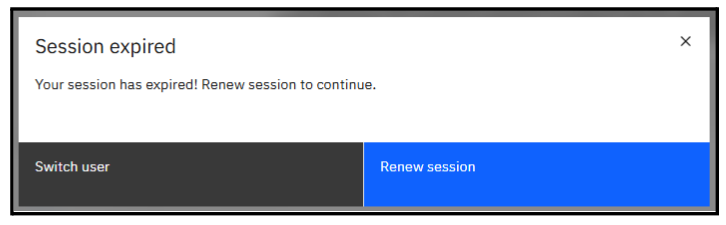
Starting next week, you may notice a new change during your OASIS session. For security purposes, OASIS will timeout after 15 minutes of inactivity. If you’re impacted by this logout change, you will see an option to either renew your current session or start a new one. Both options will route you back to OASIS. The screenshot below details the options you will see if this occurs:

session expired


Login.gov Assistance

The last edition of this newsletter provided tips on how to navigate Login.gov account creation. Attached is a simplified PDF that may help if you’re still experiencing issues. As always, the external site has tons of information, including Login.gov FAQs and helpdesk contact information.  


Training, Links, and Resources

Visit the PBS OASIS Website for links to the Customer User Guide, Training Videos, and more.

You can also email pbsoasis@gsa.gov with any questions or to report specific system issues or reach out to your regional team to discuss specific billing questions.