|
|
Item downloads on the History Portal is tricky business
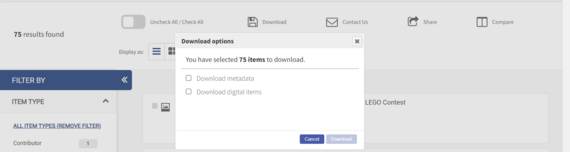
The Montana History Portal receives many questions related to downloading copies of items. This is understandable as some of the buttons on our pages do not work as expected. To safeguard copyright, our site-wide configuration is set to not allow downloads of items. Recollect recently released an update that allows us to set up item downloads by collection. The screenshots below walk through the process of downloading items. If you are a member of a contributing institution who would like to make your content available to download, please submit a ticket using the link at the bottom of this page.
|
|
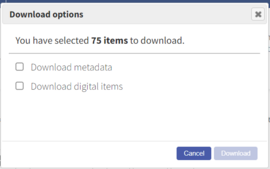
When you are on a page with a list view of items and select the download button you are presented with two options. The download digital items option does not work due to our site-wide settings. It will download an empty zip file. You can download the metadata for the selected files in a spreadsheet. This will give you a record of the items with title, description, and other details. |
|
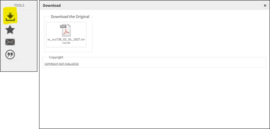
When viewing a single item, clicking the download button next to the item (highlighted in yellow) will open a download box. Some items will now show a file to download, other items will show a blank download box - this is based on contributor preference and collection settings. |
|
|
The Montana History Portal provides weekly updates on new content as well as tips on how to successfully navigate the site through this Highlights newsletter. You can find back issues on the "Highlights" newsletter section of our website.
Library and museum staff members are encouraged to share these with patrons by linking our content and programs on your website and sharing through social media.
|
|
|
|