
Action Required: Small Steps Campaign Information
Michigan Office of Retirement Services sent this bulletin at 11/01/2016 05:02 PM EDT
|
November 01, 2016
In July, the Office of Retirement Services (ORS) announced the upcoming 2017 Automatic Increase Campaign, which is now known as the Small Steps campaign. ORS identified some of your past and current employees that will have their Defined Contribution deferral percentages increased by one percent in January 2017. In preparation for this change, many reporting units requested a list of their employees that will be affected. We heard the request and agree that offering the list in advance of the increases will benefit reporting units. Next steps:
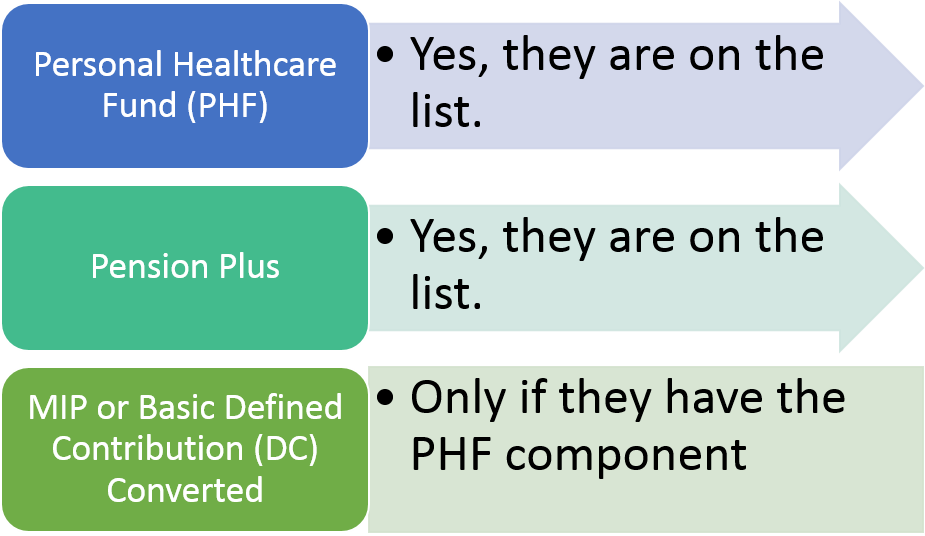
This action will remove those past employees from your DC File Feedback when the increases go into effect. Since the list does not include deferral percentages, navigate to the Member Benefit Plans link and the View DC Feedback File link in the Employer Reporting website to view your employee’s current deferral percentages. Who’s on the list? The list is based on the following criteria: |
||||||||||||||||||||
 |
||||||||||||||||||||
|
The list is currently available to you on the File Transfer Service (FTS) website at https://dxgweb.state.mi.us. The list includes employee’s name, social security number, benefit structure, and Health Code.
If you need further assistance, contact ORS Employer Reporting at ORS_Web_Reporting@michigan.gov or 517 636 0166. |
||||||||||||||||||||
| FTS File Download Instructions: | ||||||||||||||||||||
|
||||||||||||||||||||
|
Refer to the Reporting Instruction Manual - Chapter 14: FTS Guide for more information. Not all computer systems are the same; if you are unable to access the files, please try a different web browser or contact your IT personnel for assistance.
IMPORTANT: FTS files that have not been downloaded are available for only 14 days from the date of this communication. Files that have been downloaded are available on the Downloaded Messages tab for only four days from the date of download. NOTE: Please keep your contacts current in the Employer Reporting website to ensure the appropriate staff is receiving this notification. |