
Technology Enhancements – Need to Know Information
Michigan Office of Retirement Services sent this bulletin at 10/16/2015 11:59 AM EDT
October 16, 2015
Pay Cycle Payments
For making payments, don’t use the View Report Totals page. Since the enhancements were deployed, many reporting units still rely on the information on the View Report Totals page to determine the balance due to ORS. This page may not reflect your balance due. For accurate payments, follow the pay cycle reporting steps as listed below. Day 6 and 7 inform you where to look for balance due when making payments based on the day you make the payment.
Pay Cycle Calendar
The Pay Cycle Reporting and Payment standard comes with renamed fees and new due dates. Follow the calendar as closely as possible in order to avoid unnecessary fees.
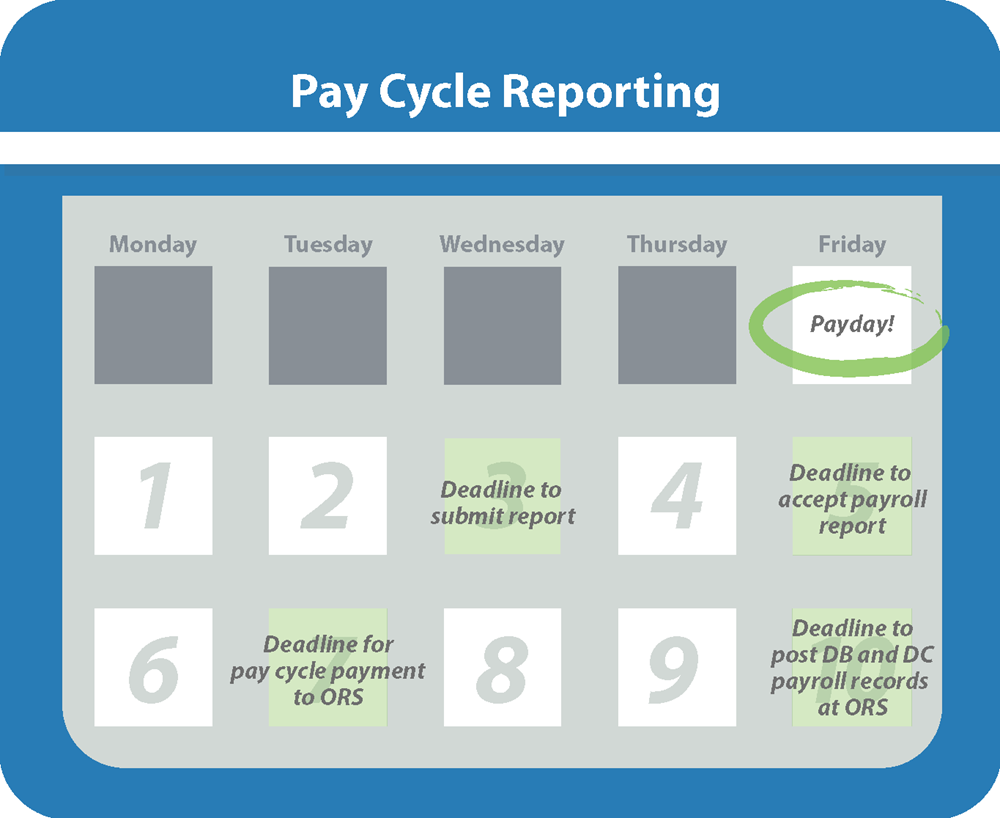
If possible, submit and accept your report before the deadlines. This keeps you on track and gives you plenty of time to make accurate payments.
- Payday: End of pay cycle
- Day 1: If you haven’t already, start the process of submitting, accepting and making payment.
- Day 2: If you haven’t already, start the process of submitting, accepting and making payment.
- Day 3: Submit report.
- Day 4: Make corrections if needed.
- Day 5: Accept report to avoid fees.
- Day 6: Balance due is found in Recent Activity between Day 1 through Day 6. Don’t make payments based on the View Reports Totals page.
- Day 7: Make payment to avoid fees. Balance due is found on the Pay Cycle Statement.*
- Day 8: Make corrections if needed.
- Day 9: Make corrections if needed.
- Day 10: Post records at 100%.
*Changes in contributions on or after Day 7 will not be displayed on the Pay Cycle Statement, but can be seen on the Recent Activity link.
Hint: Get into the habit of always checking your Pay Cycle Statement on Day 7, even if you’ve made payment. This way you can make sure you’re paid in full and avoid the Delinquent Contribution fee.
The Pay Cycle Calendar is available for you in the Employer Reporting information website.
Detail 4 Records and Edits and Validations
At this time, if you receive notification in the DC Feedback file that a member has changed their contributions to zero, you are still required to submit a DTL4 record that includes Employer Reported Wages only, with no contribution dollar or percent information on your report. If you do not submit a DTL4 record your employee’s Detail 2 record will suspend.
DC Contributions Transition into the New 2015 Technology Enhancements
Detail 4 (DTL4) records with a begin date on or after September 12, 2015 will be automatically calculated as part of the new technology enhancements. Please note, DTL4 records with a begin date before September 12, 2015 will not automatically calculate the DC contributions. The DC contributions reported to ORS are what will be transferred to Voya® Financial.
If you have questions, contact ORS Employer Reporting at ORS_Web_Reporting@michigan.gov.