|
Attention Employers: Time To Activate Your New MiUI Unemployment Insurance Account

Your employer account in the Michigan Unemployment Insurance Agency's (UIA) new MiUI computer system has not yet been activated.
You are required to activate your MiUI account to submit your Quarterly Wage Report for the FIRST QUARTER due on April 27, 2026. If you have a Third-Party Administrator (TPA), please associate with them in MiUI so they can submit a quarterly wage report on your behalf.
You are required to file a Quarterly Wage Report even if you do not have any employees or wages to report.
|
If you have already activated your MiUI account or received this notice in error, please disregard.
|
|
Follow these steps to activate your employer MiUI account
-
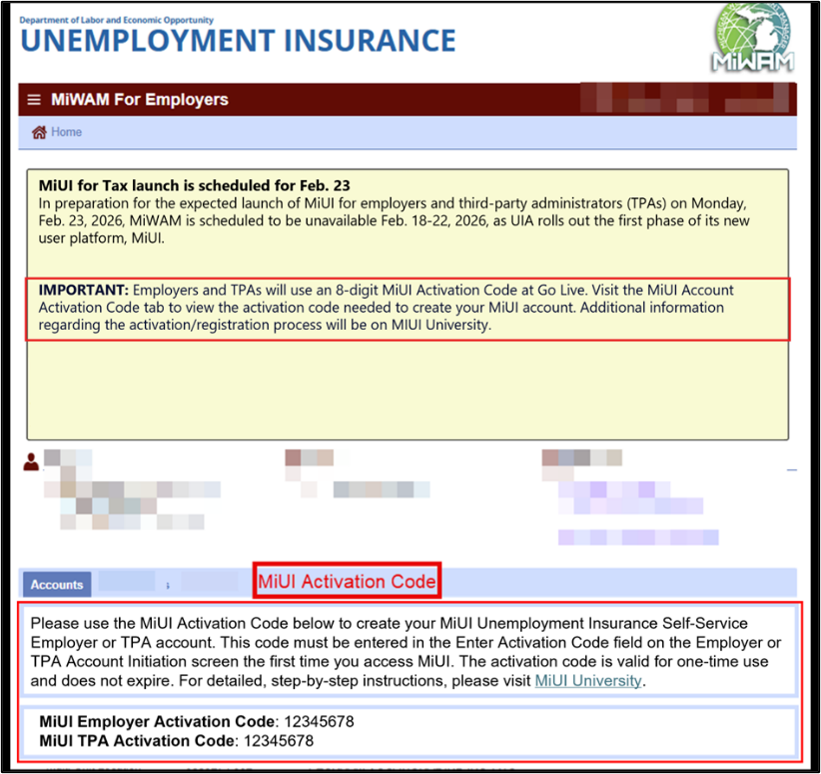
Login to MiWAM to obtain your 8-digit MiUI Activation Code. Users with Master access security roles will be able to see the MiUI Activation Code tab on the MiWAM landing page.
-
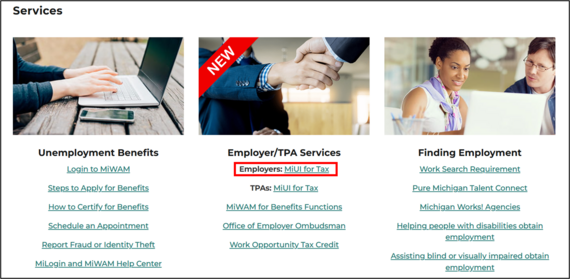
Go to the UIA Homepage (www.Michigan.gov/UIA) and scroll down to the Services section. Click in Employers: MiUI for Tax
-
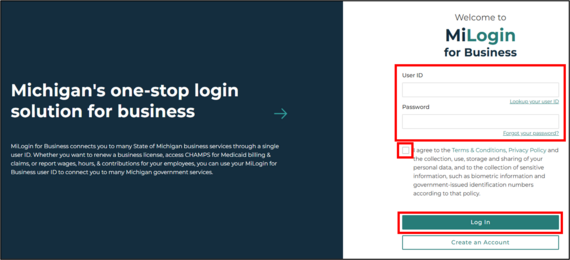
Enter your username and password. Select the I agree to the Terms & Conditions checkbox and select Log In.
-
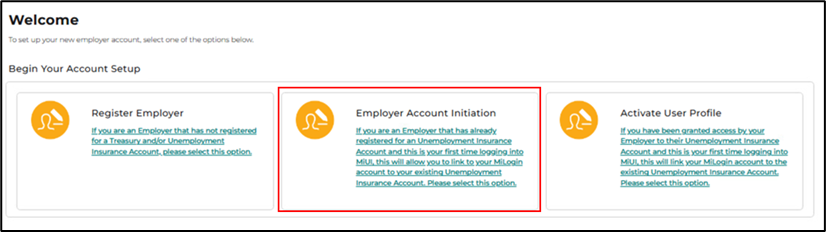
Once you are in MiUI, select Employer Account Initiation to navigate to the Employer Account Initiation screen.
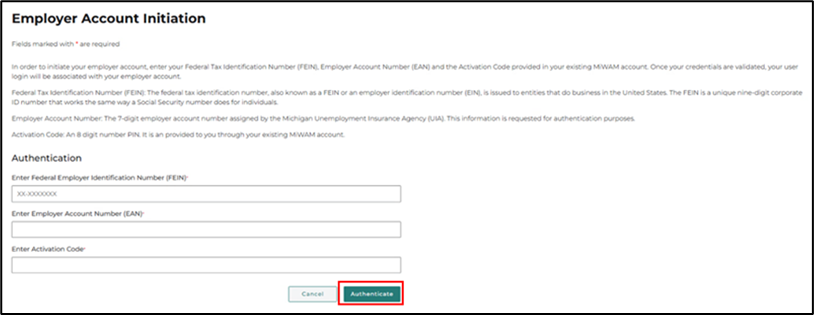
On the Employer Account Initiation screen, under the Authentication section, complete the following fields:
-
Enter the Federal Employer Identification Number (FEIN): Nine-digit number assigned by the IRS.
-
Enter the Employer Account Number (EAN): Seven-digit number assigned by UIA.
- You can view your EAN on the UI Tax Homepage as well as on the Accounts page. The MiWAM EAN will display as 10 digits. Please use the first 7 digits to activate your MiUI account.
-
Enter the Activation Code: 8-digit number retrieved from MiWAM.
- Then, click on Authenticate.
|
|
How to confirm your TPA
-
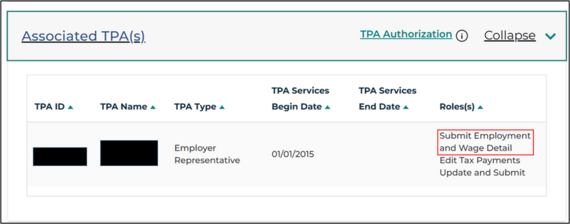
On your Employer Homepage screen, scroll down to the Associated TPA(s) section to verify that your TPA has the Submit Employment and Wage Detail role.
- If you do not see a TPA and need to add a TPA to your account, see the section below.
|
|
If you have confirmed your TPA, please disregard the next section about adding a TPA.
How to add a TPA
-
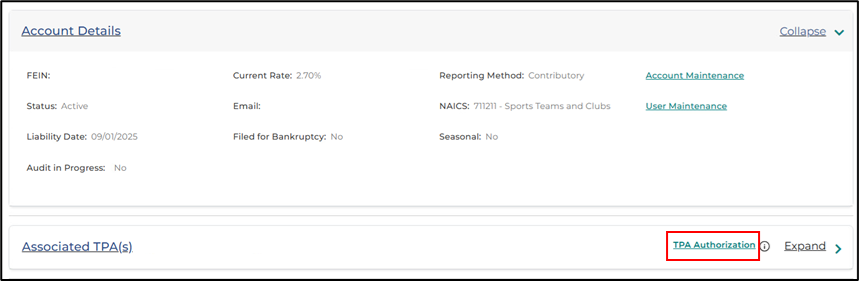
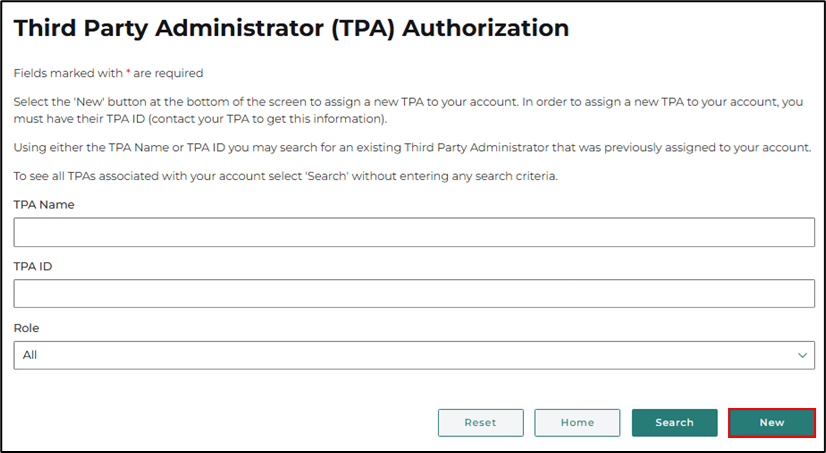
On the Employer Homepage, in the Associated TPA(s) header, select TPA Authorization.
-
On the Third-Party Administrator Authorization screen, select New.
-
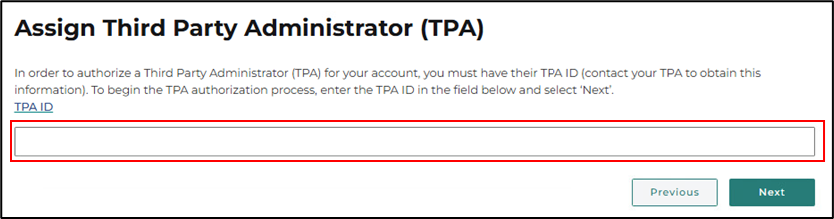
On the Assign Third-Party Administrator (TPA) screen, enter the TPA ID of the TPA you wish to associate with the employer.
-
A reference list of TPA ID’s can be found on MiUI University.
-
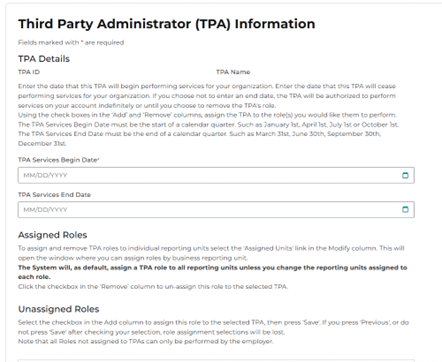
on the Third-Party Administrator (TPA) Information screen.
|
|
Additional Resources
-
Employers and TPAs can find the Quarterly Reports YouTube playlist that includes videos on the following topics:
-
Employers and TPAs: MiUI Reports and Payments.
-
Employers: Adjust a Wage Report | Submit a Wage Report (File Upload) | Submit a Wage Report (Copy from Previous).
-
TPAs: Submit a Bulk Wage Report | Submit a Wage Report (File Upload).
|
|
Still Have Questions?
Direct any questions to the Office of Employer Ombudsman (OEO) by calling 1-855-484-2636, Option 4. TTY customers call 1-866-366-0004.
You can also send an email to UIA-MiUIEmployerSupport@Michigan.gov.
|
|
|
|